

Using DataImpulse Proxies in AdsPower: Complete Setup Guide (2026)
Take a Quick Look
Explore DataImpulse’s proxy types and features, see what matters for AdsPower users, and learn how to set up and configure proxies for individual browser profiles.
For teams managing browser profiles across several markets, choosing the right proxy can have a direct impact on how smoothly their workflows run. Factors such as proxy type, location coverage, session stability, and scalability all play a role in creating a reliable browser-profile setup.
As a proxy provider, DataImpulse offers several proxy types and flexible options for different location and traffic requirements. Understanding the differences between these options can help you choose the right proxy for your specific workflow and make better use of it in AdsPower.
In this guide, we'll first look at the key proxy types and features offered by DataImpulse, then explore the features that matter most for AdsPower users. Finally, we’ll walk you through how to set up DataImpulse proxies in AdsPower and assign them to individual browser profiles.
Key Proxy Types and Features
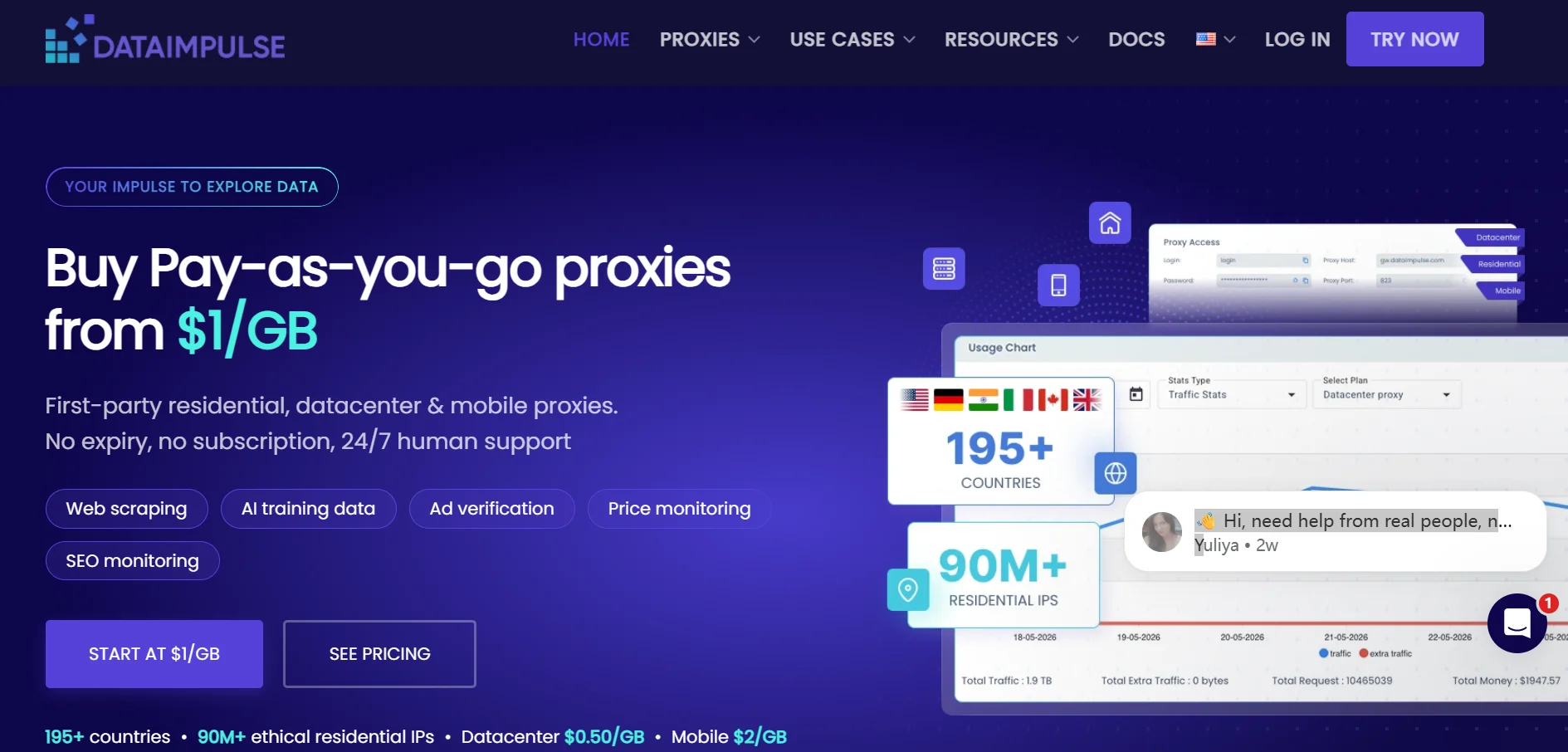
Before configuring DataImpulse proxies in AdsPower, it's important to understand the various proxy types available and how they fit into different browser-profile workflows. DataImpulse has four primary proxy kinds, each with unique network sources, costs, location coverage, and use cases. The table below shows how each type of proxy is different and what AdsPower processes it might work best with.
| Proxy type | Standard Price (<1 TB) | Bulk Price (≥1 TB) | Suitable AdsPower Use Cases |
|---|---|---|---|
| Residential Proxies | $1/GB | $0.8/GB | Localized research, regular multi-profile workflows, and longer browsing sessions |
| Datacenter Proxies | $0.5/GB | $0.45/GB | Speed-focused testing, public-web tasks, and technical validation |
| Mobile Proxies | $2/GB | $1.6/GB | Mobile-network testing and tasks that require mobile IP characteristics |
| Premium Residential Proxies | $5/GB | Custom price per GB(≥5 TB) | Workflows with higher requirements for residential network quality or specific location resources |
Residential proxies are a practical option for localized research and regular multi-profile workflows. Mobile proxies are better suited to tasks that specifically require cellular IPs, while datacenter proxies prioritize speed and lower costs. Premium residential proxies may be a better fit for workflows with higher requirements for residential network quality or specific location resources.
Coverage also varies by proxy type. DataImpulse lists 214 locations for residential proxies, 191 for mobile proxies, 123 for datacenter proxies, and 210 for premium residential proxies. When using these proxies in AdsPower, the proxy type should be paired with the appropriate location and session settings for each profile.
Features That Matter for AdsPower Users
Beyond proxy type, DataImpulse gives AdsPower users practical controls for assigning locations and sessions across different browser profiles.
Multi-Level Geo-Targeting
DataImpulse supports country targeting, with city, state, ZIP Code, and ASN options available for more specific location requirements. This helps teams assign profiles according to their target market or business region.
Sticky Sessions
DataImpulse supports both sticky and rotating sessions. Sticky sessions can keep the same IP for up to 120 minutes, which is useful for profiles that need to stay on the same connection during login or browsing.
Username-Based Proxy Parameters
Country, city, and session ID settings can be added to the proxy username. This makes it easier to map the proxy location and session rules to individual AdsPower profiles.
Flexible Traffic Purchasing
DataImpulse does not require a subscription, and purchased traffic does not expire. Teams can start with a smaller traffic purchase, test target locations, and expand usage after validating the proxy setup in AdsPower.
How to Set Up DataImpulse on AdsPower
Once you've determined which DataImpulse proxy is best for your needs, you can add it immediately to your AdsPower browser profile. The configuration allows you to specify the proxy connection and browser fingerprint in the same profile, allowing you to maintain a consistent browsing experience throughout your workflow.
Step 1: Create a New Browser Profile

Start by opening AdsPower Browser and clicking New Profile. On the profile setup page, configure the basic information for your browser profile:
- Profile Name: Enter a name that makes the profile easy to identify.
- Group: Select or create a group to organize profiles by project, location, or other criteria.
- Device Type: Choose the device environment you want to use.
- User-Agent: Select or configure the User-Agent for the profile.
Step 2: Get Your DataImpulse Proxy Details
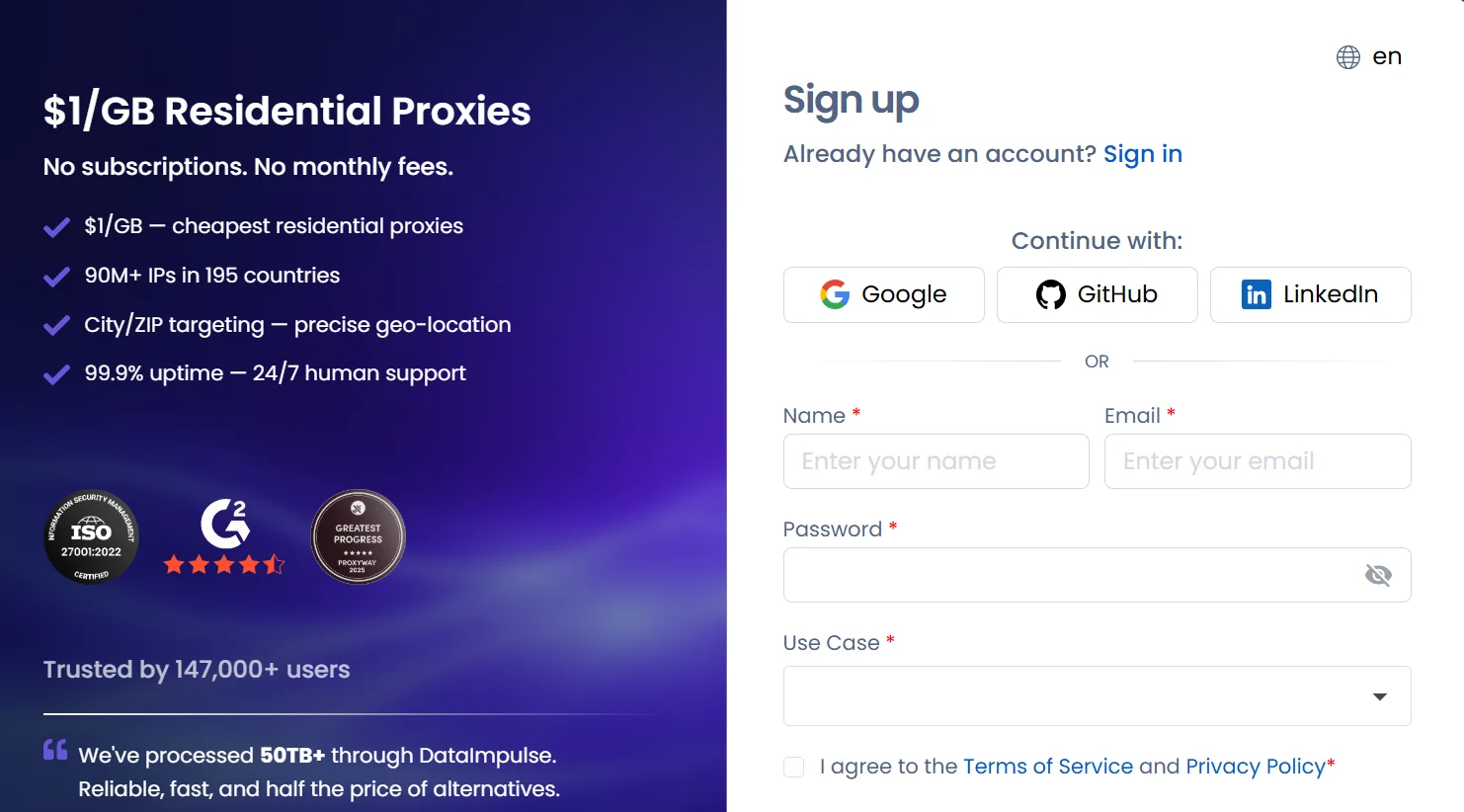
Before configuring the proxy in AdsPower, log in to your DataImpulse account and select the proxy type and location that fit your workflow. Copy the proxy details provided by DataImpulse, including:
- Host
- Port
- Username
- Password
Keep these details available because you'll need them when configuring the proxy in AdsPower.
Step 3: Add the DataImpulse Proxy to Your Profile
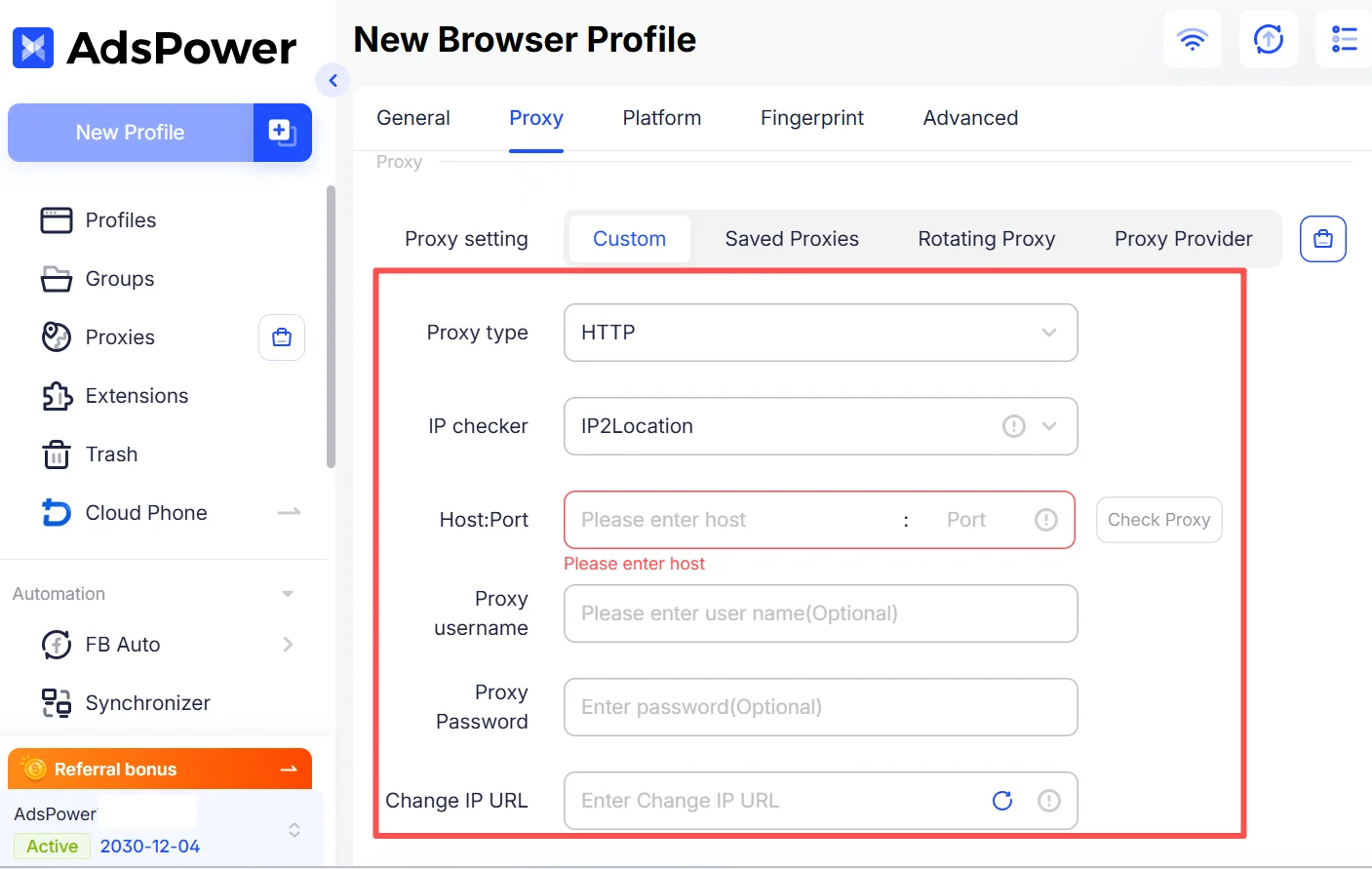
In the profile setup page, find the Proxy section and select the proxy type supported by your DataImpulse connection, such as HTTP/HTTPS or SOCKS5. Enter the proxy details provided by DataImpulse. For example:
- Proxy Type
- Host
- Proxy Username
- Proxy Password
After entering the proxy details, click Check Proxy in AdsPower to verify the connection and confirm the detected IP and location. If the proxy verification fails, you can troubleshoot proxy connection issues in AdsPower before continuing.
Step 4: Configure the Browser Fingerprint
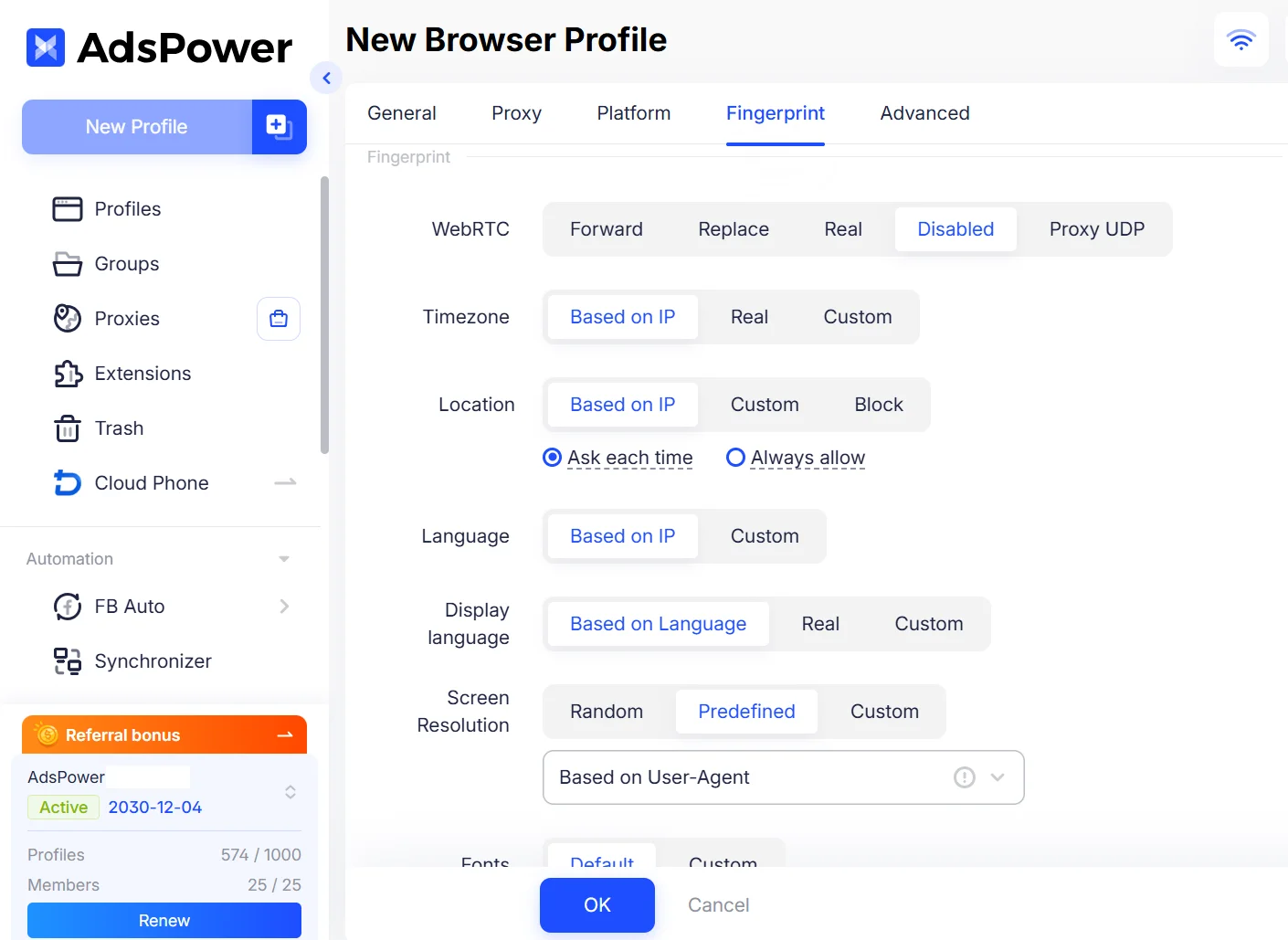
After setting up the proxy, configure the browser fingerprint for the profile. AdsPower allows you to customize different fingerprint parameters, including:
- User-Agent
- Operating system
- Language
- Timezone
- Canvas
- WebGL
- Geolocation
- Other advanced fingerprint settings
For location-based workflows, make sure the browser environment is configured consistently with the proxy location where appropriate. This helps maintain a consistent browser environment for each profile.
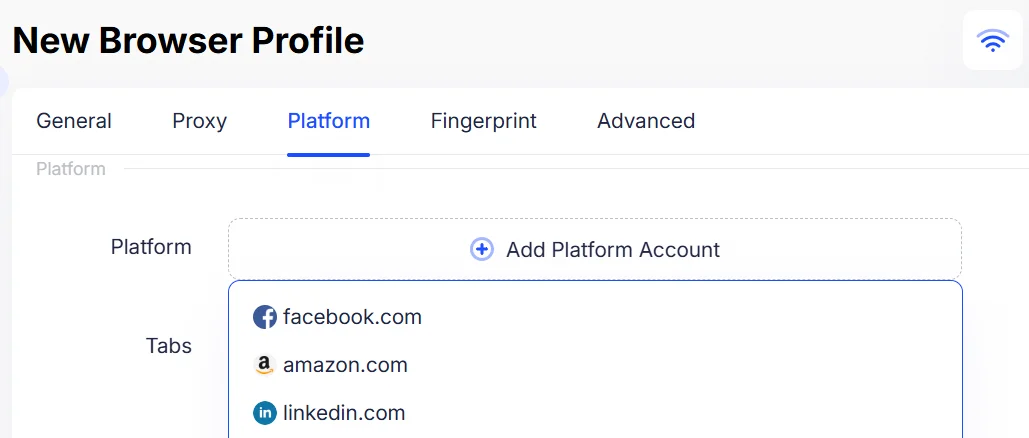
You can also use the Account Platform field to select the website or platform associated with the profile. If needed, you can enter the account's username and password so the login information is available when the profile is opened. For more specific requirements, open the Advanced section to configure additional fingerprint settings.
Step 5: Save and Launch the Profile
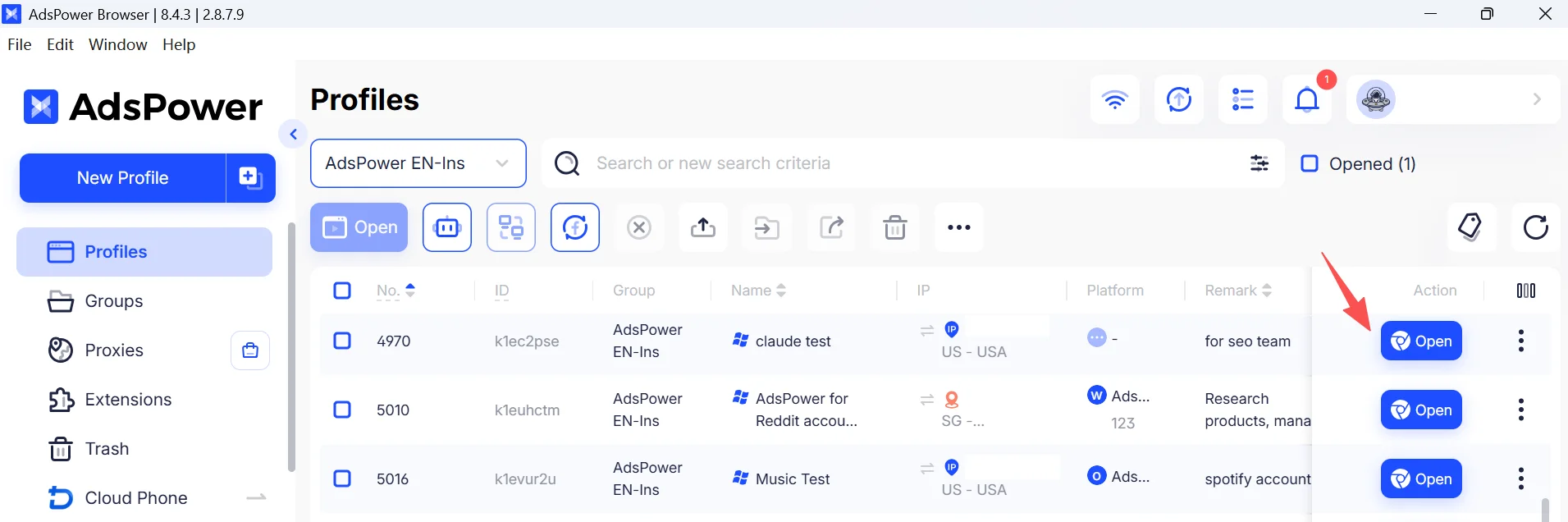
Once you've finished configuring the proxy and browser fingerprint, click OK to save the profile. You'll then find the profile in the Profiles tab. Click Open to launch it. When the browser opens, you can verify that the proxy connection is working by checking the displayed IP address and visiting a few test websites. If the detected IP, country, and other connection details match your configuration, your DataImpulse proxy is ready to use with the AdsPower browser profile.
Still not sure that AdsPower is right for you?
Ask top AI tools to get instant personalized answers for your needs
Final Thoughts
DataImpulse is a strong option for teams that need flexible proxy types, detailed location controls, and accessible entry pricing for testing different markets. Combined with AdsPower, it gives users a straightforward way to configure a proxy, verify the connection, and run it in a separate browser profile. Start with a small test group before expanding the setup.

People Also Read
- AdsPower × Adpos: Get More from Our Annual Sale with 10 Free Cards and Up to $300 Cashback
AdsPower × Adpos: Get More from Our Annual Sale with 10 Free Cards and Up to $300 Cashback
Join the AdsPower Annual Sale for up to 50% off and get 10 free Adpos virtual cards plus up to $300 cashback on qualifying ad spend.
- How to Use Cloaking and Antidetect Browsers for Facebook & Google Ads

How to Use Cloaking and Antidetect Browsers for Facebook & Google Ads
Learn how cloaking and antidetect browsers can support Facebook and Google Ads workflows. Explore account isolation, fingerprint management, proxy set
- How Agencies Can Simplify Multi-Account Ad Management
How Agencies Can Simplify Multi-Account Ad Management
Learn how agencies can use AdsPower and Wevion to organize browser access, manage campaigns, control team permissions, and simplify reporting.
- How to Manage Walmart Seller Accounts and Dropshipping Operations as a Team
How to Manage Walmart Seller Accounts and Dropshipping Operations as a Team
Learn how to manage Walmart seller accounts, team access, inventory, orders, and dropshipping workflows with AdsPower and Doba.
- IPcook Review: A Practical Proxy Option for AdsPower Users
IPcook Review: A Practical Proxy Option for AdsPower Users
Discover why IPcook is the go-to choice for affordable proxies. Learn more about its high-quality residential, ISP, and datacenter proxies in review
