

AdsPower RPA Plus Is Live: A Smarter Way to Build, Run, and Scale Automation
Take a Quick Look
RPA Plus adds task management, better workflow control, and clearer execution tracking. Built for repeatable, long-term automation. Explore RPA Plus and start using it today.
Automation often starts simple. A few repeated steps. A workflow that saves time.
But as automation becomes part of daily operations, the expectations change.
Users need to run the same workflows again and again. They need to adjust logic, manage profiles, review results, and understand what went wrong when something fails.
That's where RPA Plus comes in AdsPower browser.
RPA Plus is an upgrade built for users who rely on automation regularly—not just to execute steps, but to manage automation as an ongoing system.
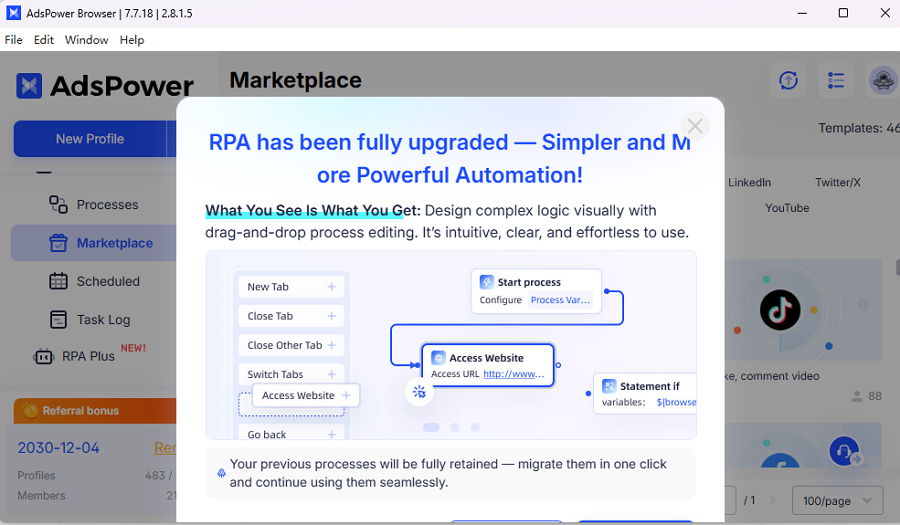
How RPA and RPA Plus Differ in Real Use
What RPA Is Designed For
RPA focuses on turning a fixed set of steps into an automated workflow. It works well when:
- The process logic is straightforward
- Execution happens occasionally
- You only need to confirm that the process runs correctly
RPA is mainly execution-oriented. You create a workflow, run it, and check whether it completes.
For many basic scenarios, that's enough.

What RPA Plus Is Designed For
RPA Plus keeps the execution ability of RPA, but extends it into a full automation lifecycle.
Instead of isolated runs, RPA Plus supports the complete path:
Build → Debug → Create Tasks → Run Repeatedly → Review Results
RPA Plus integrates workflow creation, task setup, execution, and results into a single, continuous process. This reduces repeated setup and makes automation easier to maintain.
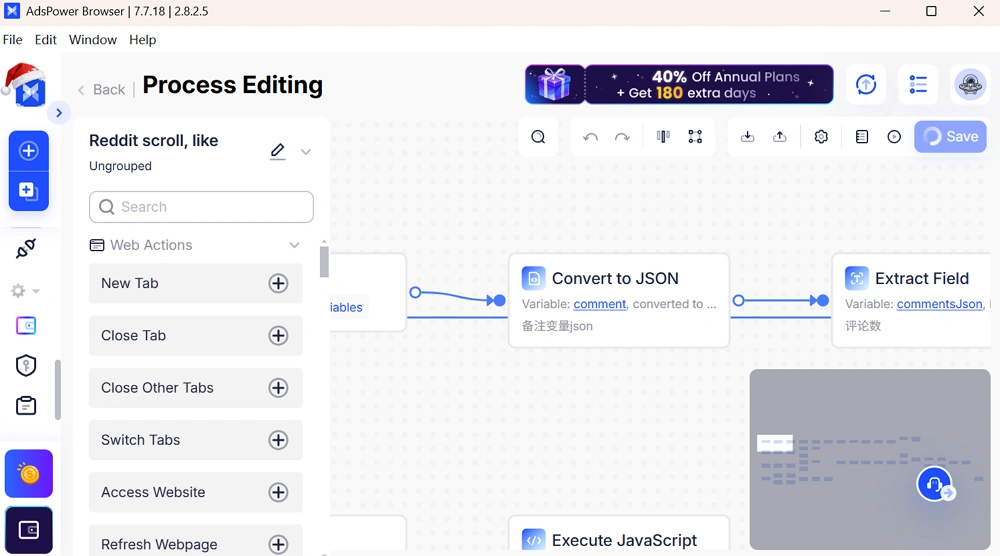
Process Creation That Scales Better
Visual Editing Instead of Lists
RPA Plus introduces a visual workflow editor. Compared to the list-based approach in RPA, this makes complex workflows easier to read and modify.
You can:
- Select multiple nodes at once
- Copy or delete steps in batches
- Rearrange logic more efficiently
As workflows grow longer, these small improvements add up to noticeable time savings.
| Comparison Item | RPA | RPA Plus |
|---|---|---|
| Creation Method | List-based Creation | Graphical Creation |
| Multiple Node Selection | ❌ Not Supported | ✅ Supported |
| Batch Copy/Delete | ❌ Not Supported | ✅ Supported |
| Limit |
Up to 500 |
Up to 3,000 |
| How to Create a Process |
Profile > Select Profile > Click RPA > Configure Task |
RPA Plus - Task > Create Task |
Node-Level Debugging That Saves Time
Debugging is one of the biggest pain points in automation. RPA Plus significantly improves this experience.
With RPA Plus, you can:
- Start debugging from any node
- Enable or disable individual nodes
- Skip specific steps during testing
- Select run profiles directly from a list
In contrast, RPA debugging runs the entire workflow from the beginning, which makes testing slower and less flexible.
|
Comparison Item |
RPA |
RPA Plus |
|
Debug from the Middle of Process |
❌ Not Supported |
✅ Supports Starting from Any Node |
|
Node Enable/Disable |
❌ Not Supported |
✅ Supported |
|
Debug with Skipping Partial Nodes |
❌ Not Supported |
✅ Supported |
|
Debug Profile Selection |
Manually Enter Profile Number |
Select Directly from the Profile List |
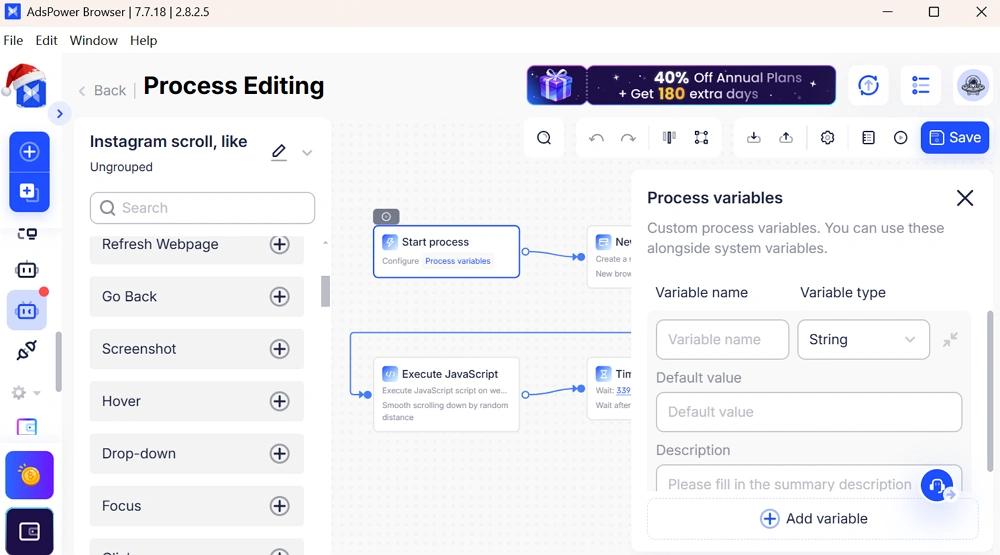
Easier Maintenance with Variables and Code Editing
Centralized Process Variables
RPA Plus allows you to create custom variables and manage them in one place. These variables can be reused anywhere in the workflow.
This makes it easier to:
- Adjust key parameters
- Reuse processes across different scenarios
- Reduce long-term maintenance effort
RPA does not offer centralized variable management.
|
Comparison Item |
RPA |
RPA Plus |
|
Custom Process Variables |
❌ Not Supported |
✅ Supported |
|
Centralized Variable Management |
❌ Not Supported |
✅ Supported |
Improved JavaScript Editing
For workflows involving JavaScript, RPA Plus upgrades the editor to a proper code environment. This makes it more suitable for:
- Complex logic
- Cleaner code
- Easier long-term maintenance
RPA only supports basic input, which works for simple logic but becomes limiting over time.
|
Comparison Item |
RPA |
RPA Plus |
|
Editing Method |
Basic Input |
Upgraded to Code Editor |
|
Applicable Scenarios |
Simple Logic |
Complex Logic, Higher Maintainability |
Keeping Complex Workflows Organized
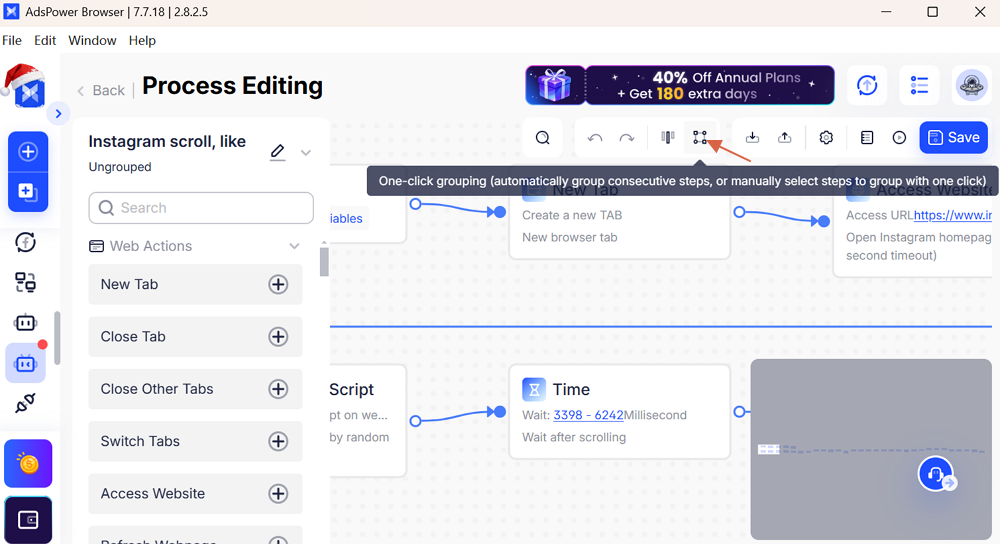
One-Click Grouping (Exclusive Feature)
As workflows grow, clarity matters. RPA Plus supports one-click grouping, allowing you to combine consecutive steps into logical groups.
You can:
- Automatically group steps
- Apply grouping multiple times
- Keep large workflows readable
This feature helps teams manage complex automation without clutter.
Better Error Handling for Real-World Scenarios
RPA allows workflows to skip or stop when an error occurs.
RPA Plus goes further by letting you define what should happen after an exception, making workflows more resilient and predictable in real use cases.
|
Comparison Item |
RPA |
RPA Plus |
|
Exception Handling Method |
Skip / Abort |
Customizable Nodes to Execute After Exception |

Task Management: The Biggest Change
|
Comparison Item |
RPA |
RPA Plus |
|
Standard Task Creation |
❌ Not Supported |
✅ Supported |
|
Task Management Module |
❌ None, only scheduled task data records |
✅ Available |
|
Task Rerun |
❌ Not supported for standard tasks |
✅ Supported |
|
Unified Management of Runtime Profiles |
❌ Not Supported |
✅ Supported |
|
Task Creation: Runtime Profile Selection |
- |
Directly select from the profile list |
|
Task Editing: Runtime Profile Adjustment |
- |
Add or remove runtime profiles |
|
Cross-Device Task Data |
❌ Not Supported |
✅ Supported; users can view created task data across devices |
From Execution to Reuse
One of the most important additions in RPA Plus is task management.
With RPA Plus, a workflow can be saved as a task and run multiple times without reconfiguration. Tasks store:
- The process
- Selected profiles
- Run settings
You can edit tasks later by adding or removing profiles, and run the same task again whenever needed.
Centralized Task Control
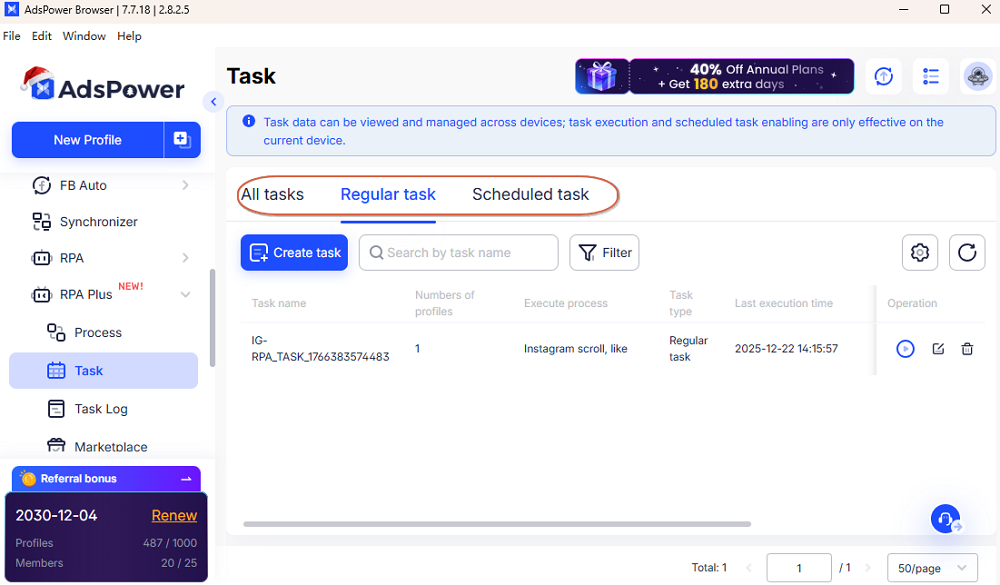
RPA Plus includes a dedicated task management module that allows users to:
- Create and manage both regular and scheduled tasks
- View tasks across devices
- Keep execution data consistent even when switching machines
RPA only records limited scheduled task data and does not support reusable task management.
Clearer Execution Records
|
Comparison Item |
RPA |
RPA Plus |
|
View Dimension |
View by Profile |
View by Task / Execution Batch |
|
Batch Overview |
❌ Not Supported |
✅ Supported |
|
Success/Failure Distribution |
Viewed Separately |
Visible at a Glance |
|
Troubleshooting Efficiency |
Low |
Higher |
Results by Task and Batch
RPA shows execution records mainly by profiles. This makes it harder to see how a full run performed.
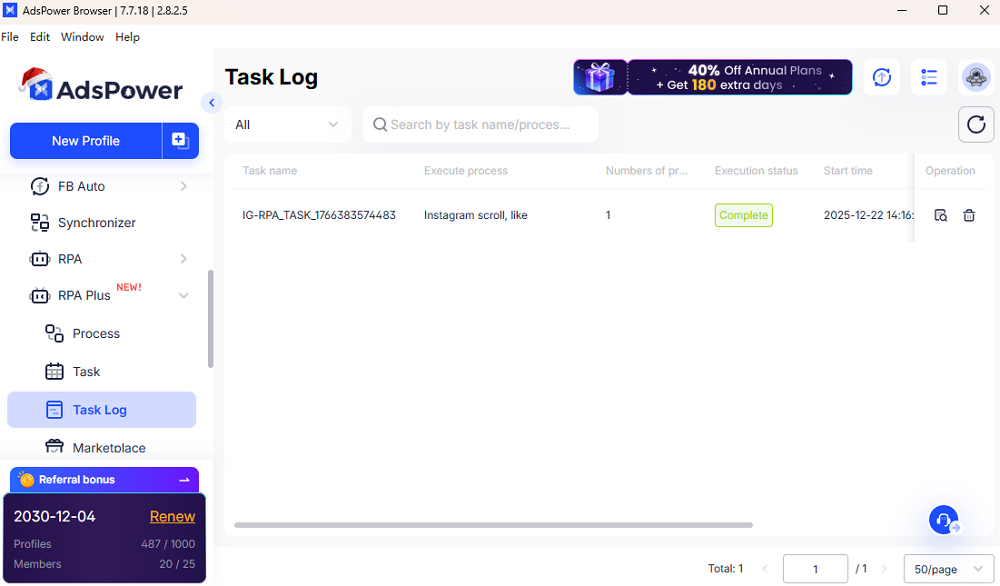
RPA Plus organizes records by task and execution batch. This allows users to:
- See the overall outcome of a run
- Quickly identify which profile failed
- Review success and failure patterns in one view
For users running automation frequently, this reduces the time spent reviewing logs.
Template Store Improvements
|
Comparison Item |
RPA |
RPA Plus |
|
Obtain Process from Marketplace |
Requires multiple redirects |
Process saved directly |
|
Create Task |
Need to enter the process, save it, then create a task in [Profile] |
Can create tasks directly from the Marketplace |
|
Paid Templates |
None |
Flexible; users can purchase paid templates on demand, and templates cover more user scenarios |
RPA Plus simplifies how templates are used:
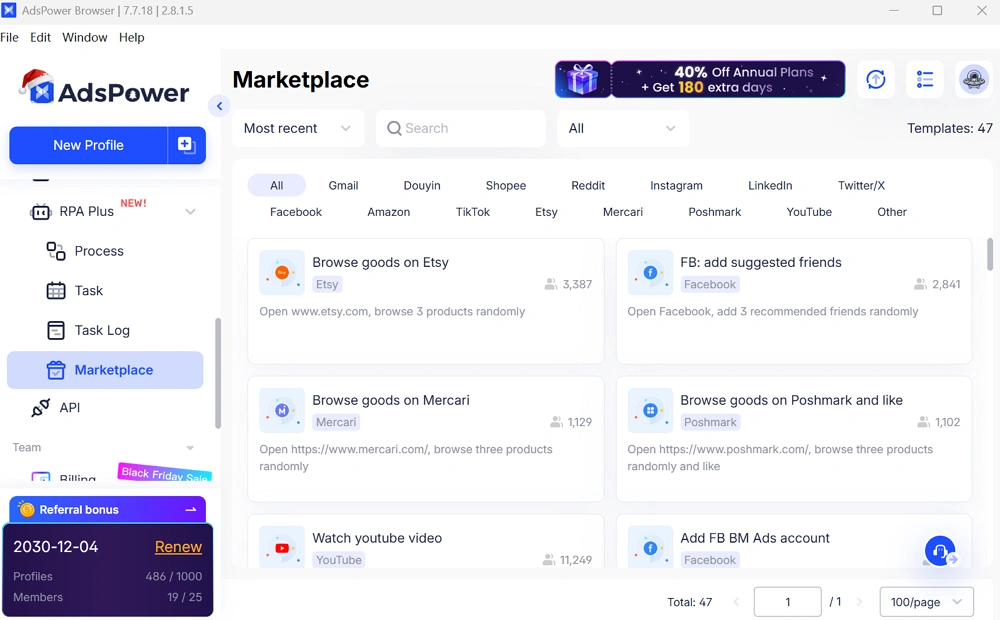
- Workflows can be saved directly from the Marketplace
- Tasks can be created without switching modules
- Paid templates are now supported
This helps users adopt automation faster and gives access to templates built for more specific scenarios.
How to Use RPA Plus?
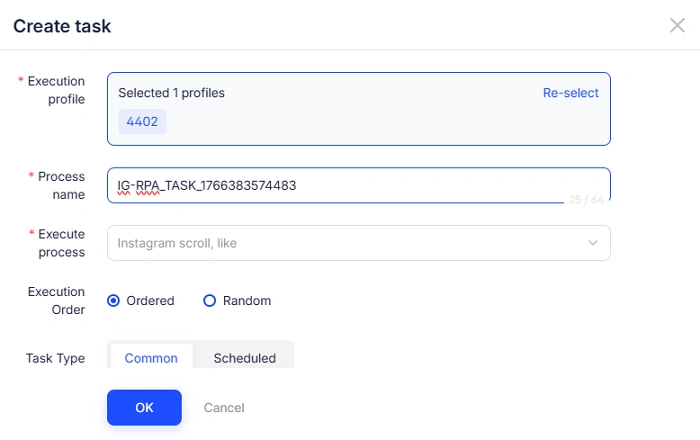
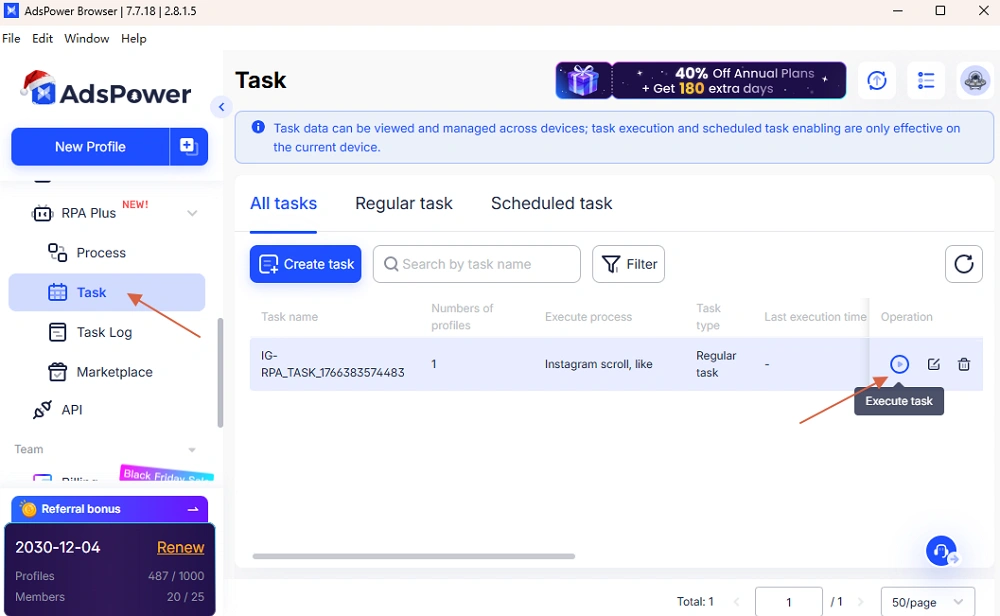
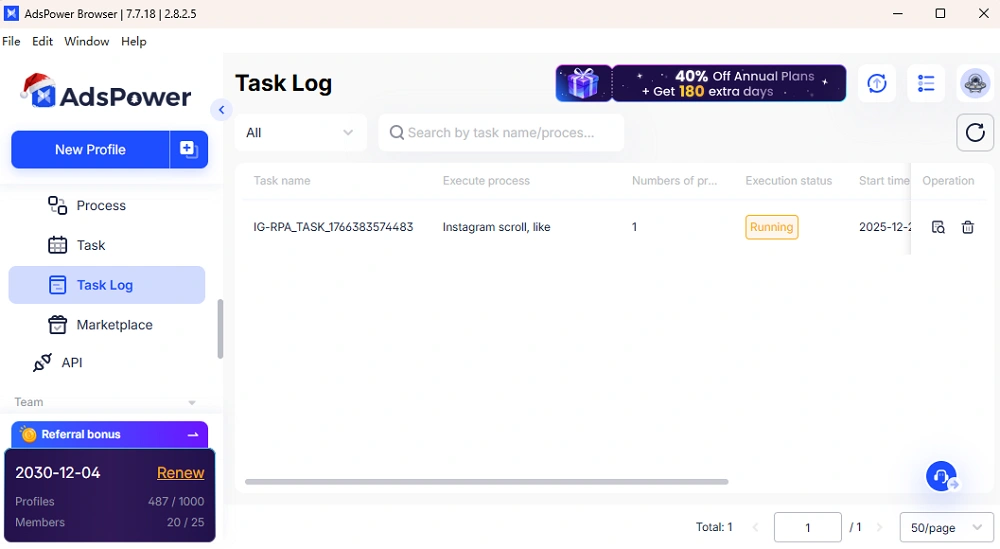
Here takes the Instagram account warm-up as an example:
1. Create a new process for warming up your Instagram or select a template from the Marketplace directly.
2. Browse the process and hit the "Save and create task" button.
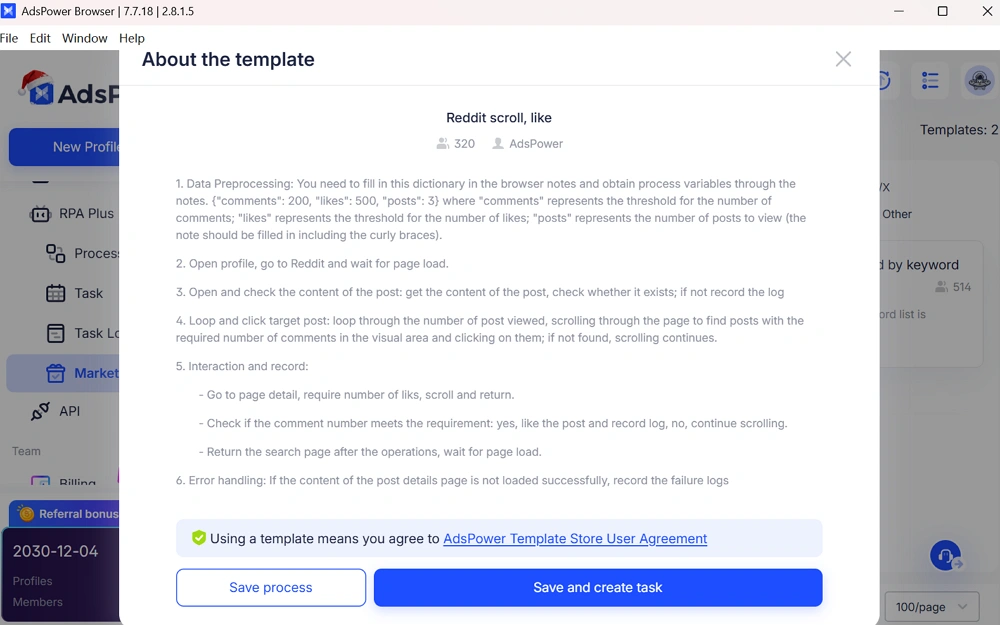
3. Select the profile of the target Instagram account. And give the name to the process.
4. Set up other parameters based on your needs.
5. Click OK to save your task.
6. Move back to the Task list and execute the ideal task or edit your settings.
7. Check the execution record in the Task Log.
When to Use RPA Plus?
RPA Plus is the better choice if you:
- Run complex, multi-step workflows
- Execute automation frequently
- Need reusable tasks
- Manage multiple profiles
- Want clear execution tracking
Final Takeaway
AdsPower RPA Plus focuses on practical automation use over time. By adding task management, better debugging, structured workflows, and clearer execution records, it reduces repetitive setup and simplifies long-term maintenance.
For users whose automation needs are growing, RPA Plus provides a more stable and manageable foundation.

People Also Read
- AdsPower Unveils AI Agent, a New Way to Automate Browser Tasks Across Multiple Profiles
AdsPower Unveils AI Agent, a New Way to Automate Browser Tasks Across Multiple Profiles
AdsPower launches AI Agent for natural-language browser automation.
- What's New in AdsPower Browser in August 2026?

What's New in AdsPower Browser in August 2026?
Explore the AdsPower August 2026 update, featuring AI Agent, Chrome 151, improved mobile profiles, easier proxy troubleshooting, and faster profile
- AdsPower Annual Sale 2026: Unlock 50% Off Your 360-Day Plan

AdsPower Annual Sale 2026: Unlock 50% Off Your 360-Day Plan
The longer you subscribe, the more you save during the AdsPower Annual Sale 2026, with up to 50% off the 360-day plan.
- Create an AdsPower Video and Earn $30 — No Follower Minimum

Create an AdsPower Video and Earn $30 — No Follower Minimum
Create an original AdsPower video, publish it on any public social platform, and earn $30. No follower minimum. Ends September 6, 2026 (23:59:59 UTC).
- The AdsPower iOS App Is Now Publicly Available

The AdsPower iOS App Is Now Publicly Available
AdsPower Browser is now available on iOS. Manage browser profiles, test proxies, access synced team data, and open iOS profiles from your iPhone.
