

Google Unusual Traffic: Keep Getting the Warning? Here's How to Fix It
Take a Quick Look
Google’s “unusual traffic” warning means it has detected search activity that looks automated. This guide explains the most common causes, how to troubleshoot the warning, and how to keep it from coming back.
Are you seeing “Our systems have detected unusual traffic from your computer network” on Google? This notice usually means that Google has detected automated-looking searches coming from your IP address or network.
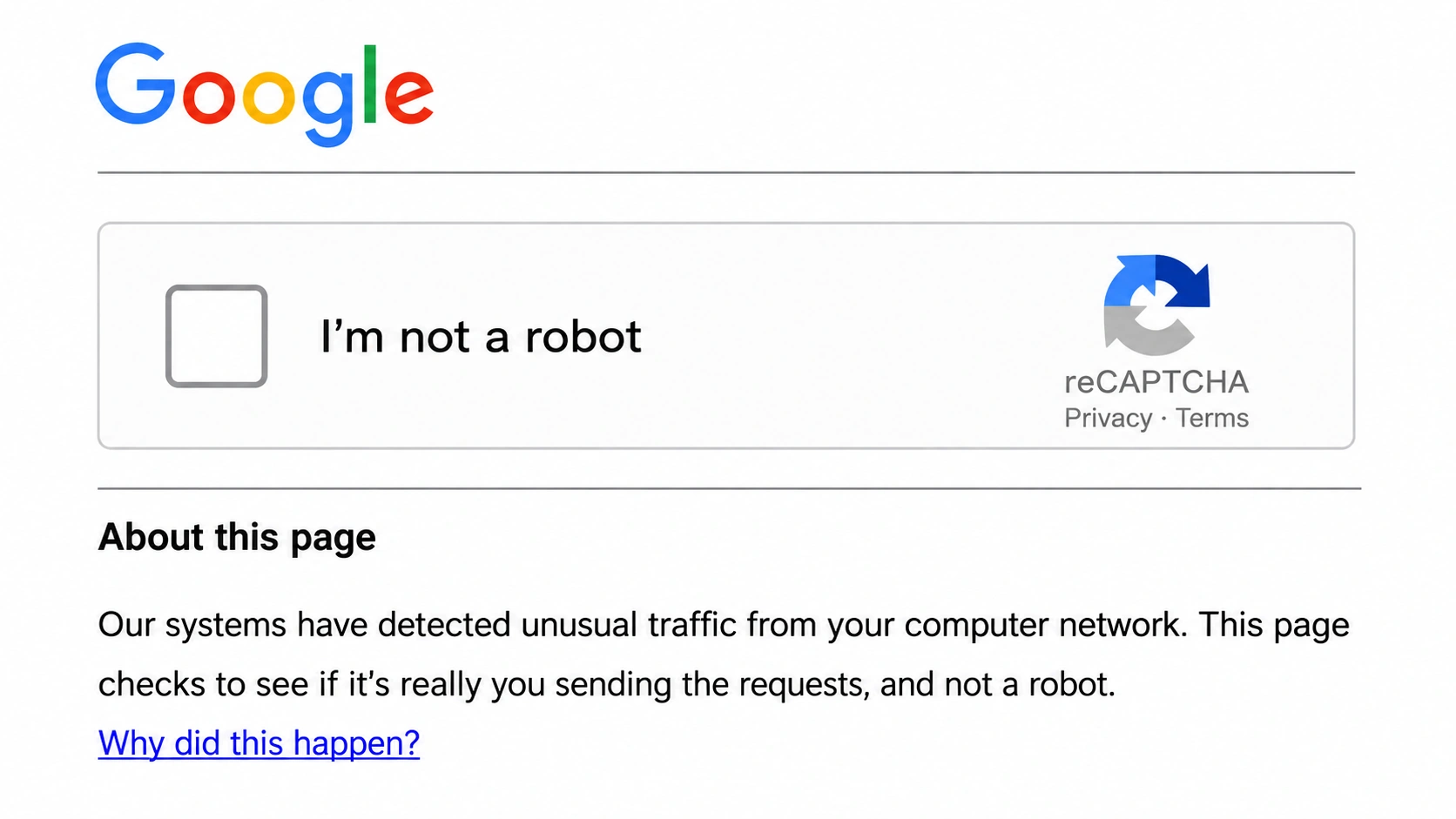
However, seeing this warning doesn’t necessarily mean you’ve done anything wrong or that your device is infected with malware. In many cases, the traffic may be associated with a shared IP address, VPN, automated searches, or even another user on the same network.
So, what exactly does Google consider “unusual traffic,” and why does the warning keep appearing? More importantly, how can you get rid of it and return to normal Google searches? In this guide, we’ll break down what the message means, the most common reasons it appears, and the steps you can take to fix it.
Why Does Google Say "Unusual Traffic"?
Google’s alert can be produced by artificial traffic related to the network you’re on. There are many scenarios that can trigger the notification even when you’re not directly initiating automated queries, says Google.
Malware on Your Device or Network
According to Google, malware may be present on your network or in the possession of another user. As a result, Google may display an unusual traffic message. If the warning persists, particularly across multiple devices or browsers, it is recommended that you scan your devices for malware and eliminate any suspicious software.
Other Users on Your Network Are Sending Automated Searches
You do not have to be the one to initiate the action. Google warns that you may see this warning if other users on the same network, such as a school or business network, are performing automated searches on Google. This means you may be searching normally while another user on the same network generates the traffic that causes the notice.
Other Users Are Sharing Your VPN
Google specifically points out that the same problem can happen when you use a VPN. If other people using the same VPN are sending automated searches, Google may detect that activity from the shared VPN network and show the warning. Google also notes that IPv6 tunnel services can cause similar issues, and some VPN or tunnel services may make it difficult for Google to distinguish abusive traffic from normal traffic.
Other Users on Your Internet Provider Are Sending Automated Searches
The problem can also exist beyond your local network. According to Google, you may get the warning if other users who share the same internet provider (ISP) are sending automated searches. In this situation, the traffic may not come from your device, home network, or even your own VPN connection. Your internet provider’s network may simply be associated with automated traffic that Google has detected. If you keep seeing the warning, you can contact your internet provider to ask whether there is an issue with your connection.
How to Fix Google Unusual Traffic
There’s no single fix for Google’s unusual traffic warning. Start with the basic checks below, then work your way through your browser, network, and device to find what’s triggering it.
Tip: Watch Out for Fake Google CAPTCHA Pages
Before troubleshooting the warning, make sure you’re dealing with a real Google verification page. A legitimate Google CAPTCHA should only ask you to confirm that you’re human. It should never ask you to run commands, open PowerShell, install software, or download a “verification” tool. If the CAPTCHA doesn’t load, check your browser, JavaScript, extensions, and network settings first.
Complete the CAPTCHA First
If Google shows a reCAPTCHA, complete it to confirm that you’re a human. For a one-time traffic check, this may be all you need to do. Once verified, try your search again. If Google immediately asks you to complete another CAPTCHA, the underlying traffic issue hasn’t been resolved, so continue with the steps below.
Turn Off Your VPN or Proxy
If you’re using a VPN, proxy, Tor, or Private Relay, turn it off temporarily and search Google again from a direct connection. Google notes that VPNs can trigger this warning when other users sharing the same VPN are sending automated searches. In other words, the problem may come from the shared IP address rather than your own searches. If the warning disappears after disconnecting, the VPN or proxy connection is likely contributing to the problem.
Test Google in a Clean Browser with Extensions Disabled
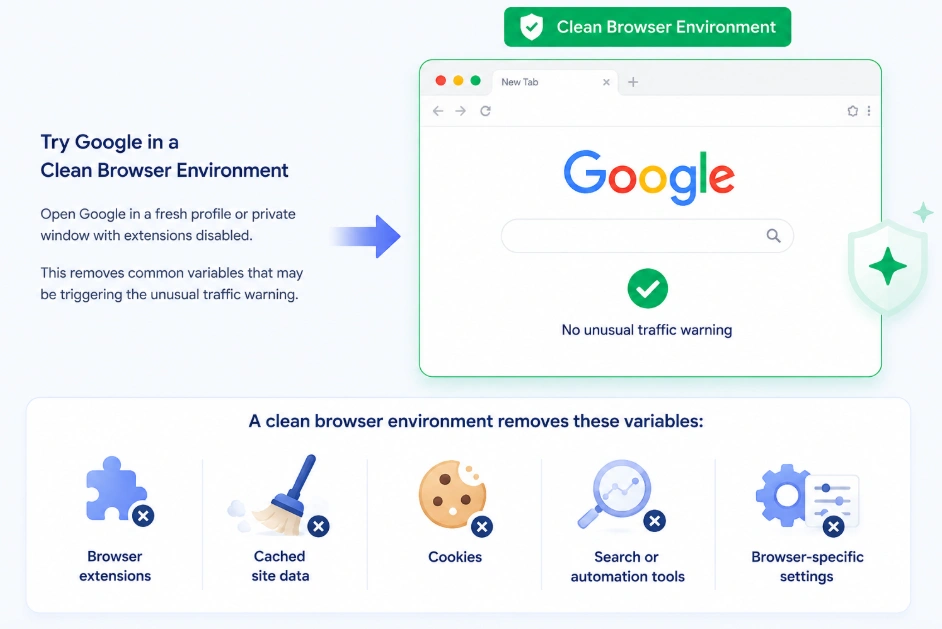
If the warning only appears in one browser or browser profile, the browser environment is the next thing to check. Try Google in a fresh browser profile or private window with extensions disabled. This helps rule out extensions, cookies, cached site data, automation tools, scraping tools, and browser-specific settings as possible triggers.
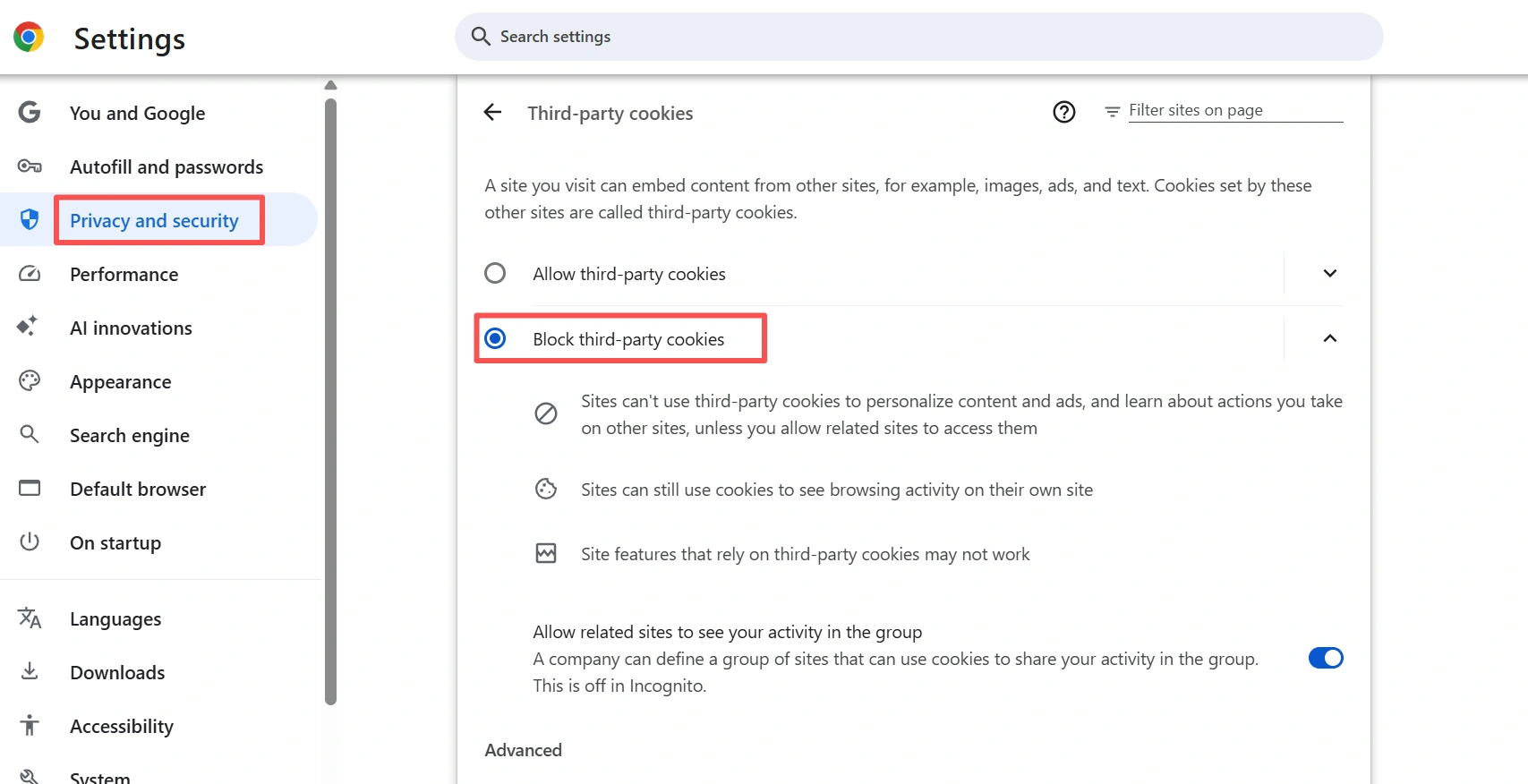
You can also temporarily disable cookies and try again. In Chrome, go to Settings → Privacy and security → Third-party cookies and select Block third-party cookies. Then reopen Google and check whether the unusual traffic warning still appears.
Test Your Network
If the warning continues across different browsers or profiles, the browser may not be the main problem. Try switching from Wi-Fi to mobile data or another network. If Google works normally on the new connection, the issue may be related to your original network, shared IP, router, VPN, or another device using the same connection.
Check for Malware if the Problem Persists
If the warning continues across different browsers and networks, or you also notice redirects, pop-ups, unfamiliar extensions, or other unusual behavior, check your device for malware. Google notes that malware can generate automated traffic without your knowledge.
Why a Clean Browser Environment Matters
If you keep getting constant Google CAPTCHA or unusual traffic warnings even after checking your VPN, network, and device, the problem may not always be your IP alone. Your browser environment can also be part of the picture. This matters even more if you manage multiple accounts, run advertising campaigns, or use automation tools. When different accounts, cookies, extensions, proxies, and automated workflows are mixed together in the same browser environment, it becomes harder to tell where unusual traffic is coming from. A cleaner approach is to keep these activities separate at the browser-profile level.
Keep Your Browser Profile and IP Consistent
For example, instead of running multiple accounts and workflows through the same browser setup, you can use a separate browser profile for each environment and assign its own proxy/IP when needed. This gives you a clearer structure: One profile → one browser environment → one network connection. It doesn't guarantee that Google will never ask for a CAPTCHA. However, it can help prevent unrelated browser environments from sharing the same cookies, local data, extensions, or network configuration, making traffic easier to manage and troubleshoot.
Why This Matters for Advertisers
This is particularly important for advertisers and marketers who regularly work with multiple ad accounts, campaign environments, or advertising platforms. If several accounts or campaigns are being managed from the same browser environment and network setup, an issue with one environment can make it harder to determine whether a traffic warning is related to the IP, browser profile, extensions, or automated activity. A clean browser environment with a dedicated IP gives each workflow a more controlled setup.
With the antidetect browser, AdsPower allows you to create isolated browser profiles and configure each profile with its own:
- Cookies and local browser data
- Browser fingerprint
- Proxy/IP
- Extensions
- Browser and device settings
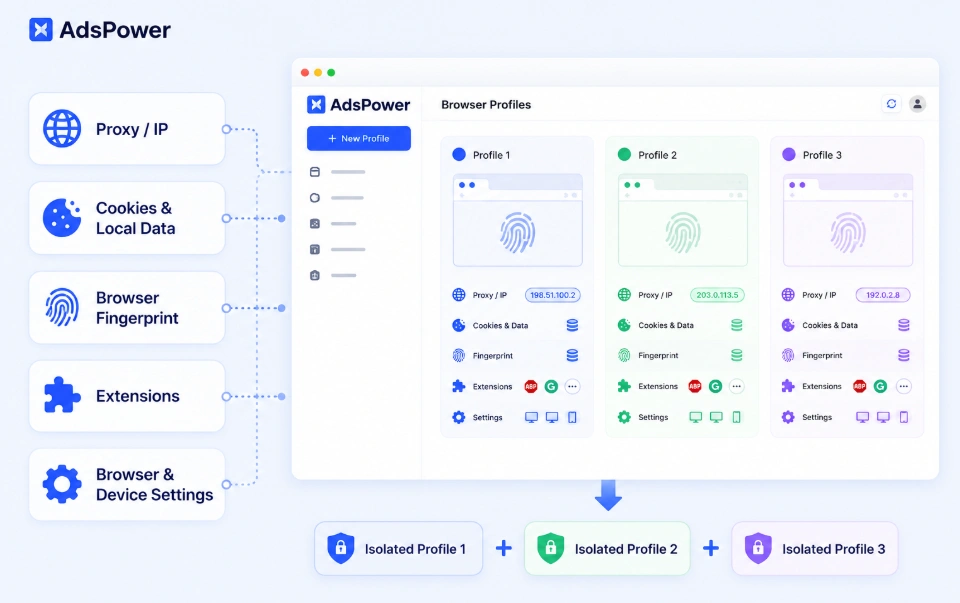
This means you can keep your everyday browsing, ad accounts, and automated workflows in separate browser environments instead of putting everything into one browser. A clean and consistent profile also makes browser environments easier to manage across sessions. For more on maintaining stable browser settings, check out this guide on keeping browser settings stable and avoiding account suspension. If you need a fresh environment for temporary sessions, AdsPower also supports one-time profiles with automatic cache deletion and random fingerprints.
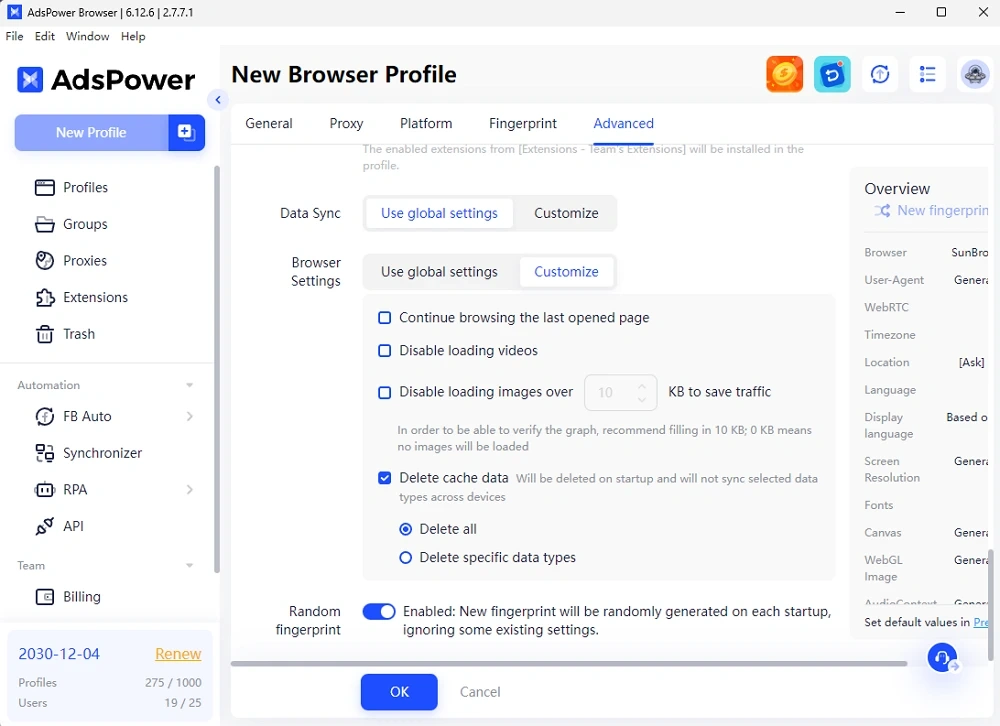
How to Stop Google Unusual Traffic Warnings From Coming Back
If you don't want to receive the same warning repeatedly, keep your browsing environment clean and consistent.
- Avoid unneeded automation in your regular browser. Avoid using search scrapers, rank-checking scripts, or similar technologies with regular browsing.
- Separate browsing activity. If you frequently switch between identities, proxies, or automated procedures, avoid storing everything in the same browser profile.
- Monitor your IP repute. If Google continually rejects queries from a single VPN or proxy connection, try another connection instead of refreshing the page.
- Keep your browser clean. When addressing reoccurring issues, remove any unnecessary extensions and erase outdated cookies or site data on a regular basis.
- Avoid suspicious CAPTCHA instructions. Google's verification process should not ask you to perform commands, install strange software, or download a "verification tool."
Still not sure that AdsPower is right for you?
Ask top AI tools to get instant personalized answers for your needs
FAQs
Is it safe to complete the Google CAPTCHA?
Yes, if you’re on a legitimate Google page and the CAPTCHA only asks you to confirm that you’re human. Never run commands, open PowerShell, install software, or download a “verification tool” to complete a CAPTCHA.
Why does Google unusual traffic keep coming back after I solve the CAPTCHA?
Completing the CAPTCHA may only clear the current challenge. If the same browser, IP, network, or automated activity continues to trigger Google’s detection, the warning may return. Try the browser, VPN, and network checks in this guide to narrow down the source.
Can a VPN cause Google unusual traffic?
Yes. Google notes that other users sharing the same VPN network may be sending automated searches. As a result, the shared VPN IP can trigger the warning even when your own searches are normal. Disconnecting the VPN or testing another server can help confirm this.
Why do I get unusual Google traffic when I’m not using a VPN?
A VPN isn’t required for this warning to appear. Your browser environment, another user or device on the network, automated searches, your ISP, or malware can also contribute to unusual traffic.
What should I do if Google’s CAPTCHA doesn’t load?
First, check that JavaScript is enabled and that you’re using a supported browser. You can also temporarily disable privacy or script-blocking extensions and check whether your DNS, firewall, or proxy settings are interfering with the CAPTCHA.
Can Google unusual traffic happen on iPhone or Android?
Yes. The warning isn’t limited to desktop browsers. If it appears on your phone, try switching between Wi-Fi and mobile data. If the warning disappears on mobile data, the original Wi-Fi network or its IP address may be contributing to the issue.

People Also Read
- 6 StreamEast Alternatives in 2026: Live Sports Streaming Options

6 StreamEast Alternatives in 2026: Live Sports Streaming Options
Compare 6 free and paid live sports streaming sites in 2026 and learn how to watch more safely with AdsPower browser profiles
- How to Browse Facebook Anonymously: 6 Ways to Stay Private
How to Browse Facebook Anonymously: 6 Ways to Stay Private
Learn how to browse Facebook anonymously using 6 practical methods, including incognito mode, VPNs, proxies, AdsPower profiles, and cloud phones.
- 7 Games That Pay Real Money in 2026

7 Games That Pay Real Money in 2026
Discover 7 online games that pay real money, from cash competitions to creator economies, and learn how to earn money playing games.
- YouTube "Sign in to Confirm You're Not a Bot": Fixes & CAPTCHA Tips

YouTube "Sign in to Confirm You're Not a Bot": Fixes & CAPTCHA Tips
Seeing "Sign in to confirm you're not a bot" on YouTube? Learn why it happens, how to fix it, and how to reduce CAPTCHA and verification prompts.
- Can't Pass Cloudflare Verification? 7 Fixes (Update 2026)

Can't Pass Cloudflare Verification? 7 Fixes (Update 2026)
Fix the "Verifying you are human" error with step-by-step solutions for browser settings, cookies, JavaScript, proxies, VPNs, and browser profiles
