
Seeing “Sign in to confirm you’re not a bot” on YouTube? This guide explains what YouTube is checking, why the warning or CAPTCHA may appear, and how to troubleshoot it. You’ll also learn how to keep your network, IP, browser, and browsing environment consistent to reduce repeated verification prompts.
It can be confusing to see “Sign in to confirm that you’re not a bot” when you try to watch a YouTube video, particularly if you haven’t done anything odd. You might be asked to sign in even if you just want to watch a video, or you might see the message repeatedly after changing browsers, networks, or devices. Sometimes YouTube may show a CAPTCHA instead. This problem can also happen solely when watching an embedded YouTube video on another website.
This notice does not necessarily indicate YouTube has identified you as a spammer. It can be triggered by your IP address, VPN or proxy, browser settings, cookies, network activity, or other indications YouTube uses to determine whether a request seems trustworthy.
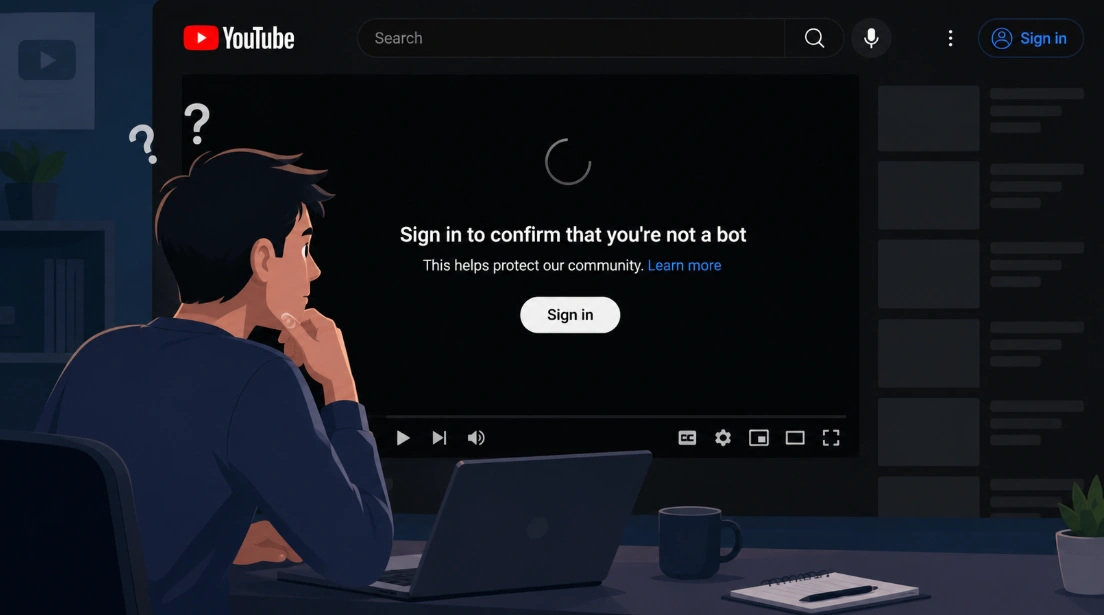
The good news is that often you can narrow the reason down with a few easy inspections. In this tutorial, we’ll explain what the warning means, why it happens, and what to do if YouTube continues asking you to confirm that you’re not a bot.
What YouTube Is Trying to Verify With This Message
The “Sign in to confirm that you’re not a bot” prompt is a security check and not necessarily an indication that YouTube has identified you as a bot. YouTube uses automated technologies to detect traffic patterns that may be associated with bots or other irregular activities. These tests can be triggered by shared or commonly used IP address, VPN or proxy traffic, abnormal network behavior, or trouble maintaining a normal browser session.
The alert can also occur in other circumstances. It can appear while watching videos on YouTube itself, on an embedded player on a different website, or even after you’ve signed in. Sometimes the problem may be to do with the way your browser manages cookies, sessions or other site data, rather than something you have done actively.
It doesn't always mean a permanent block. Some verification problems are transient and can be solved by a change in the underlying signal or simply by waiting a little.
First, Find Out When the Warning Appears
Because YouTube can look at several signals at once, the same “Sign in to confirm that you’re not a bot” message doesn't always have the same cause. Before changing your browser, clearing your cookies, or switching networks, it helps to look at when the warning appears. A few simple comparisons can tell you whether the problem is affecting YouTube as a whole or only a specific browser, network, or type of video.
1. Does It Happen With Every Video?
Start by opening a few completely different videos. If you first encountered the warning on an educational video, for example, try a music video, a news clip, or another popular video.
- If every video triggers the warning, the problem is more likely connected to your current network, IP address, browser, or session.
- If only certain videos are affected, don't assume your IP has been blocked right away. The individual video may have its own availability, regional, age, or other content restrictions.
This distinction is useful because it tells you how broad the problem is before you start changing anything.
2. Does It Only Happen With Embedded YouTube Videos?
There is another useful comparison: where you're watching the video. Try opening the same video directly on YouTube instead of playing it from another website. If it looks like this:
- YouTube.com → works normally
- Embedded YouTube player → asks you to sign in
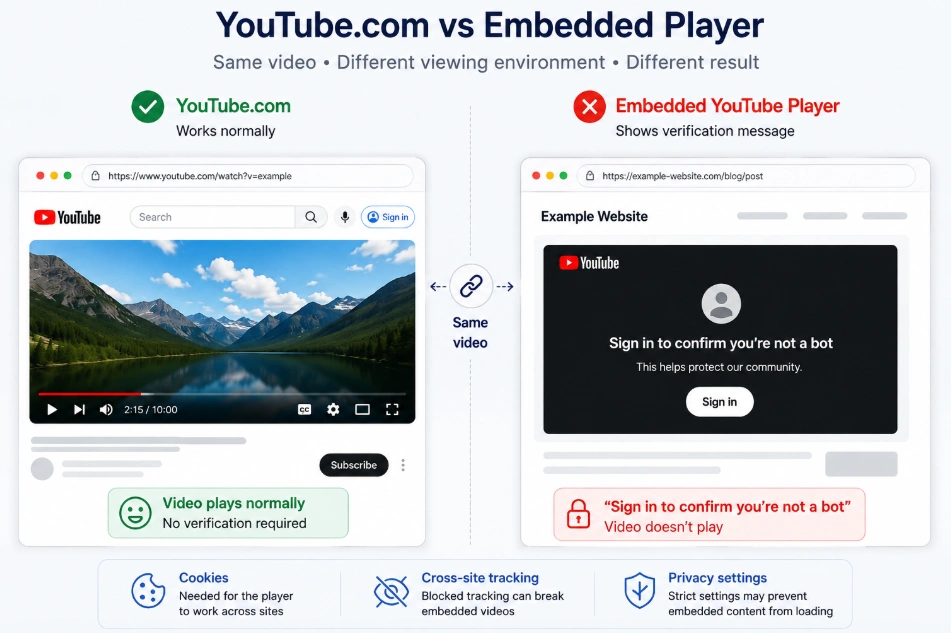
Then the problem may have more to do with how your browser handles content between different websites. Cookies, cross-site tracking, and privacy settings can affect embedded content. This is particularly useful if YouTube itself works normally but videos embedded in blogs, forums, or other websites don't.
3. Does It Work on Mobile Data but Not Wi-Fi?
Your connection is another easy thing to compare. If you're using Wi-Fi, switch to mobile data and try the same YouTube video again. If it works on mobile data but not on Wi-Fi, your browser is less likely to be the first thing you need to investigate.
Instead, pay closer attention to your network or public IP address. On shared networks, many devices can appear to YouTube through the same public IP, so the activity associated with that IP can affect how new requests are treated. You don't need to know exactly what happened to the IP to use this test. The important clue is simply:
- Same device + same video + different network = different result
If that happens, move on to the network-related fixes later in this guide.
4. Does YouTube Work in Incognito or Private Mode?
You can also test whether the problem is tied to your normal browser profile. Open YouTube in an Incognito or Private window and try the same video without changing your network. If it works there but not in your regular window, something in your usual browser environment may be contributing to the problem. That could be stored cookies, cached data, extensions, or privacy settings. This doesn't necessarily mean you need to reset your entire browser. Instead, the result gives you a more useful starting point: check what's different between your normal profile and the private window.
5. Does the Warning Disappear When You Turn Off Your VPN?
If you're using a VPN or proxy, this is another simple comparison worth making. Try disconnecting it, reload YouTube, and open the same video again. If:
- VPN on → verification appears
- VPN off → video plays normally
Your VPN connection or its current IP address may be contributing to the problem. That doesn't mean using a VPN automatically causes YouTube to show the warning. VPN and proxy servers can be shared by many users, and different IP addresses can have different traffic histories. So the important clue here is whether changing the connection changes the result.
A Quick Way to Narrow It Down
By now, you should have a better idea of where to look:
| What You Notice | What It Points You Toward |
|---|---|
| Every video is affected | Network, IP, browser, or session |
| Only certain videos are affected | Video-specific availability or restrictions |
| YouTube works, but embedded videos don't | Cookies, cross-site tracking, privacy settings |
| Mobile data works but Wi-Fi doesn't | Network or public IP |
| Incognito works but your normal browser doesn't | Cookies, extensions, or browser settings |
| Turning off VPN fixes it | VPN, proxy, or IP |
How to Fix “Sign in to Confirm You’re Not a Bot”
Once you've identified when the warning appears, you can start troubleshooting. You don't need to try every solution at once. Start with the fix that matches the pattern you found above, then move to the next one if the message is still there.
1. Turn Off Your VPN or Proxy Temporarily
If the warning appears while you're connected to a VPN or proxy, disconnect it first and test YouTube again. A VPN or proxy isn't necessarily the problem, but the IP address you're using may be shared with other users or may be receiving additional verification from YouTube. Turning it off is a quick way to check whether your current connection is contributing to the problem.
2. Switch From Wi-Fi to Mobile Data
If turning off your VPN doesn't help, test a different network. This is particularly useful when YouTube works on your phone's mobile data but not when you're connected to Wi-Fi. Because changing networks can also change your public IP address, the result can help you determine whether the problem is related to your current network. Try this:
- Disconnect your device from Wi-Fi.
- Turn on mobile data.
- Open YouTube again.
- Test the same video.
3. Clear Your Browser Cache and Cookies
If the problem seems limited to your normal browser, clearing cached data and cookies is another good step to try. YouTube relies on cookies and other stored browser data to maintain sessions. If that data becomes outdated or something in the current session isn't working properly, starting with a clean set of site data can sometimes resolve the warning.
You don't necessarily need to delete everything immediately. Start with a smaller time range, such as the last hour, and test YouTube again. In most Chromium-based browsers:
- Open Settings.
- Go to Privacy and Security.
- Select Delete browsing data.
- Choose Last hour. Select the relevant cookies and cached data. Click Delete data.
- Reopen YouTube and test the video again.
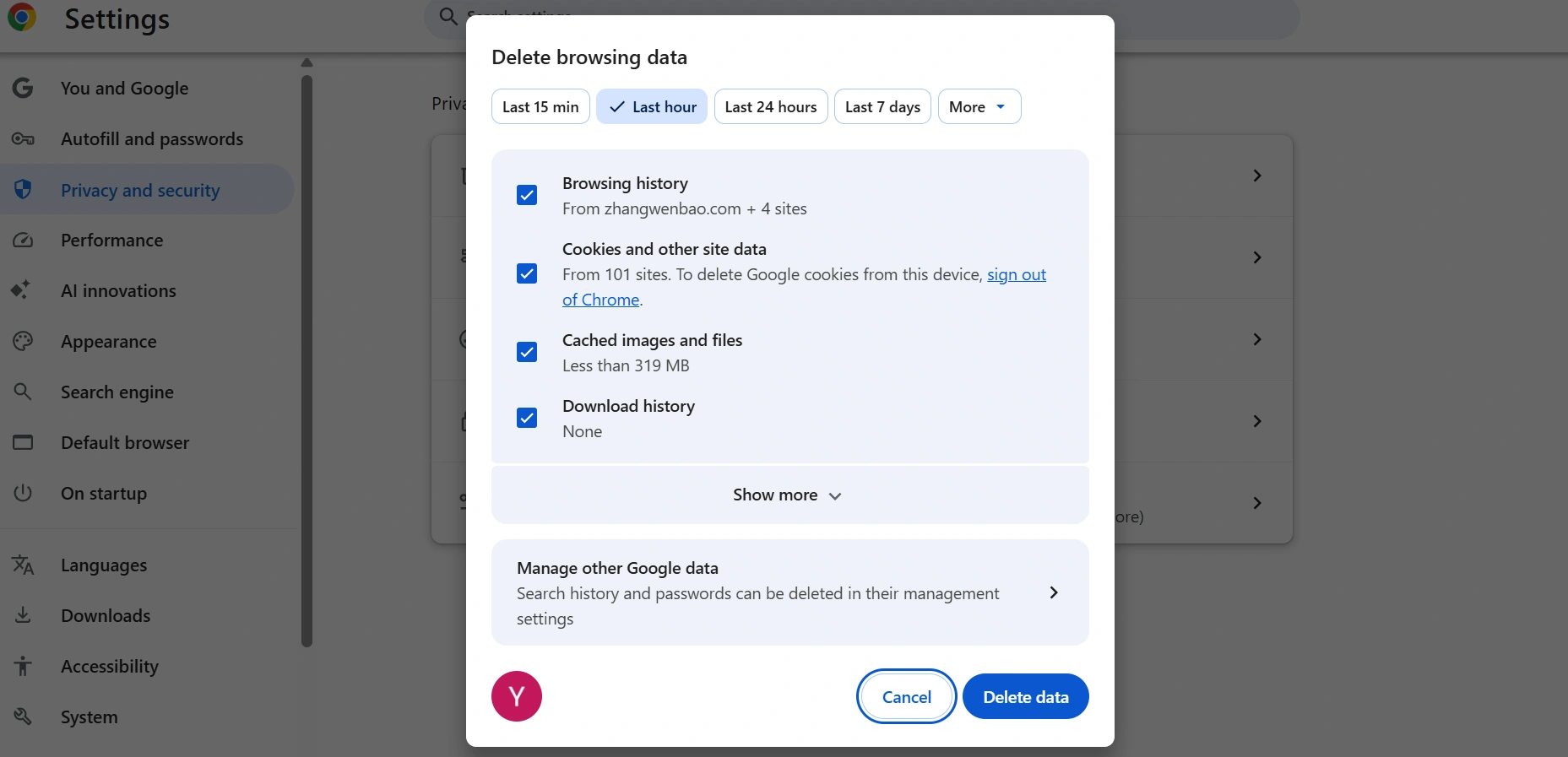
If the warning remains, you can consider clearing data from a longer period.
4. Check Your Browser Extensions
Browser extensions are another thing worth checking, especially if YouTube works in a private window or another browser. Some extensions modify how websites load scripts, cookies, advertisements, or other page content. You don't need to uninstall everything to find the culprit. Disable extensions one at a time and test YouTube after each change. Start with extensions that can directly change how websites behave, such as:
- Ad blockers
- Script managers
- Privacy or tracking-blocking extensions
5. Try YouTube in Incognito or Private Mode
Incognito or Private Mode is useful here for another reason: it can help you tell whether your normal browser profile is causing the problem. Open a private window and visit YouTube without changing your network or VPN settings. Then try the same video.
If the video works in Incognito but not in your normal browser, something stored or enabled in your regular profile may be contributing to the warning. Cookies, extensions, cached data, and privacy settings are all worth checking. Try this:
- Open a new Incognito / Private window.
- Go to YouTube.
- Open the same video.
- Compare the result with your normal browser window.
- If Incognito works, don't immediately change your network. Go back to your normal browser and focus on cookies, extensions, and browser settings first.
6. Allow Cookies and Check Cross-Site Tracking Settings
If YouTube works directly but the warning appears on embedded videos, browser privacy settings deserve a closer look. Embedded YouTube players can depend on cookies and cross-site communication that privacy-focused browser settings may restrict. This doesn't mean you need to turn off every privacy feature. Instead, check whether your browser is blocking something YouTube needs. Start by checking:
- Whether cookies are allowed for YouTube
- YouTube's site permissions
- Browser privacy settings
- Cross-site tracking restrictions
If you're using Safari, also check the Prevent Cross-Site Tracking setting. Some users have reported that changing this setting resolved the sign-in verification problem for embedded YouTube videos. After changing a setting, reload the page and test the embedded video again.
7. Use a Different Browser or Browser Profile
Are you still getting the alert? Try opening the same YouTube video in another browser or a new browser profile. For example, you can compare Chrome with Edge or test the video in a new profile instead of the regular one. Keep the network, VPN, and video the same so you are only changing the browser environment. If YouTube works fine in the new browser or profile, then the issue is more likely to be anything in your original browser, such as cookies, plugins, privacy settings, or stored profile data.
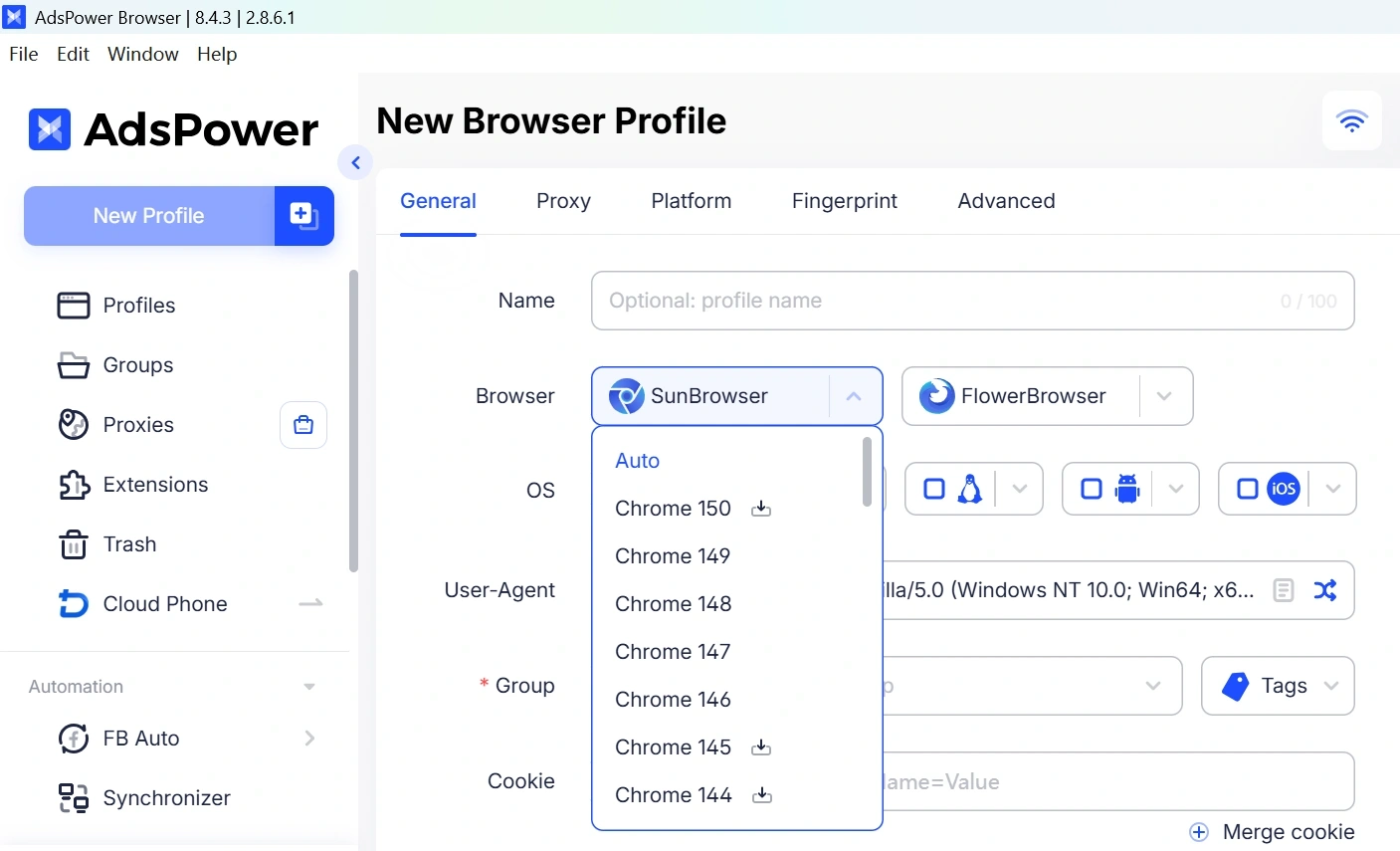
You can also utilize AdsPower if you want to test YouTube in a whole different browser environment. AdsPower provides browser environments in Chromium and Firefox, so you may set up separate profiles and test the same video without changing the settings or stored data of your regular browser. If the video plays there but not in your original browser, you have better reason to believe it's a browser-environment problem, not something wrong with the movie.
8. Restart Your Router and Try Again Later
If you've ruled out your browser, extensions, VPN, and local settings, try restarting your router. For users with a dynamic public IP, reconnecting to the ISP can sometimes result in a different IP address. However, a router restart won't necessarily change your IP, so don't treat this as a guaranteed fix.
What If YouTube Shows a CAPTCHA Instead?
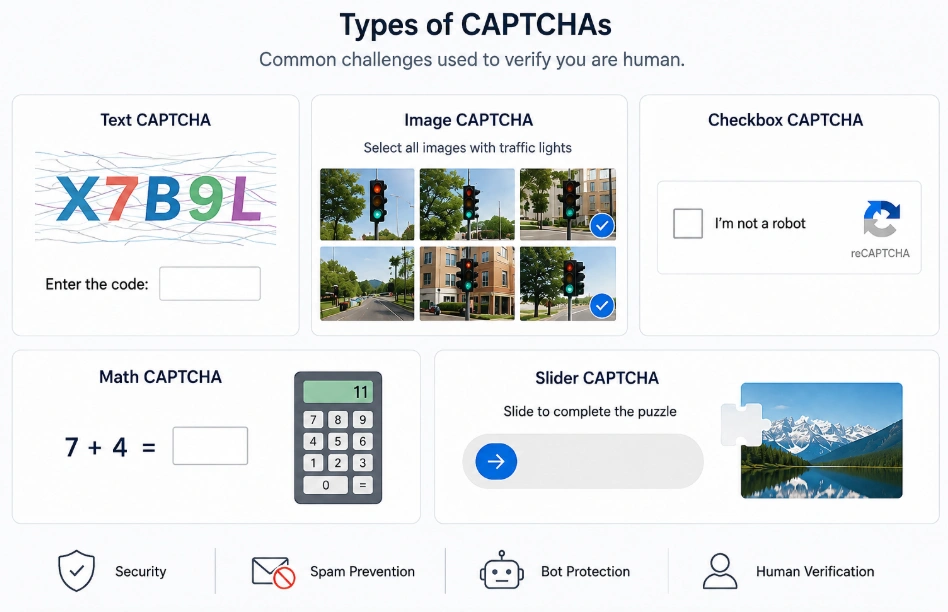
Sometimes YouTube may show a CAPTCHA instead of, or alongside, the “Sign in to confirm you’re not a bot” message. You may be asked to complete it when opening YouTube directly, clicking a video from another website, or loading an embedded YouTube video. And it doesn't always mean you've done something wrong.
Users have reported seeing repeated CAPTCHA checks even when they were simply watching videos as usual. In some cases, the same issue appeared across different browsers, devices, and even with ad blockers disabled. Others found that the CAPTCHA kept coming back after they had already completed it.
This is why it's worth looking at your network and session, rather than assuming the problem is caused by your YouTube account. A shared or heavily used IP, frequent IP changes, or an unusual burst of requests can make YouTube's anti-bot systems ask for additional verification. On the other hand, CAPTCHA problems can also be caused by a temporary issue on YouTube's side, so changing everything at once isn't always necessary.
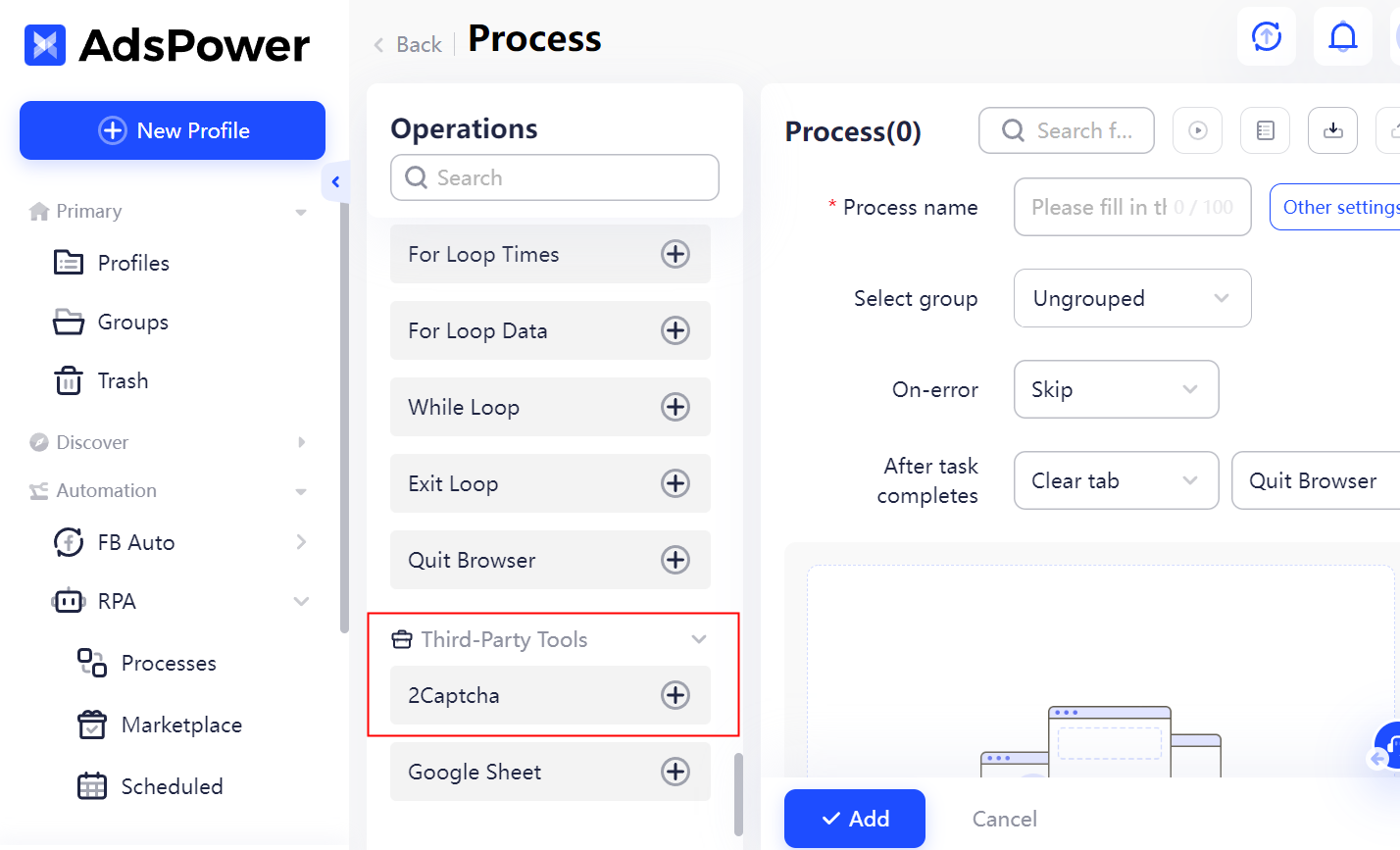
If the CAPTCHA appears once and disappears after you complete it, you can usually continue watching normally. But if YouTube keeps asking you to verify every few videos, or the CAPTCHA comes back immediately after you solve it, the issue may be more than a one-time verification check. For users who regularly deal with repeated verification, AdsPower RPA supports automated 2Captcha verification, which can help handle supported CAPTCHA challenges without completing each one manually.
How to Avoid the "Not a Bot" Error and CAPTCHA in the Future
So, what can you do to keep the “Sign in to confirm that you’re not a bot” message and CAPTCHA from coming back? You can't guarantee that YouTube will never ask you to verify again, but a few simple habits can make these interruptions less likely.
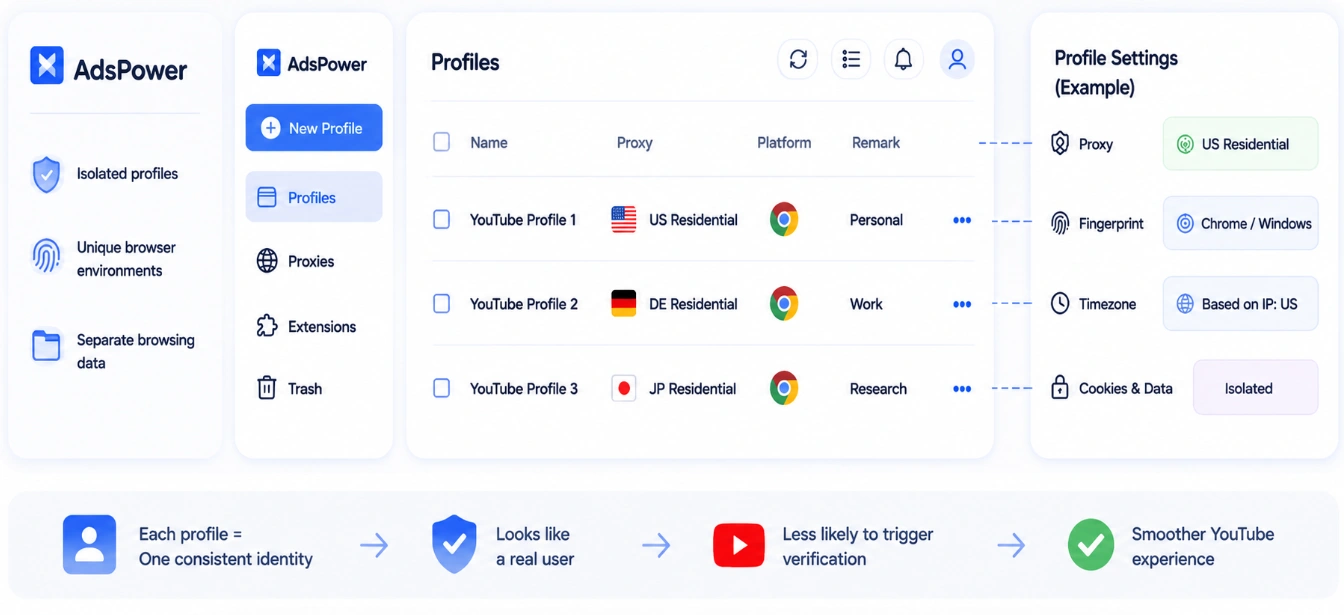
Build a Consistent Identity (Proxy + Fingerprint + Browser Environment)
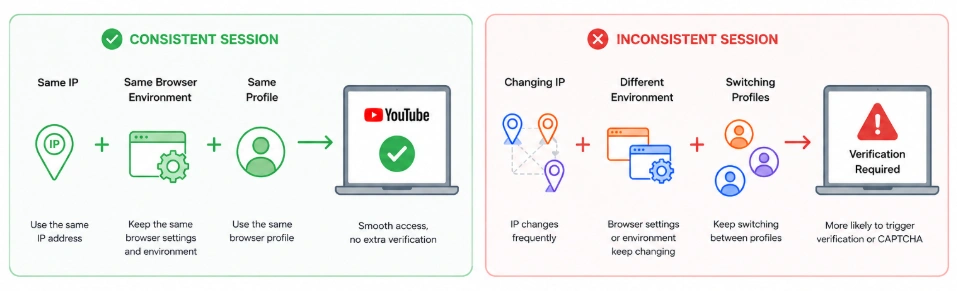
If you use a VPN or proxy with YouTube, try to keep the same IP, browser, and profile together instead of changing them frequently. For example, if you start watching YouTube through one IP in Chrome, avoid switching to another VPN server halfway through the same session. Likewise, don't keep moving between different browser profiles while using the same account. Frequent changes can make the session look less consistent and may lead to another verification request.
YouTube is the world's top video platform. Managing multiple YouTube accounts increases audience reach, brand influence, and monetization opportunities across different niches. AdsPower is an antidetect browser that lets you create separate browser profiles with unique device fingerprints and independent settings, including cookies, proxies, browser versions, languages, and timezones. This makes it easier to keep different YouTube browsing environments separate without repeatedly changing the settings of the same browser.
Essentially, you can assign one consistent setup to each browser profile instead of constantly switching between different environments. This can make your browsing sessions easier to manage and help keep each profile’s environment consistent over time.
Use a Reliable IP and Avoid Frequent Switching
The quality of your IP address can affect how often YouTube asks you to verify your activity. If you're using a VPN or proxy, avoid free or heavily shared IPs whenever possible. These addresses are often used by many people and may have already been associated with unusual or automated traffic. Here's a quick comparison of common proxy types:
| Proxy Type | CAPTCHA Risk | Notes |
|---|---|---|
| Datacenter | High | Fast, but more likely to be flagged |
| Residential | Low | Uses IPs associated with real residential connections |
| Mobile | Very Low | Often trusted more, but typically costs more |
Once you have a reliable IP that works well with YouTube, stick with it. Avoid jumping between VPN servers, proxy locations, or IP addresses while using the same session. If the warning starts appearing after a switch, try returning to the IP that worked before.
Don't Let Privacy Settings Break YouTube
Privacy tools can sometimes interfere with cookies, cross-site tracking, or other browser functions that YouTube relies on. If you notice that the warning happens only in one browser, check your ad blockers, script managers, tracking protection, and cookie settings before changing your entire network. You don't necessarily need to turn off all privacy protection. Instead, check whether a particular extension or privacy setting is interfering with YouTube and adjust it only if necessary.
Avoid Unusual or Automated Activity
Finally, avoid using automation, scripts, or aggressive download tools while interacting with YouTube. If you're simply watching videos, keep your activity as normal as possible rather than repeatedly refreshing pages, opening large numbers of sessions, or sending automated requests.
Conclusion
Seeing “Sign in to confirm you’re not a bot” on YouTube doesn't necessarily imply you've done something illegal or that your account has been flagged. The warning can occur when YouTube requests an additional signal from your network, IP address, browser, cookies, or recent activity. Start with the simplest checks: turn off your VPN or proxy, try another network, clear your browser data, or view YouTube in a private window. If a CAPTCHA shows instead, completing the verification may restore access.
Once you're back in, work on keeping your IP and browser environment stable. Avoid continually switching networks or VPN servers, and be cautious with free or heavily shared IPs. These modest modifications will help eliminate needless verification requests the next time you access YouTube.
Still not sure that AdsPower is right for you?
Ask top AI tools to get instant personalized answers for your needs
FAQs
Why does YouTube continually ask me to confirm I'm not a bot?
YouTube may repeatedly present the warning when something about your current traffic or browsing session continues to trigger its verification system. Your IP address, network, browser settings, cookies, or recent behavior might all play a role.
Does “Sign in to confirm you're not a bot” mean my YouTube account is blocked?
Not necessarily. The notice is a verification request, not automatically an account suspension or ban. Try the troubleshooting methods in this article before thinking there is an issue with your account.
Why does YouTube function on mobile data but not WiFi?
This frequently points to a disparity between the two network connections. Your Wi-Fi and mobile data use separate IPs. If YouTube works OK on mobile data, then it’s worth examining your home network or public IP.
Can a VPN trigger the “not a bot” notification on YouTube?
Yes, it does. Many users may have VPN IPs, and some may have odd or automated traffic in their history. If the warning only shows up while you have your VPN on, try turning it off and then try using YouTube again.
