

AdsPower makes multi-account management simple and secure across Windows, macOS, and Linux. Ready to get started? Download AdsPower now and install it in just a few clicks.
AdsPower is an advanced browser solution that allows users to securely operate multiple online accounts without detection. Whether you're using Windows, macOS, or Linux, installing AdsPower is quick and simple. This guide walks you through the exact steps to download and install AdsPower on your operating system. We’ll also cover the minimum system requirements to help you get started smoothly. Follow along to set up AdsPower in minutes.
System Requirements for Installing AdsPower
Before you install AdsPower, make sure your system meets the following minimum requirements:
✅ Hardware Requirements
- RAM: At least 2 GB
- Free Disk Space: At least 2 GB
- CPU: Dual-core processor or better
✅ Supported Operating Systems
AdsPower supports both x64 (64-bit) and x32 (32-bit) systems.
|
Operating System |
Compatibility |
|
Windows |
Windows 7 and later Windows Server 2008 and later |
|
macOS |
macOS 10.13 and later Apple Silicon supported |
|
Linux |
Ubuntu 22.04 and later |
Note: SunBrowser 111 and later (Chromium-based versions) are only compatible with:
- Windows 10 and later
- Windows Server 2016 and later
- macOS 10.13 and later
How to Install AdsPower Browser on Windows
If you're a Windows user, follow these steps to install AdsPower:
Step-by-Step Guide:
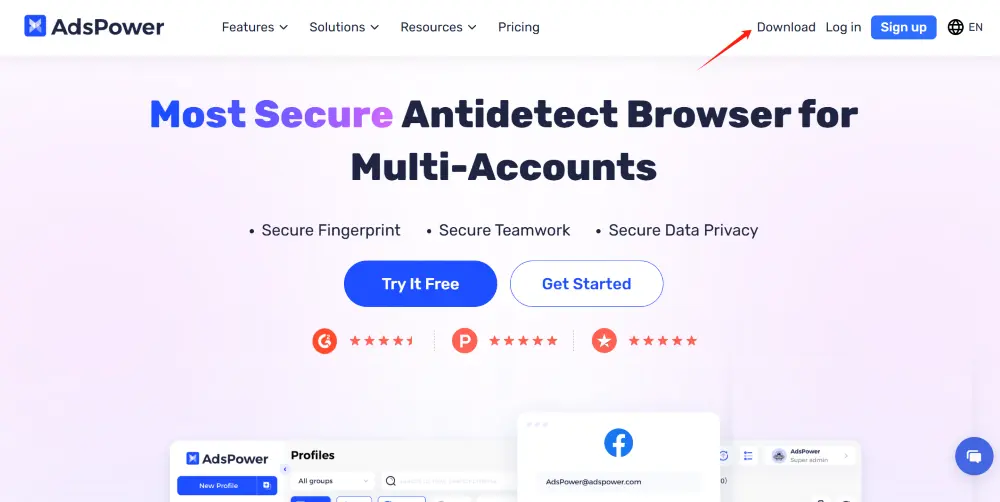
1. Go to the official website: https://www.adspower.com
2. Click on the “Download” button.
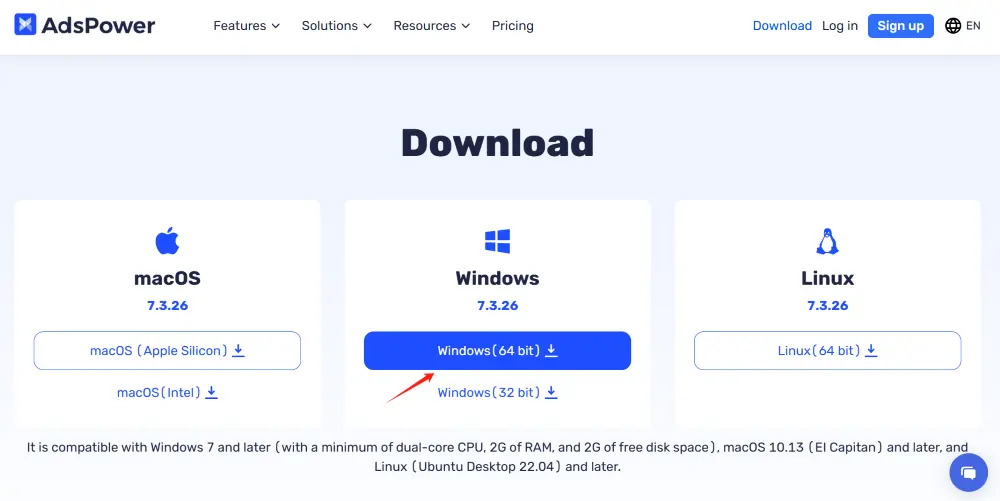
3. Select Windows Version.
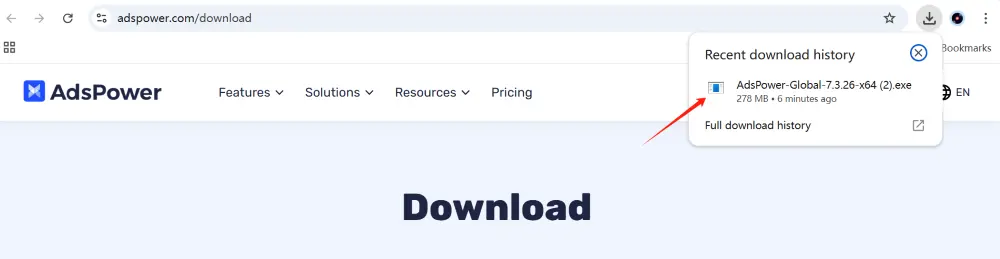
4. Once the .exe file is downloaded, click it to start the installer.
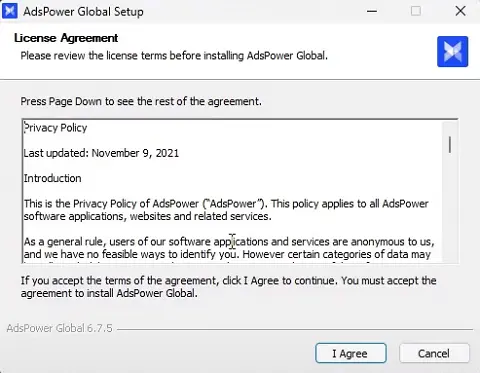
5. Follow the installation wizard to complete setup.
a. Accept the license agreement when prompted, click "I Agree".
b. Choose the installation location or proceed with the default path.
c. Click "Install" to begin the installation process.
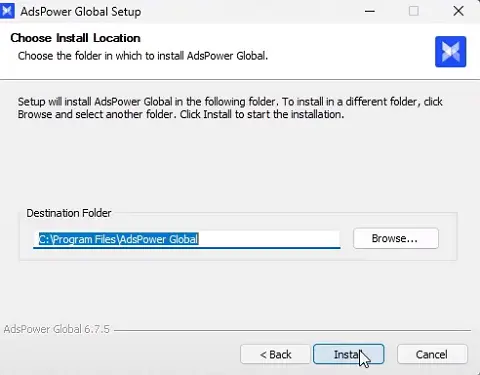
6. Once the installation completes.
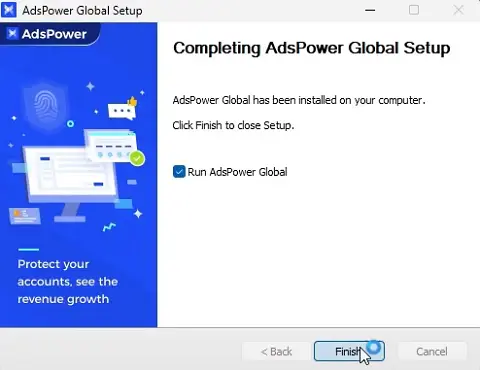
a. Click "Finish" in the setup wizard.
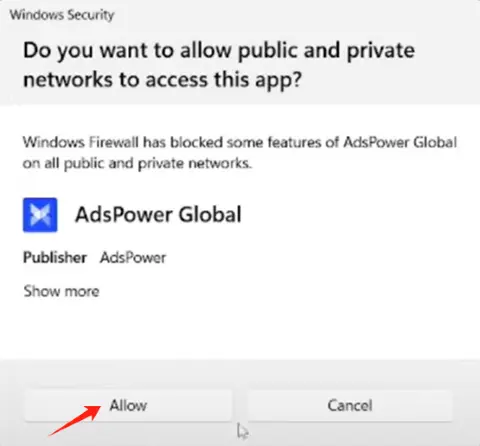
b. Allow AdsPower to run if prompted by your system's security settings.
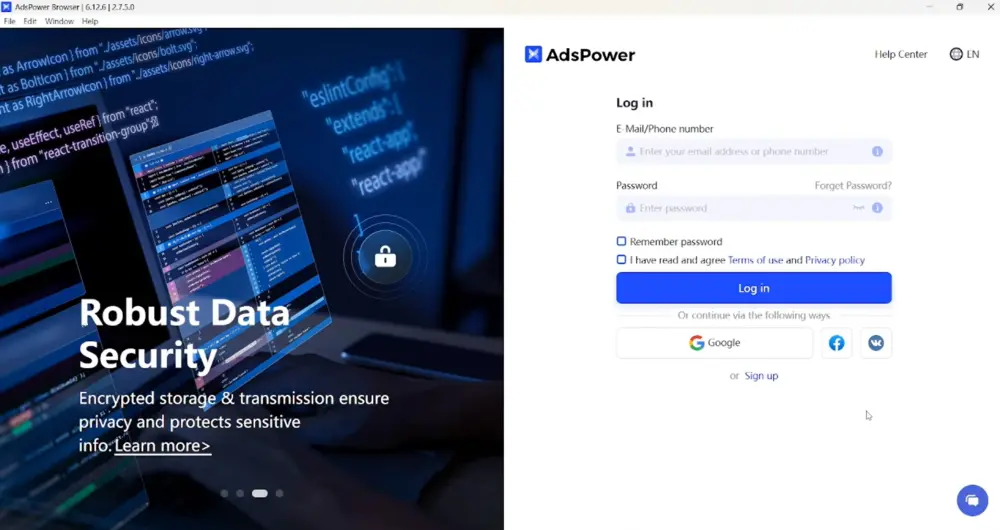
c. AdsPower will launch automatically. Log in/sign up to get started.
How to Install AdsPower on macOS
Installing AdsPower on a Mac is straightforward and similar to the Windows process described above. Below are the steps to download and install AdsPower on macOS:
Step-by-Step Guide:
1. Visit the official AdsPower download page.
2. Click the “Download” button and select macOS Version.
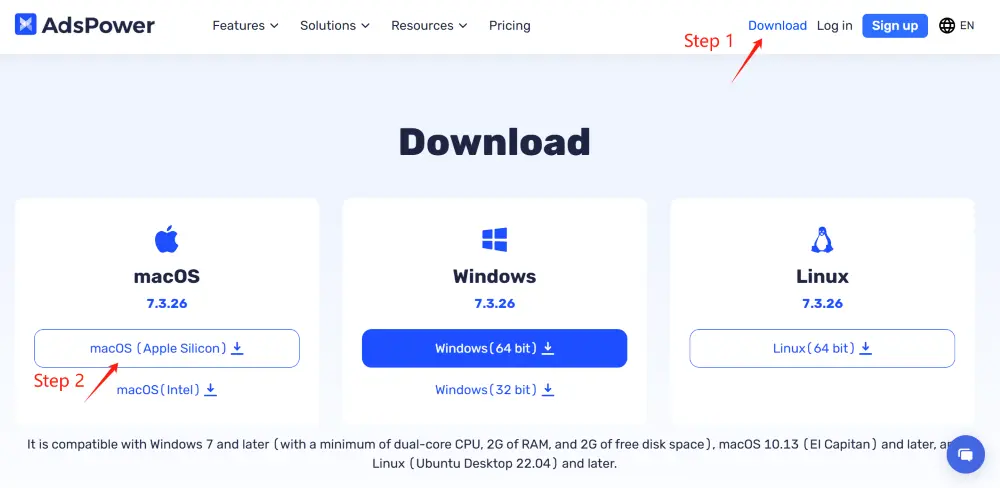
3. Once the .dmg file is downloaded, open it and drag the AdsPower icon into your Applications folder.

4. Open the app from your Applications folder. If prompted with a security warning, allow it through System Preferences > Security & Privacy > General.
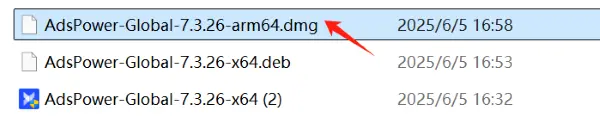
5. Log in and start managing your browser profiles securely.
💡 Compatible with Intel-based and Apple Silicon (M1, M2, etc.) Macs.
How to Install AdsPower on Linux (Ubuntu 22.04 and Later)
Installing AdsPower on Linux is also simple and follows a process similar to Windows and macOS. If you're using Ubuntu 22.04 or later, follow the steps below to download and install AdsPower on your Linux system:
Step-by-Step Guide:
1. Visit https://www.adspower.com.
2. Click Download, then select the Linux version.
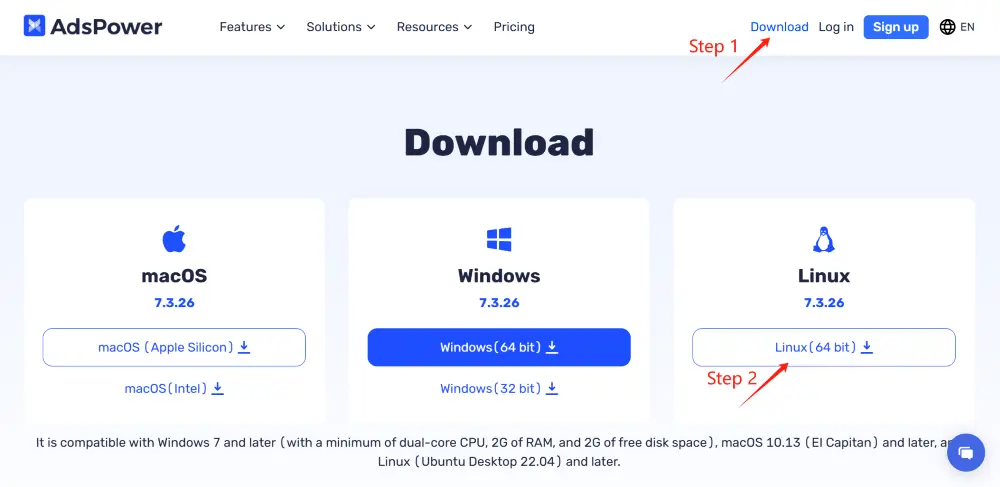
3. Download the .deb package file.
4. Open Terminal and navigate to your download folder.

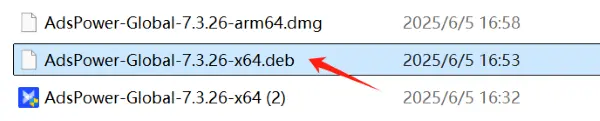
5. Run the following commandsudo dpkg -i AdsPower-Global-7.3.26-x64.deb
6. If there are dependency errors, run:sudo apt --fix-broken install
7. Once installed, launch AdsPower from your applications menu or by typing "adspower" in the terminal.
Final Thought
AdsPower offers a reliable, secure, and efficient solution for anyone who needs advanced browser identity management. By following the installation instructions for your system, you can quickly take advantage of its powerful features. Always ensure your operating system meets the compatibility requirements—especially if you're using the latest SunBrowser version. Ready to get started? Click the button below to download AdsPower now.
Need help getting started? Learn how to configure and use AdsPower here.
