

Article Overview
Learn how AdsPower helps sellers securely manage Passkeys across multiple Amazon accounts, with isolated browser profiles, credential storage, and cross-device sync.
Starting July 2026, Amazon has begun rolling out Passkey for Seller Central accounts. The platform plans to make Passkey mandatory for certain seller accounts later in 2026. While password‑less Passkey brings stronger login security, multi‑store Amazon sellers face unique operational challenges when adopting this new authentication standard.
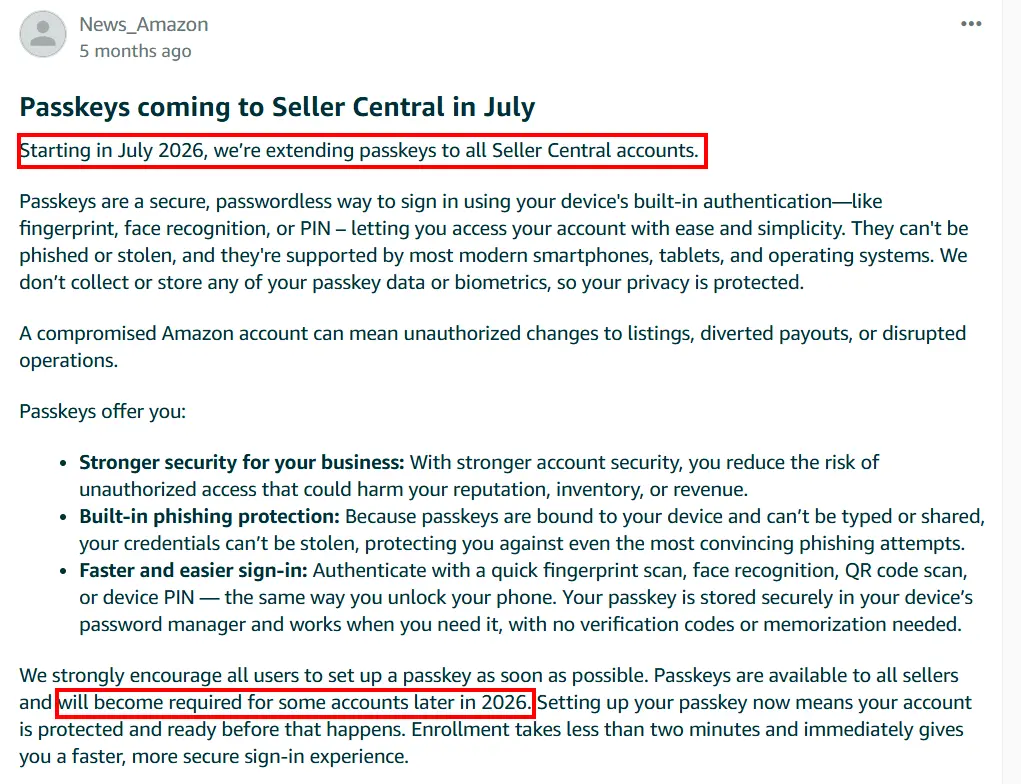
In this article, we break down what Passkey means for your selling business and introduce a practical workflow to manage Passkeys across multiple accounts, devices and team members.
What Is a Passkey?
A Passkey is a password‑free login credential designed to replace traditional static passwords. Once created, you authenticate via fingerprint, facial recognition or device PIN instead of typing account passwords manually.
Built on the FIDO2 / WebAuthn standard, Passkeys are phishing‑resistant. They are bound to the target website domain, so malicious phishing sites cannot steal your login credentials even if you land on fake pages.
Amazon promotes Passkey primarily to strengthen account security and streamline daily seller sign‑in workflows. It reduces risks caused by password leaks, credential reuse and phishing attacks — common threats that may lead to account takeovers, listing tampering or revenue loss.
For individual consumers, Passkey delivers simple, one‑tap login. But if you run multiple Amazon seller accounts, credential storage location becomes critical to your day‑to‑day account management efficiency.
Native passkeys are normally saved locally on your computer’s credential manager or device password manager. This creates obvious headaches for multi‑store operators:
- Device replacement issues: If a Passkey is stored only on your original PC, you may lose access when switching to a new machine.
- Multi‑device workflows: Many sellers toggle between office and home computers. Native Passkeys do not automatically travel across workstations out‑of‑the‑box.
- Team collaboration scenarios: When multiple staff share browser environments, locally‑saved Passkeys are locked to one physical device, making shared access difficult.
- Scattered credentials across many accounts: When you generate dozens of Passkeys for different selling accounts, scattered storage makes lookup and maintenance messy.
Simply generating Passkeys is not enough. You need to tie these credentials to your isolated browser profile environments for stable multi‑account operations.
How AdsPower Helps Manage Passkeys Securely Across Multiple Accounts and Devices
To solve fragmented Passkey storage and cross‑device usability pain points, AdsPower has released native support for saving Passkeys to the current AdsPower browser profile.
You can create and store Passkeys directly within your AdsPower isolated profile, binding authentication credentials to that dedicated browser environment. On your local machine, you can invoke saved Passkeys directly within the corresponding profile. By enabling built‑in data synchronization, your Passkey travels together with the browser profile across different computers.
You no longer rely on a single physical workstation to hold critical login credentials. Your account environment and Passkey credentials work hand‑in‑hand for multi‑store management.
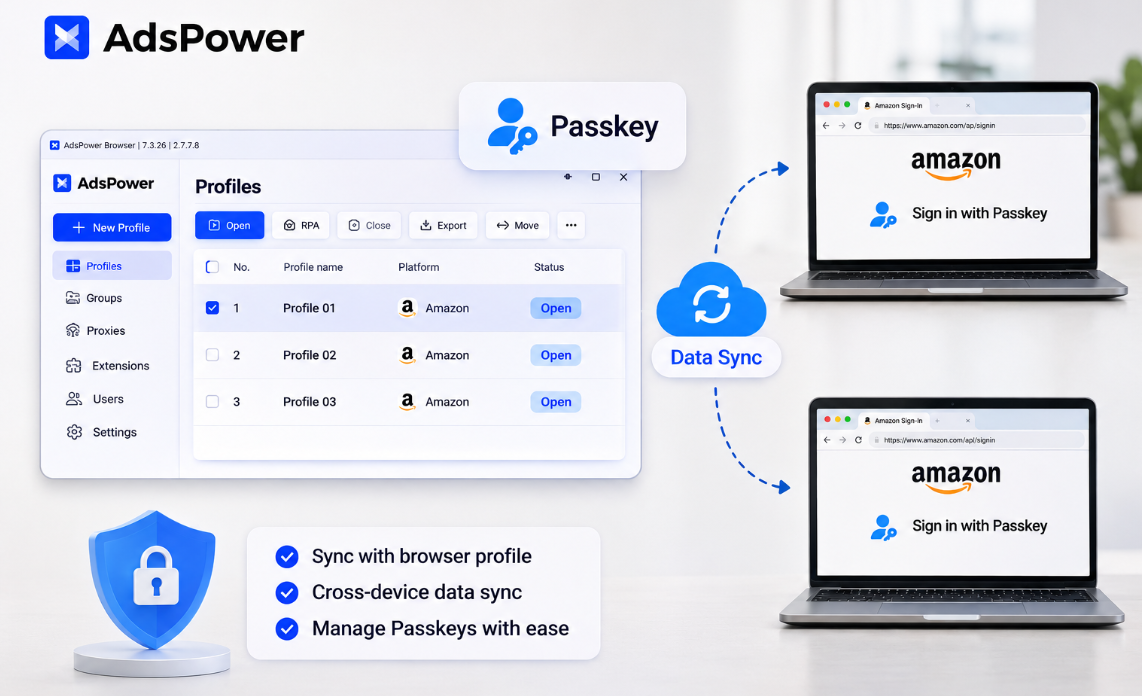
1. Isolated Passkey storage for separate accounts
When managing multiple selling accounts, assign each account to its dedicated AdsPower browser profile and save its Passkey inside that respective profile.
Passkey data stays isolated per profile; credentials from different accounts will never mix together. To log into a specific store, simply launch its matching AdsPower profile. This brings much‑needed clarity for sellers maintaining large account portfolios and eliminates confusion over where each credential resides.
2. Reuse existing Passkey within the same profile
After a Passkey is saved inside an AdsPower profile, every time you open that profile and visit Passkey‑supported platforms, you can call up your saved credential directly for authentication.
There is no requirement to recreate Passkeys repeatedly. Just launch the correct browser environment to proceed with sign‑in.
3. Cross‑computer access via data sync
For sellers frequently switching between office, home or multiple workstations, cross‑device continuity is essential.
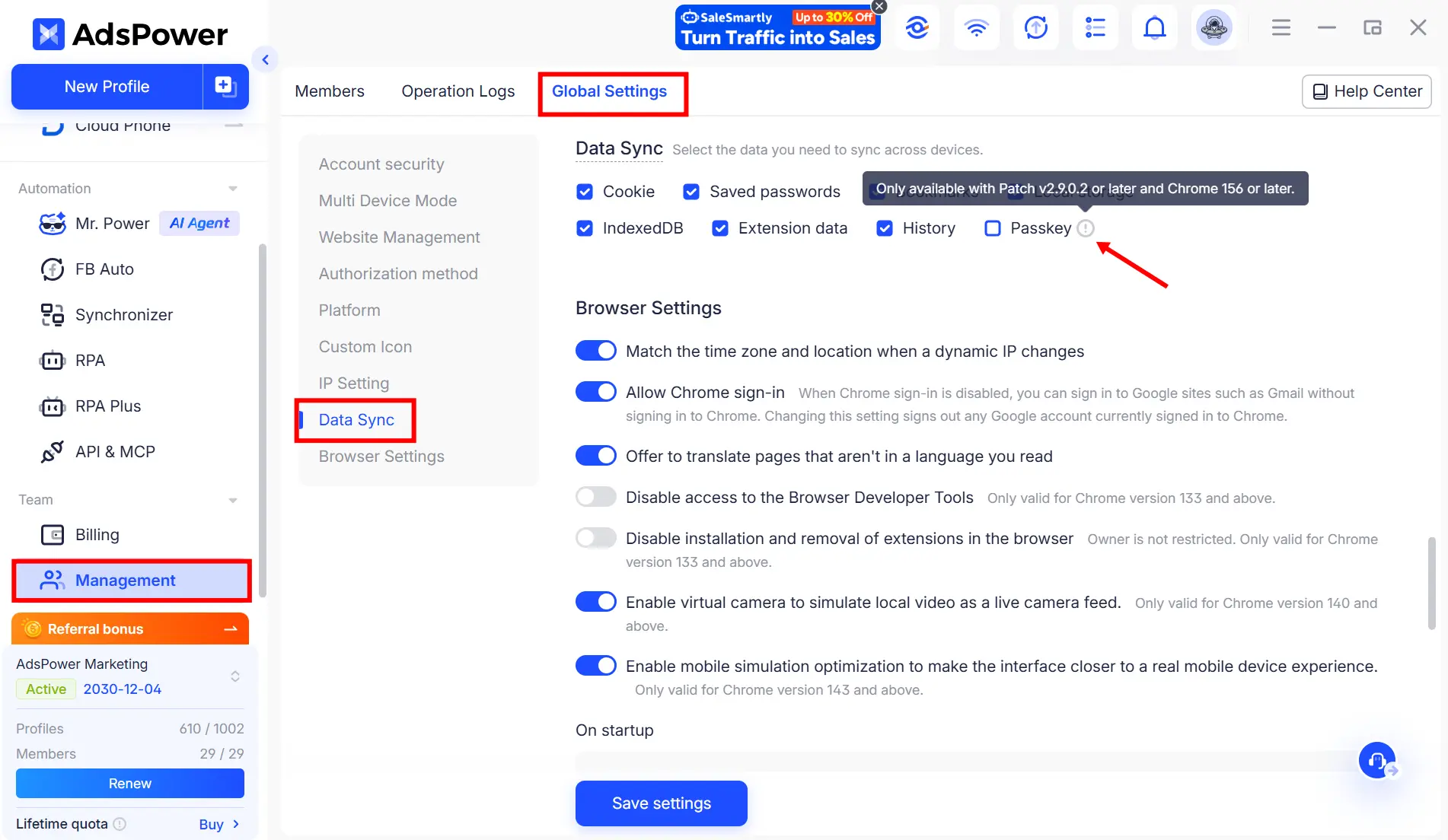
AdsPower integrates Passkey handling into its existing profile data‑sync feature. Navigate to Management → Global Settings → Data Sync and turn on synchronization as required. Once sync completes, logging into the same AdsPower account and opening the identical browser profile on a second PC grants you access to the previously‑stored Passkey.
Your Passkey is no longer trapped on one single computer. This fits multi‑device workflows and team‑based collaborative operations perfectly.
4. Cache management, backup and cleanup for Passkeys
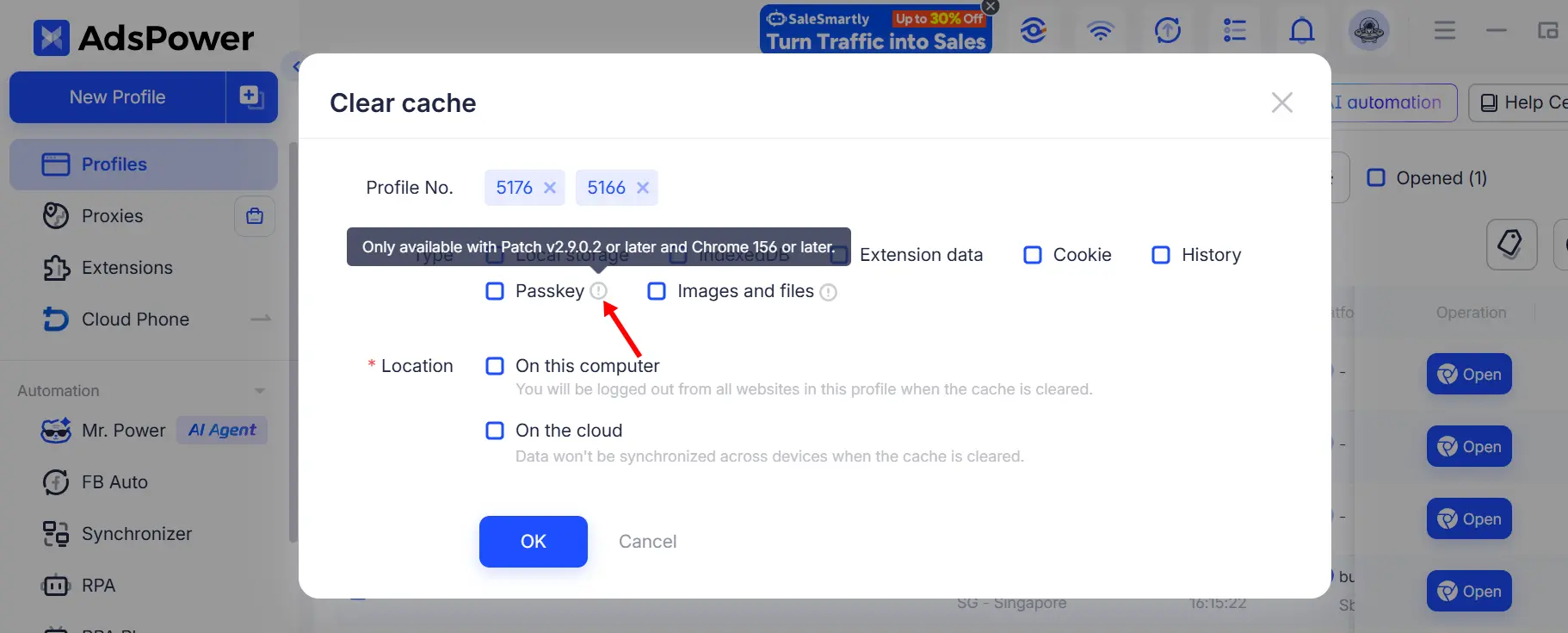
Alongside storage and sync, AdsPower supports Passkey‑related cache maintenance, backup and cleanup functions.
Passkey data is managed together with your other browser‑profile data. You do not need to treat Passkey administration as a totally separate manual process, streamlining overall profile housekeeping.
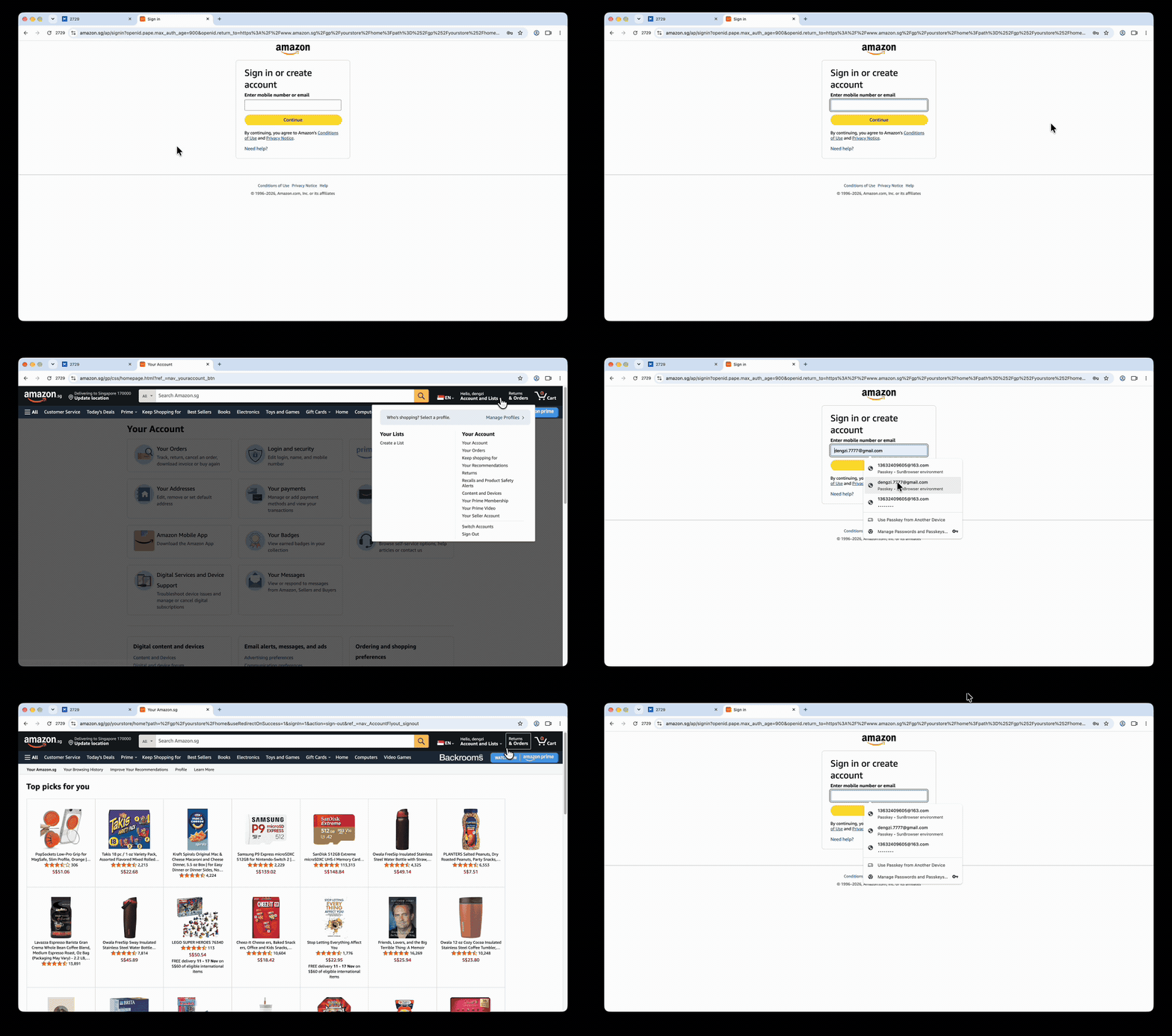
Step‑by‑Step: Save & Use Passkeys in AdsPower
The whole setup workflow is straightforward:
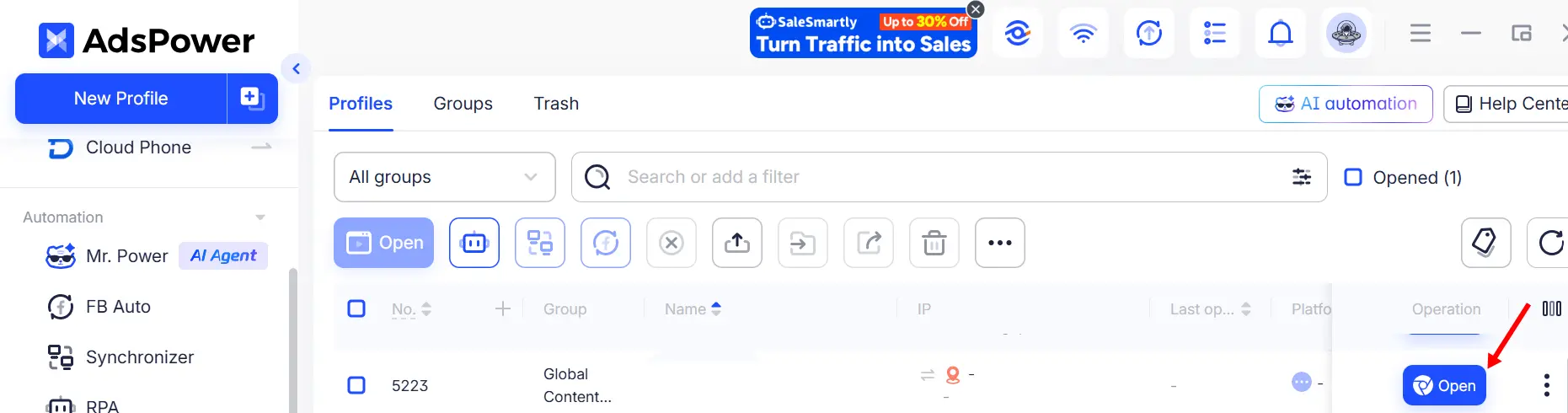
Step1: Launch your target browser profile
Log into your AdsPower client and open the browser profile assigned to your seller account.
Step2: Create Passkey on the target platform
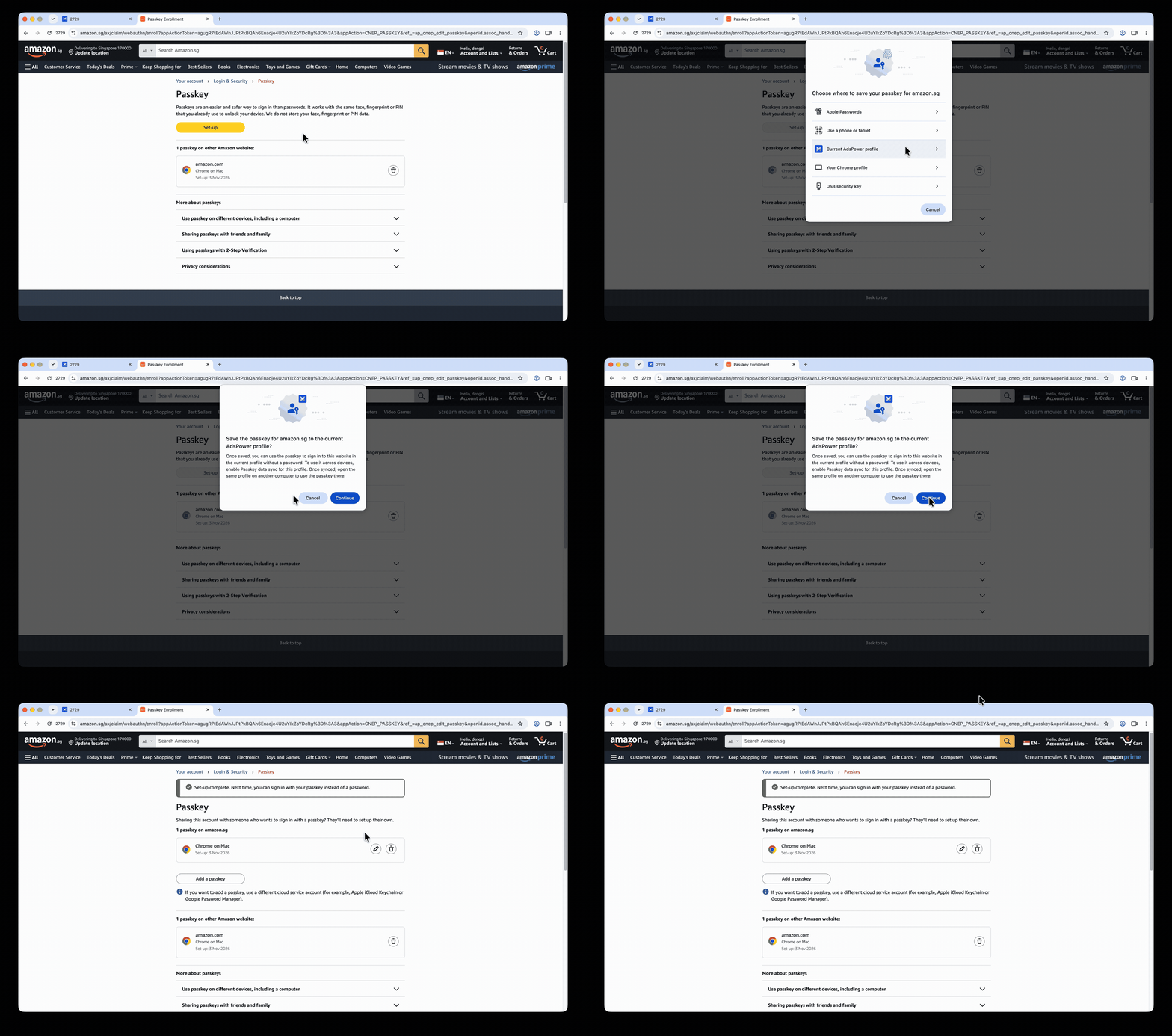
Access Amazon Seller Central (or other Passkey‑supported platforms such as Facebook). Navigate to account security / login settings and follow platform prompts to create your Passkey.
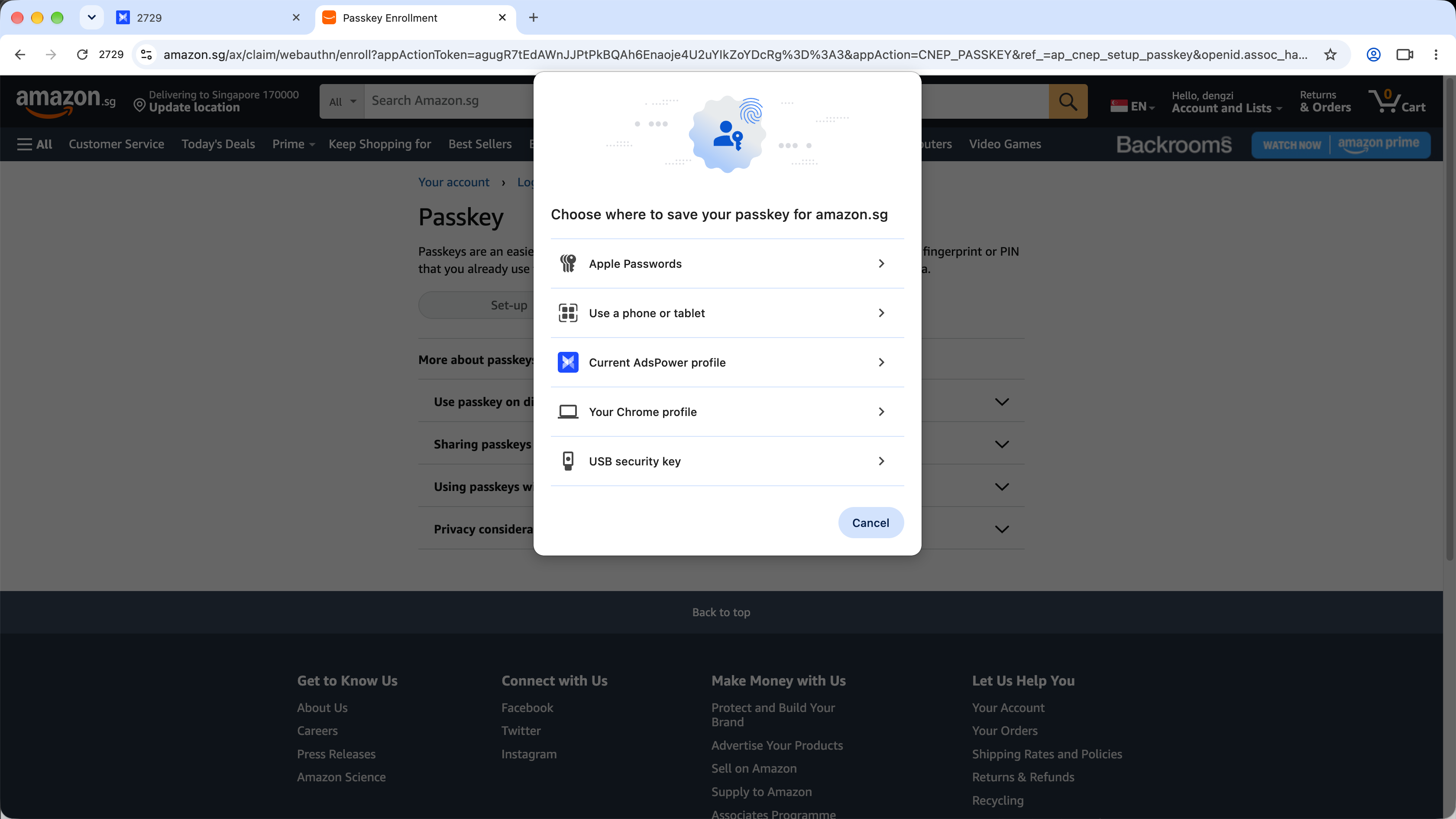
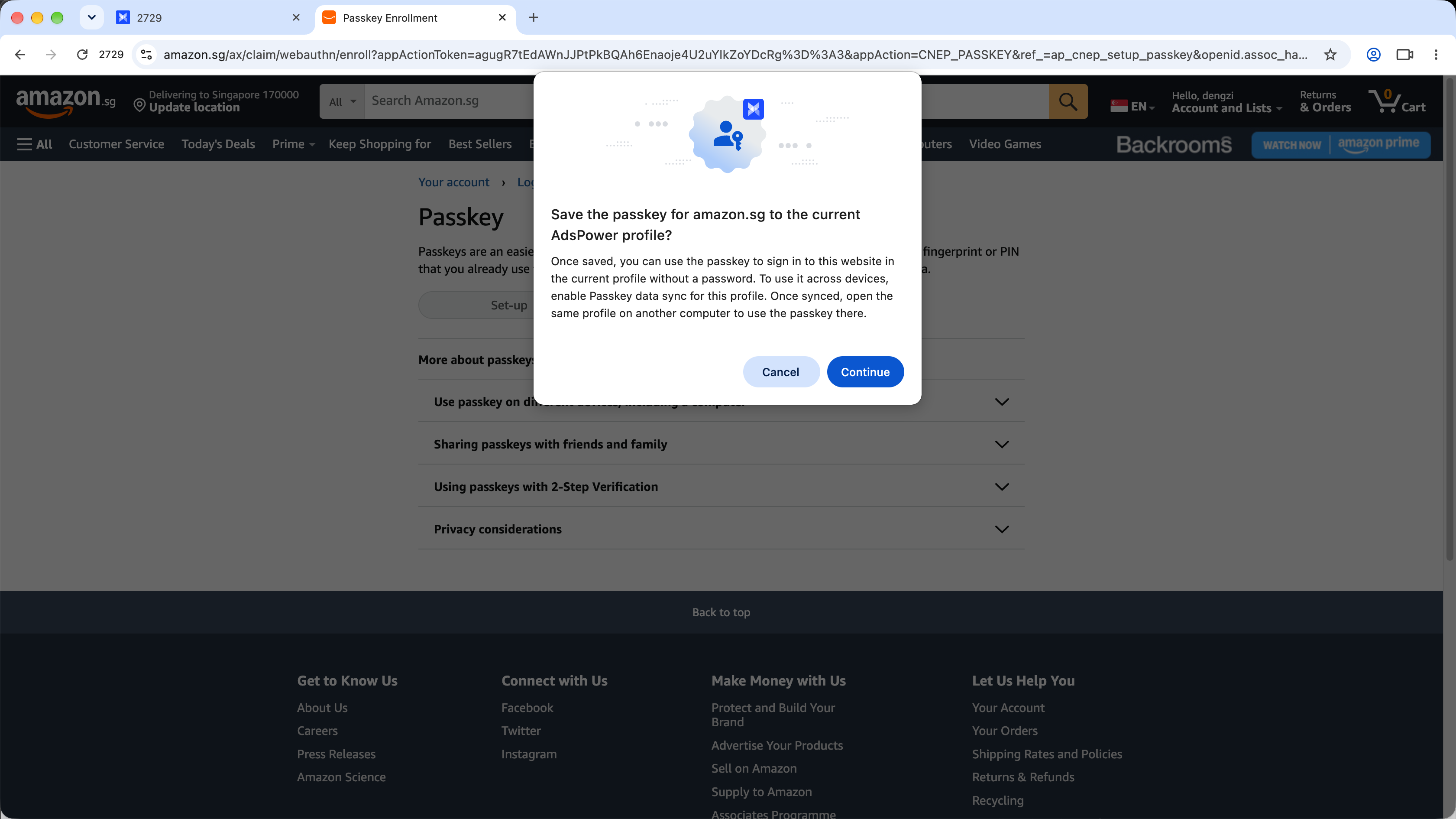
Step3: Select “Current AdsPower Profile” as your storage destination
When prompted where to store your newly‑generated Passkey, choose Current AdsPower Profile. The credential will be bound to this specific browser environment.
Step4: Access Passkey on other computers (enable sync first)
If you intend to use this Passkey from additional devices, enable data synchronization for the profile. On your second workstation, log into the identical AdsPower account, open the same browser profile, and you can authenticate using your existing Passkey once sync finishes.
FAQs
1. Do I need to recreate my Passkey every login after saving inside AdsPower?
No. Once generated and stored within an AdsPower profile, you can reuse that Passkey inside that profile without recreating it for subsequent logins.
2. Can I access my saved Passkey when switching to another computer?
Yes, if data sync is enabled. Ensure you log in under the same AdsPower account and open the matching browser profile. After profile data synchronizes, your Passkey becomes available. Without enabling sync, locally‑stored Passkey data will not transfer to other devices automatically.
3. Can a single AdsPower profile hold multiple Passkeys?
You can create and store multiple Passkeys within one profile according to your platforms and business scenarios. We recommend organizing credentials carefully to avoid cross‑account mix‑ups.
4. Does saving Passkeys in AdsPower mean all team members can automatically use these credentials?
Not exactly. Passkeys sync together with browser profiles, yet sync does not equal universal team access. Whether team members can utilize a given Passkey depends on your AdsPower environment‑sharing configuration and team permission settings. You still retain granular control over who can open each profile.
Final Thoughts
Passkey adoption is accelerating across major e‑commerce and social platforms. For multi‑account sellers working across multiple devices and teams, planning credential storage strategy ahead of Amazon’s mandatory enforcement helps you avoid login disruptions and operational friction.
With AdsPower, you can store Passkeys directly inside isolated browser profiles, use credentials locally, and enable sync so Passkeys travel alongside your profile environment. Get prepared for Amazon’s upcoming Passkey requirement and secure every one of your seller‑account login credentials.
