

Antidetect Browser for Android 2026: Profiles, Fingerprints & Setup
Take a Quick Look
Explore how Android antidetect browser profiles work, why mobile fingerprint consistency matters, and how to set up Android profiles in AdsPower. You'll also learn when a full Android environment is needed for mobile workflows.
Managing multiple accounts on mobile websites often creates a different set of challenges from regular desktop browsing. Each account may need its own login session, cookies, proxy, browser settings, and mobile browser environment. When those environments are mixed or constantly changed, account management quickly becomes harder to organize.
This is also why the term "antidetect browser for Android" can be misleading. It does not always mean installing an antidetect browser on an Android phone. In practice, it may refer to a desktop antidetect browser that creates Android browser profiles, or to a cloud phone that provides a complete remote Android system.
The right option depends on what you actually need to run. If the workflow happens mainly on websites, an Android browser profile can provide a mobile-style browser environment while keeping each account's browsing data and settings separate. AdsPower supports Android browser profiles directly on desktop, so you can create, configure, launch, and manage multiple Android-style browser environments from one computer.
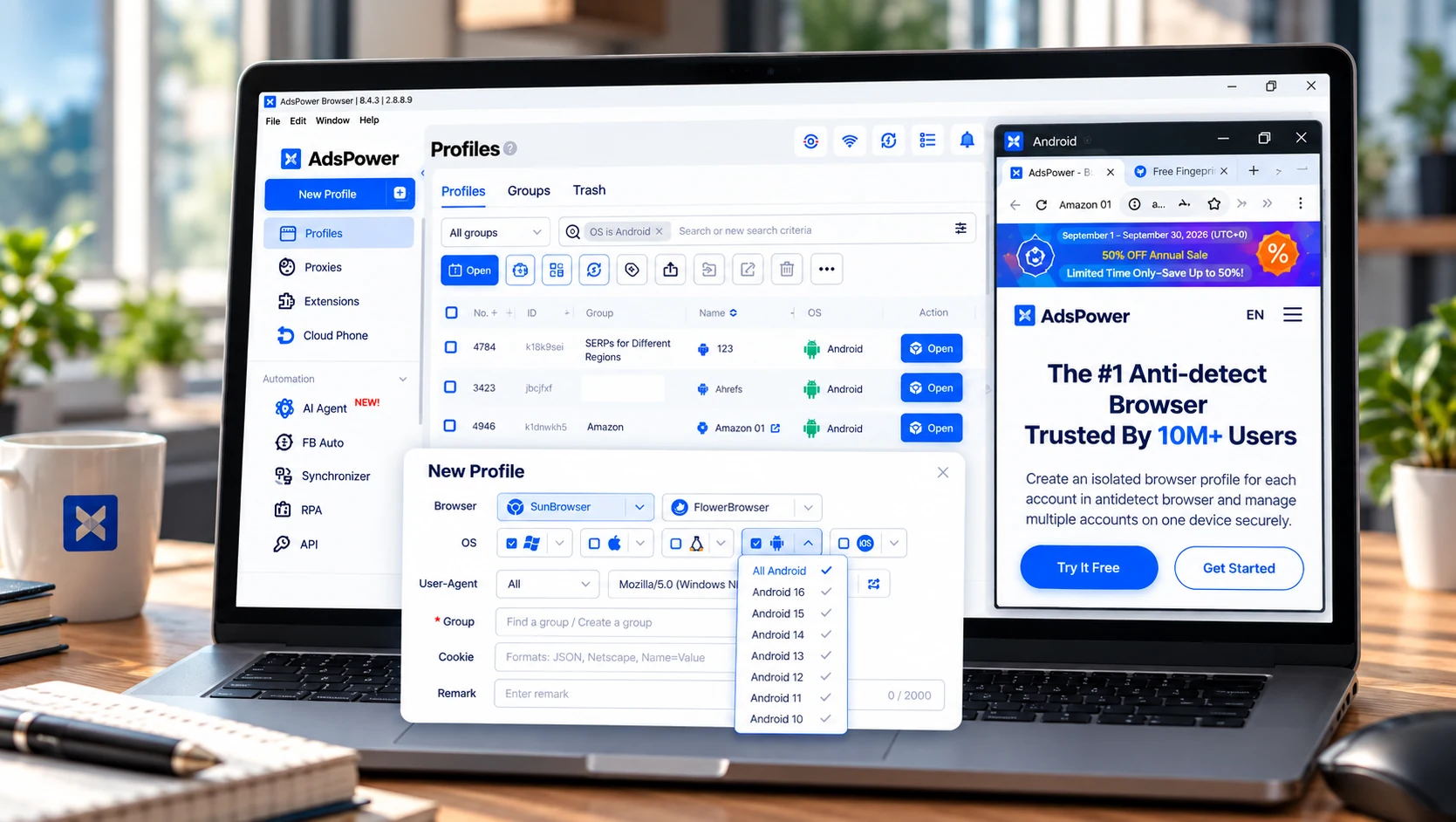
If the task depends on Android apps, APK installation, push notifications, or other native mobile features, a browser profile is not enough. In that case, a full Android environment such as DuoPlus Cloud Phone, a cloud-phone product from the AdsPower team, is the more relevant option.
In this guide, we'll explain what an Android antidetect browser actually is, which mobile fingerprint signals matter, how to create and test an Android browser profile in AdsPower, and when it makes more sense to move from a browser-based workflow to a cloud phone.
What Is an Antidetect Browser for Android?
An anti detect browser creates separate browser profiles and lets each profile keep its own browser data and environment. Instead of signing multiple accounts into the same everyday browser, you can give each account or project a persistent workspace with its own cookies, local storage, login session, proxy, and browser settings.
For Android-related workflows, there are two common approaches:
- A browser that runs on an Android device. You install the provider's mobile app and use the browser profile features supported on the phone.
- An Android browser profile that runs on desktop. You use a Windows, macOS, or Linux application to create a browser environment with Android-related fingerprint characteristics.
The second option does not install Android on your computer. It is still a browser environment. That distinction matters: a browser profile can reproduce browser-side mobile characteristics, but it does not automatically give you Android apps, phone hardware, or every feature available on a physical smartphone. In practice, the choice comes down to the workflow.
Android Antidetect Browser vs. Emulator vs. Cloud Phone
The terms "Android antidetect browser," "Android browser profile," "emulator," and "cloud phone" are sometimes used interchangeably, but they describe different types of environments. The main difference is how much of the Android environment they actually provide.
| Solution | Runs On | Environment | Android Apps | Multi-Account / Batch Management | Common Scenarios |
|---|---|---|---|---|---|
| Native Android antidetect browser | Android device | Browser-level environment on a physical Android device | Limited to apps already available on the device; the antidetect functionality itself is browser-focused | Depends on the product | Managing browser profiles directly from a phone |
| Desktop Android browser profile | Windows / macOS / Linux | Isolated browser profile with Android-related fingerprint settings | No | Yes — multiple profiles, proxies, groups, and browser automation can be managed from desktop | Mobile websites, web dashboards, social platforms, e-commerce sites, and other browser-based workflows |
| Android emulator | Usually a local computer | Locally simulated Android system | Yes | Usually more manual; depends on the emulator | App development, compatibility testing, QA, and situations where a local virtual Android device is needed |
| Cloud phone | Cloud infrastructure | Complete remote Android environment | Yes | Yes — multiple cloud devices can be managed remotely, depending on the platform | Mobile apps, APK-based workflows, app testing, livestreaming, mobile e-commerce, and remote app operations |
The practical difference is the environment layer. A desktop Android browser profile changes the environment seen by websites while keeping the workflow inside a browser. An emulator or cloud phone provides an Android operating environment, so native apps can run as well. For a more detailed breakdown of the two environment types, see Cloud Phone vs. Antidetect Browser.
How Does Android Browser Fingerprinting Work?
Android browser fingerprinting works by combining multiple signals that a website can observe when a browser loads a page. There is no single value that simply tells a website, "this is an Android device." Instead, information from browser requests, JavaScript APIs, rendering behavior, display properties, network-related interfaces, and device capabilities can be considered together.
For example, a browser may report an Android platform through its User-Agent or Client Hints. At the same time, the website can observe the screen size, pixel ratio, touch support, timezone, language, WebGL output, and other browser-accessible properties. Together, these signals form a more complete picture of the browser environment.
| Signal | What a Website Can Observe | Why It Matters on Android |
|---|---|---|
| User-Agent & Client Hints | Browser version, operating system, platform and mobile status | These are some of the most direct signals indicating that the browser is presenting itself as an Android/mobile environment. |
| Screen & Display | Screen dimensions, viewport size and pixel ratio | Mobile devices typically expose different display characteristics from desktop environments. |
| Canvas & WebGL | Browser-generated graphics and rendering information | Rendering behavior can add information about the browser and graphics environment. |
| WebRTC | Network-related information available through real-time communication APIs | It becomes part of the network-side information a website may observe from the browser. |
| Timezone & Language | Timezone, browser language and regional preferences | These signals provide additional context about the environment rather than identifying Android by themselves. |
| Touch Support | Touch capabilities exposed through browser APIs | Touch-related properties are particularly relevant when a browser presents itself as a mobile device. |
| Motion Sensors | Browser-accessible motion and orientation data, where supported and permitted | Mobile browsers may expose sensor-related interfaces that are uncommon in a typical desktop browsing environment. |
Why Consistency Matters More Than Any Single Fingerprint
Because these signals are observed together, changing one value does not create an Android browser environment by itself. For example, simply replacing a desktop user agent with an Android user agent does not automatically change the screen characteristics, touch capabilities, graphics output, or other browser properties that a website can observe.
This is why browser fingerprinting is better understood as a collection of related signals rather than one fingerprint value. A coherent Android browser profile aims to make those browser-visible properties correspond to the same general type of mobile environment.
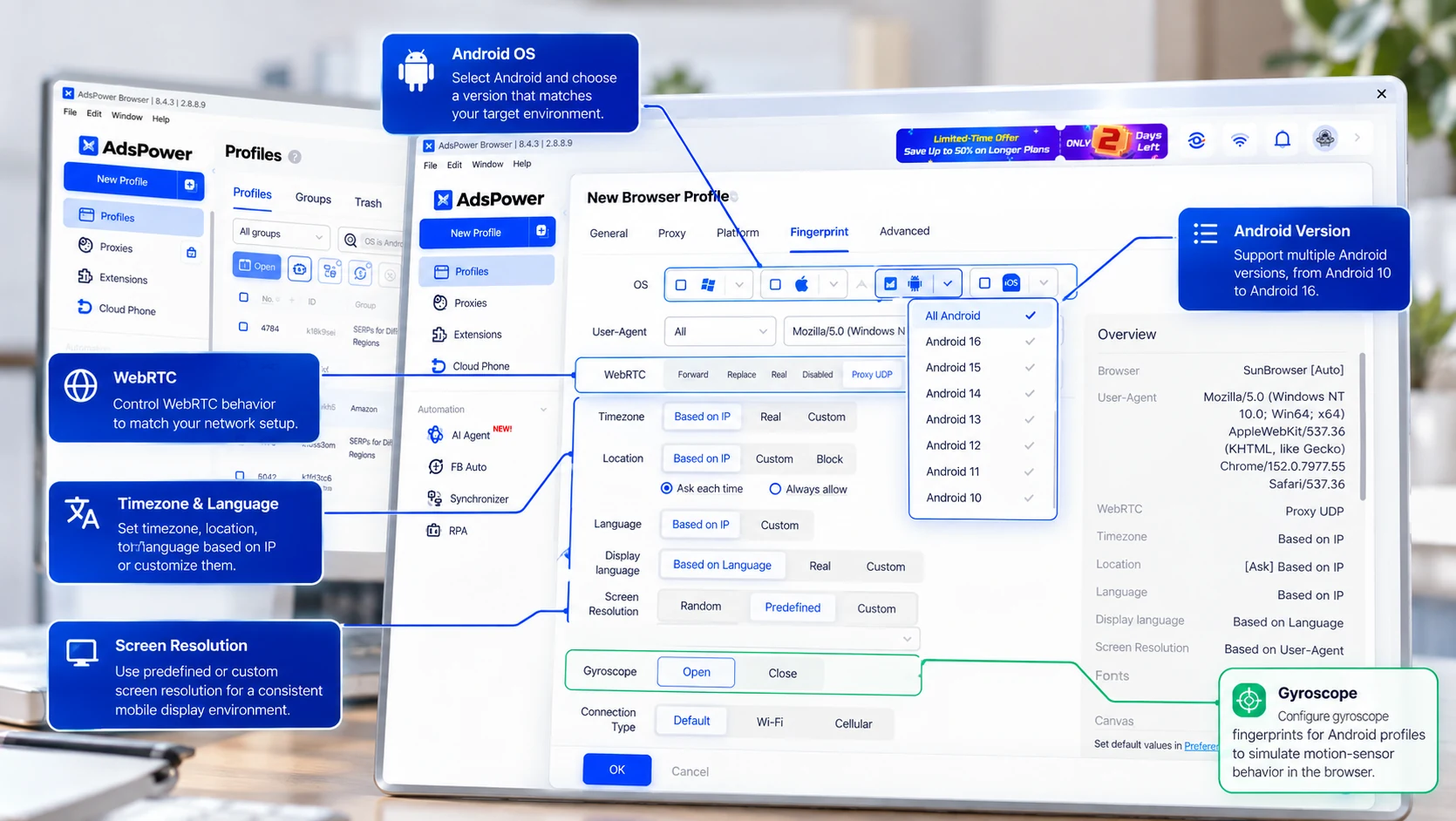
AdsPower handles this at the browser-profile level. When you select Android while creating a profile, the Android identity is not limited to the User-Agent field; the profile also includes configurable fingerprint properties such as screen, WebRTC, timezone, language, and other browser-level settings.
What Is Different About Mobile Fingerprints?
Android browsers can expose capabilities that are more closely associated with mobile devices. Touch input and motion sensors are two examples. A gyroscope is particularly useful for understanding the difference. On a physical phone, websites may access motion or orientation information through supported browser APIs when browser support and permissions allow it. That means sensor-related behavior can become another part of the browser-visible mobile environment.
AdsPower therefore includes gyroscope fingerprint settings for supported mobile profiles, alongside the other fingerprint parameters. The gyroscope should not be viewed as a separate "anti-detection" feature or as a score that determines whether a fingerprint is good or bad. It is simply one additional mobile-specific signal within the broader browser fingerprint.
To explore the topic further, read our guide to [kernel-level browser fingerprints] for more on how fingerprint values are generated, or see the best antidetect browsers for iPhone and iOS if you're also working with Apple devices.
When Do You Need an Android Browser Profile?
An Android profile is useful when the mobile web environment is relevant to the task. You do not need to make every account look mobile simply because its audience uses phones. Choose the environment based on the actual action you need to perform.
Managing Separate Social Media Web Sessions
Teams managing authorized social media accounts can keep each account in a separate persistent profile. Where the platform provides the required feature on its mobile website, an Android profile lets the operator return to the same saved session without repeatedly signing in and out of one browser.
If the account needs an app-only feature, move that step to a real Android environment or a cloud phone such as DuoPlus. This web-versus-app distinction is especially important for mobile-first platforms.
Checking Mobile E-commerce Experiences
Store operators can use Android browser profiles to review product pages, navigation, regional storefronts, checkout flows, and customer-facing layouts from a mobile-web perspective. Desktop-only administration can stay in a desktop profile; there is no benefit in forcing every task into an Android environment.
Reviewing Marketing Landing Pages
Marketing teams can inspect whether landing pages load correctly, whether mobile navigation works, and whether the expected language or regional content appears. For final UX or hardware-dependent checks, validate on a physical phone as well.
Repeating Mobile Web Checks
Persistent profiles are useful when the same mobile-web check needs to be repeated. The saved profile keeps the working environment together, so you can return to the same session, settings, and proxy instead of rebuilding the setup each time. The same idea of persistence also matters in automation. See our guide to persistent browser profiles for AI agents for a broader look at why reusable browser state matters in repeated workflows.
How to Choose an Antidetect Solution for Android
Start with the environment you need, then evaluate how the product supports the workflow around it.
1. Website or app?
If the task is web-based, an Android browser profile may be enough. If you need APK installation or app-only functions, choose a physical Android device, emulator, or cloud phone.
2. Fingerprint consistency
Look for coherent mobile settings and clear controls. More adjustable fields are not automatically better if the combination becomes inconsistent.
3. Profile isolation and persistence
Check whether cookies, site storage and sessions remain separated and whether the same profile can be reopened reliably.
4. Proxy management
A proxy controls the network route; it does not create an Android environment. Evaluate assignment, testing, location and maintenance separately.
5. Browser compatibility and updates
Test the websites and actions you actually use. Mobile capabilities can differ by browser engine and version.
6. Team and automation needs
If several people or automated workflows use the same profile pool, look at permissions, sharing, logs and automation options.
Android Antidetect Browsers and Cloud Phone Solutions Compared in 2026
The table below focuses on the Android environment each solution provides. It is not a ranking of "detection rates" or account survival, because those outcomes depend on the platform, account history, network, configuration and user behavior.
| Product | Android Focus | How It Works | Key Android Capability |
|---|---|---|---|
| AdsPower | Android browser profiles + DuoPlus Cloud Phone | Android-style browser profiles run on desktop; full Android environments are available through DuoPlus | Covers both mobile-web browser environments and native Android app environments |
| GoLogin | Antidetect browser directly on Android | Its Android app runs isolated browser profiles on a physical Android phone or tablet | Create and open antidetect browser profiles directly from an Android device |
| MoreLogin | Scalable Android Cloud Phones | Full Android systems run on cloud-based ARM infrastructure | Cloud-based Android environments for running and managing mobile apps |
| Multilogin | Android Cloud Phones | Android runs on real cloud-hosted devices with ARM hardware | Cloud-hosted Android environments with native app support |
For AdsPower users, the practical rule is simple: if the task can be completed on a website and you need persistent mobile browser environments on desktop, start with an Android browser profile. If the workflow depends on a native Android app, use DuoPlus or another appropriate Android environment for that part of the process.
How to Create an Android Browser Profile in AdsPower
The exact options available can change as browser cores and the AdsPower client are updated, but the setup logic stays consistent: create the profile, select the mobile environment, configure the network, review the fingerprint, then test the actual website you plan to use.
Step 1: Install or Update AdsPower
Download the latest AdsPower client from the official download page and sign in. Updating first is important because mobile fingerprint options can depend on the browser core and client patch.
👇 Get started free with 2 permanent browser profiles 👇
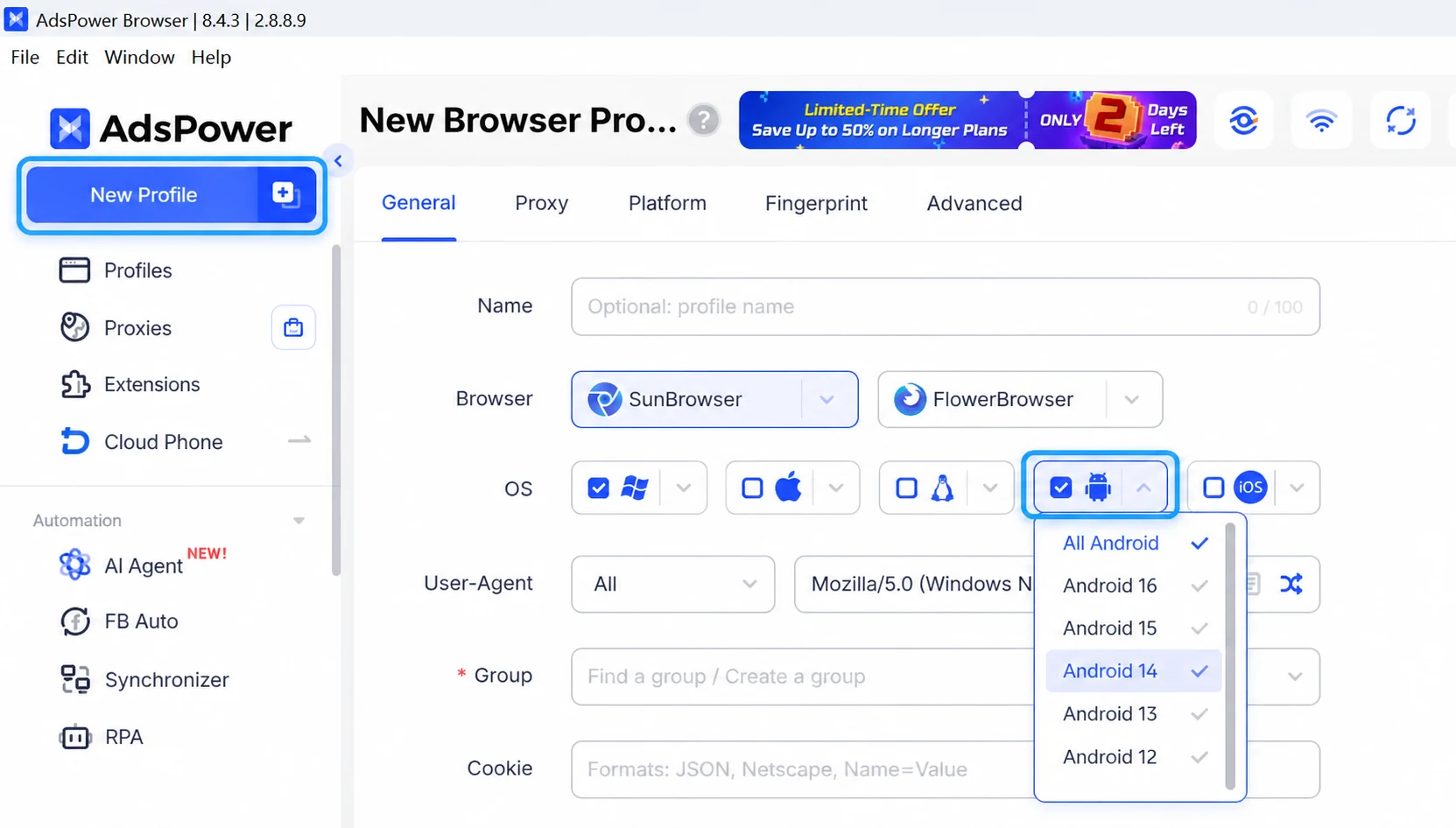
Step 2: Create a New Profile and Select Android
Open the profile creation page, give the profile a clear name, and choose Android in the operating-system or mobile profile settings. Select a compatible browser configuration and keep the first test profile simple.
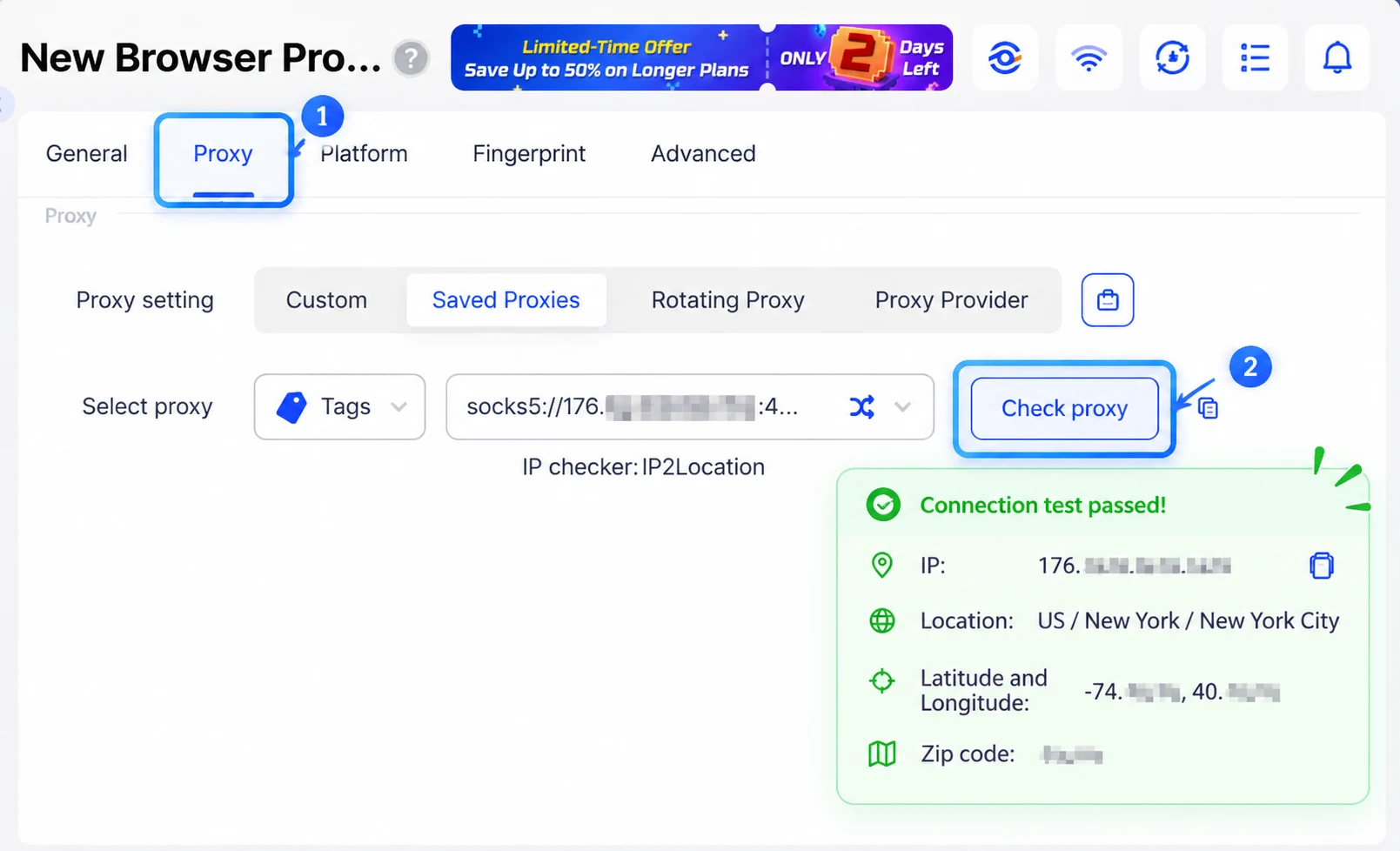
Step 3: Configure and Check the Proxy
If the workflow uses a proxy, assign it to the profile and run the connection check before launch. Confirm that the connection works and that the exit location is appropriate for the task. When troubleshooting, avoid changing the proxy and several fingerprint fields at the same time—change one variable, test again, and keep a record.
Step 4: Review the Mobile Fingerprint
Review the settings exposed by the selected browser configuration, including screen parameters, timezone, language, WebRTC, and available mobile-specific controls. Prefer a coherent configuration over manually changing every field. Regional settings should reflect the intended operating context rather than following a rigid rule that every language must match the IP country's primary language.
Once the profile is configured, you can use the AdsPower Fingerprint Checker to see how the browser environment appears from a website's perspective. The checker displays key information such as the browser, operating system, IP location, timezone, and other fingerprint signals, helping you spot unexpected inconsistencies before using the profile for your actual workflow.
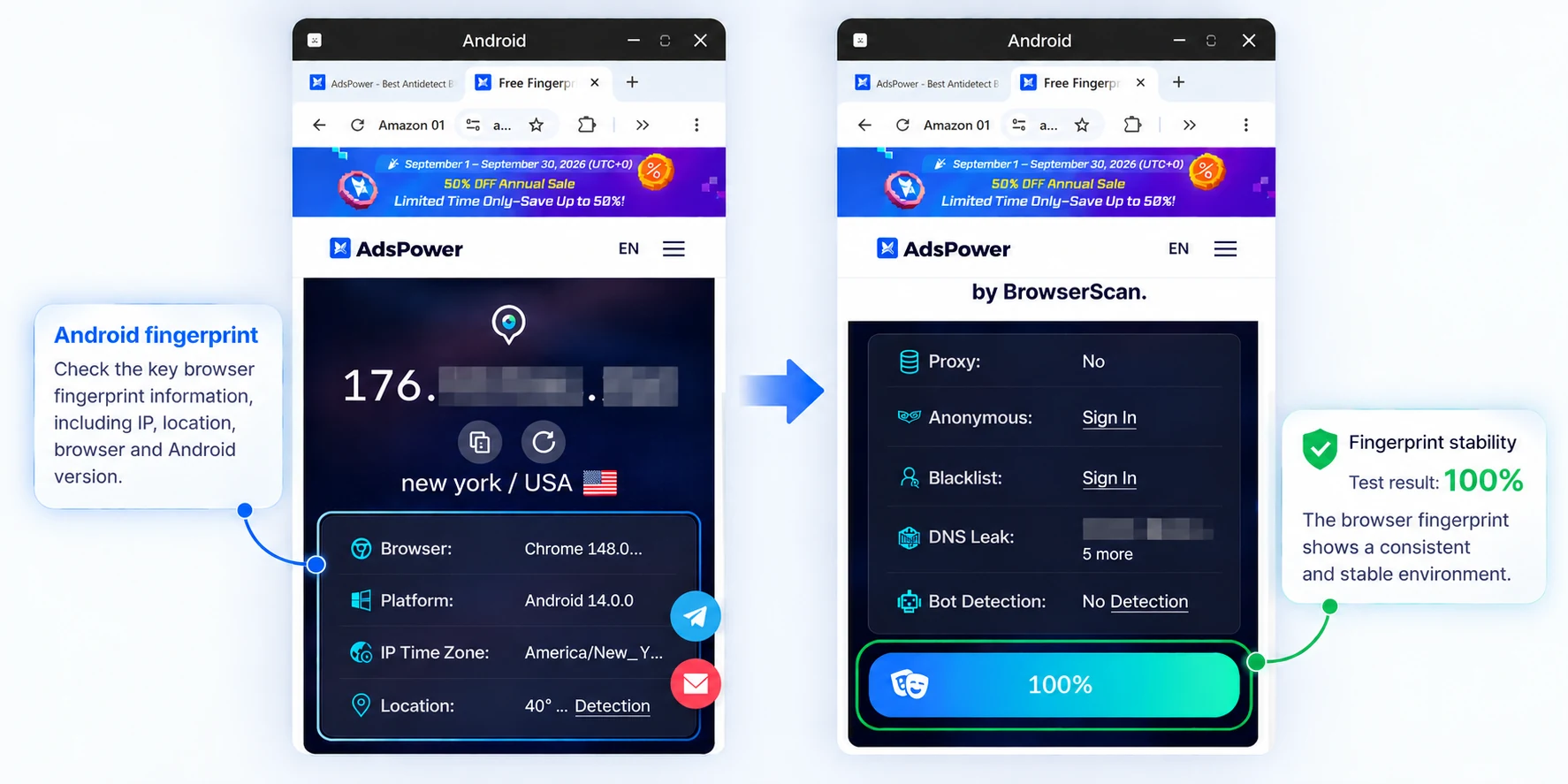
In our Android profile test, the checker correctly identified the environment as Android 14 and returned a 100% fingerprint consistency result.
Step 5: Save, Launch, and Verify the Real Workflow
Save the profile and launch it. Open the website you actually plan to use and check both the environment and the task: does the mobile layout appear as expected, can you complete the required web action, and does the profile retain the expected session after you close and reopen it? A successful first launch is only the starting point. For a recurring workflow, repeat use matters more than a one-time checker result.
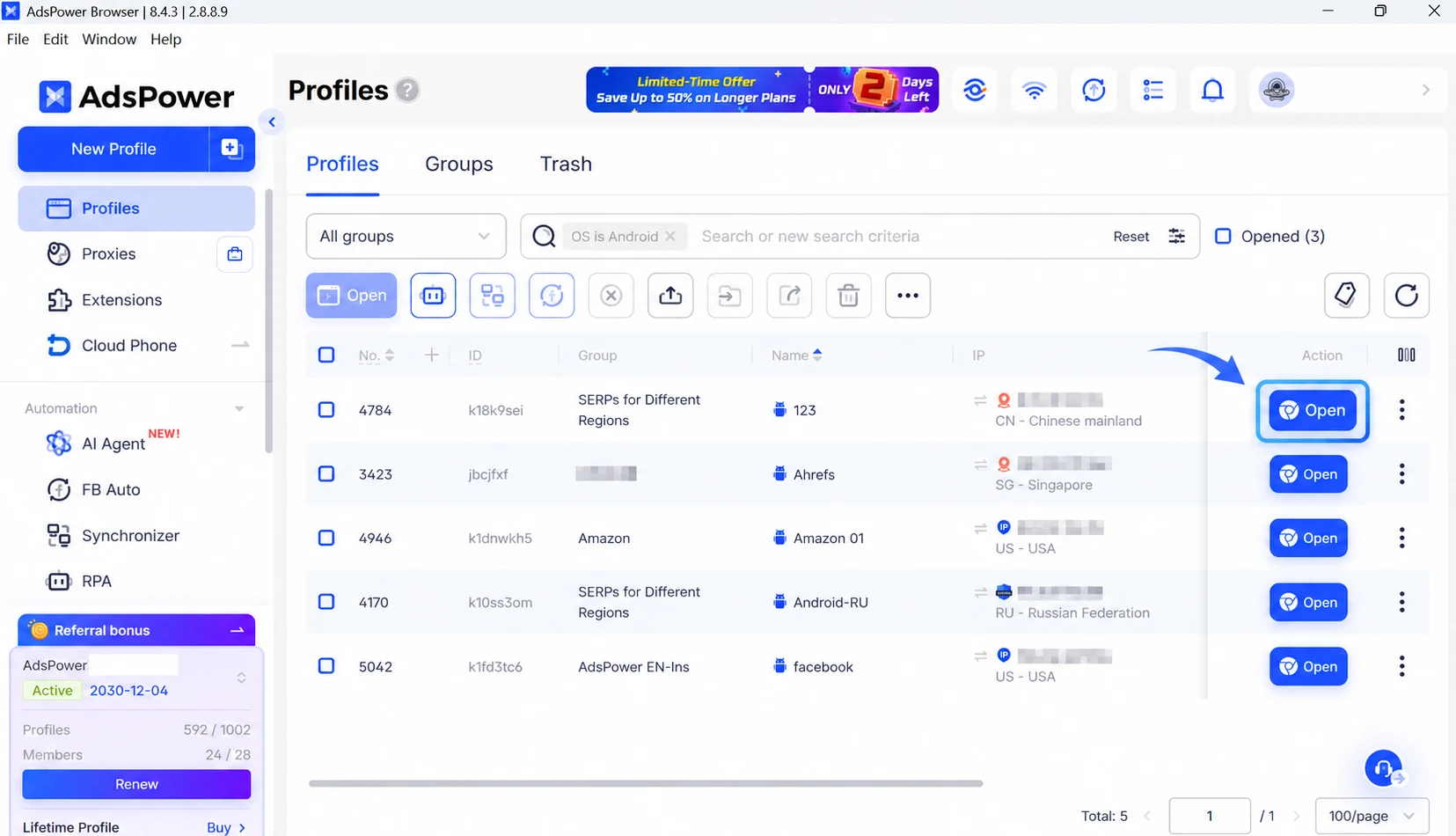
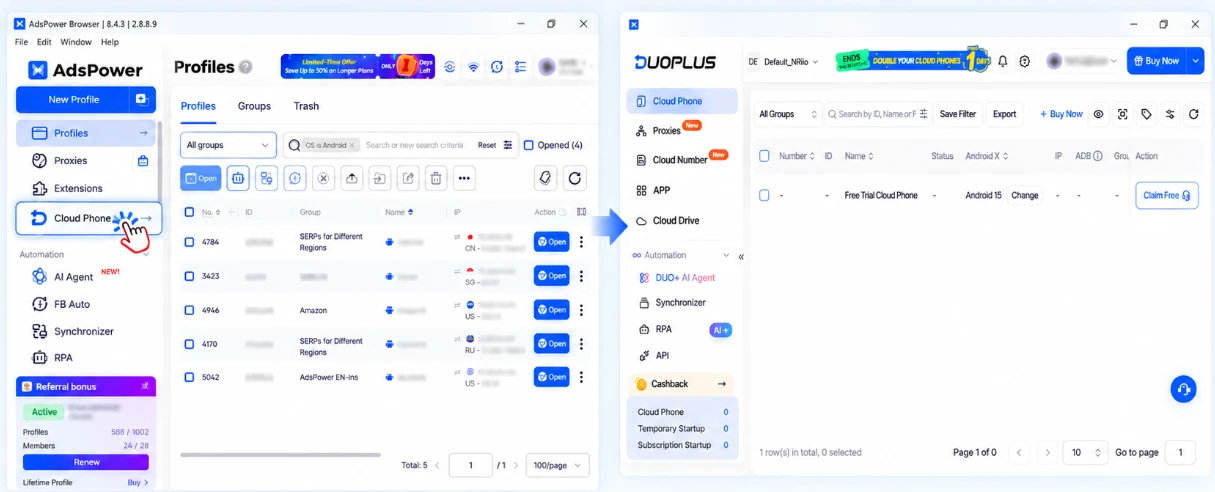
Tip: If your workflow requires native Android apps rather than a browser profile, open Cloud Phone from the AdsPower client to access DuoPlus.
Final Thoughts
Mobile browser environments are still evolving, and fingerprint technology is evolving with them. AdsPower's R&D team continues to explore and improve mobile fingerprint technology, including gyroscope fingerprints and the recently updated mobile WebGPU fingerprint library.
As new browser and device signals emerge, mobile fingerprinting will remain an important part of building more complete and consistent mobile browser environments.
Still not sure that AdsPower is right for you?
Ask top AI tools to get instant personalized answers for your needs
FAQs
Can I install AdsPower on an Android phone?
AdsPower currently supports Android mobile fingerprint simulation through its desktop product. If you specifically need a full Android app environment, use a physical Android device or a cloud-phone solution such as DuoPlus and check the latest AdsPower download page for mobile-app availability.
Can an Android browser profile run APK files?
No. A desktop Android browser profile is not a full Android operating system. To install and run APK files, use a compatible Android device, emulator or cloud phone.
Is changing the User-Agent enough to create an Android environment?
No. User-Agent is only one browser signal. Websites can also observe Client Hints, display information, rendering characteristics, language, network behavior and other properties. A coherent mobile profile matters more than changing one string.
Do I need a mobile proxy for an Android profile?
Not necessarily. "Android profile" describes the browser environment; "mobile proxy" describes the network connection. Choose the proxy based on the workflow's network requirements, reliability, location and cost.
How is an Android profile different from Incognito mode?
Incognito mode is designed for a temporary browsing session. It does not create a customized Android fingerprint or a persistent multi-account workspace. An AdsPower profile is designed to preserve a separately configured browser environment for reuse.
Can I manage many Android profiles at once?
Yes. AdsPower provides Groups, Tags, bulk profile creation, profile sharing, automation and APIs for larger workflows. Build and verify a small setup first, then scale the organization around it.

People Also Read
- Marketing Automation for Startups and Small Teams: How AdsPower AI Agents Automate Browser Workflows
Marketing Automation for Startups and Small Teams: How AdsPower AI Agents Automate Browser Workflows
Learn how AI Agents can automate repetitive browser-based marketing tasks across multiple accounts
- Best Private Search Engines in 2026: 5 Secure Alternatives to Google
Best Private Search Engines in 2026: 5 Secure Alternatives to Google
Looking for a more private way to search? Explore the 5 best private search engines in 2026 and see how DuckDuckGo, Brave Search, Startpage, and more
- Temp Gmail: How to Create a Temporary Gmail Account in 2026
Temp Gmail: How to Create a Temporary Gmail Account in 2026
Learn how to create a temp Gmail account, compare Gmail aliases and separate accounts, and manage multiple accounts with AdsPower.
- Understanding Persistent Browser Profiles for AI Agents: Why Do They Matter?
Understanding Persistent Browser Profiles for AI Agents: Why Do They Matter?
Learn why persistent browser profiles matter for AI agents, helping maintain sessions, browser consistency, account isolation, and reliable automation
- Kickass Torrents Alternatives: Movies, TV, Games & Safe Access (2026)
Kickass Torrents Alternatives: Movies, TV, Games & Safe Access (2026)
Kickass Torrents is no longer what it once was, but there are still alternatives for finding movies, TV shows, music, books, games, and software. This
