

AdsPower Agentic Browser: Stable Browser Environments for AI Agents
Take a Quick Look
AI agents fail without a stable browser environment. Learn how AdsPower agentic browser ensures secure, scalable automation. Start building reliable workflows with AdsPower today.
When people first get into web automation, the approach feels straightforward. Write the workflow, connect an AI agent, and let the script handle account registration, login, content posting, or data collection. If the logic is sound, everything should work.
Anyone who has actually run these projects knows what happens next. The script looks fine. Tasks keep failing. Accounts start getting flagged one by one. The natural reaction is to check the code or tweak the automation flow. But after enough debugging, a pattern emerges: the problem isn't the script. It's the browser environment.
Websites constantly evaluate whether a visitor is a real person. The browser environment is one of the primary signals they use to make that call. This article explains why browser environments matter so much for AI agent workflows, and how AdsPower solves the problem with isolated, realistic browser profiles.
How Platforms Detect Bulk Operations of AI Agents
Most websites analyze a full set of browser fingerprint characteristics when evaluating incoming traffic. Browser version, operating system, screen resolution, installed fonts, WebGL rendering, timezone, language settings, Canvas fingerprint, AudioContext fingerprint. Combined, these data points form something like a device ID card.
When dozens of accounts all come from the same browser environment, platforms can identify the pattern even if each account runs a completely different script. Early in a project, this might not cause visible issues. But as the operation scales up or runs over longer periods, the risk builds. At that point, even the most sophisticated automation logic won't keep things stable.
The real issue isn't whether your script is well-written. It's whether your browser environment looks real enough to pass inspection.
Why AI Agent Needs a Stable Browser Environment
In the world of account management, affiliate marketing, and web automation, AdsPower is a common solution for this exact problem. At first glance, it looks like a browser. Under the hood, it's a browser identity management system.
When you create an AdsPower profile, each account gets its own isolated environment. That environment simulates a real device with distinct characteristics:
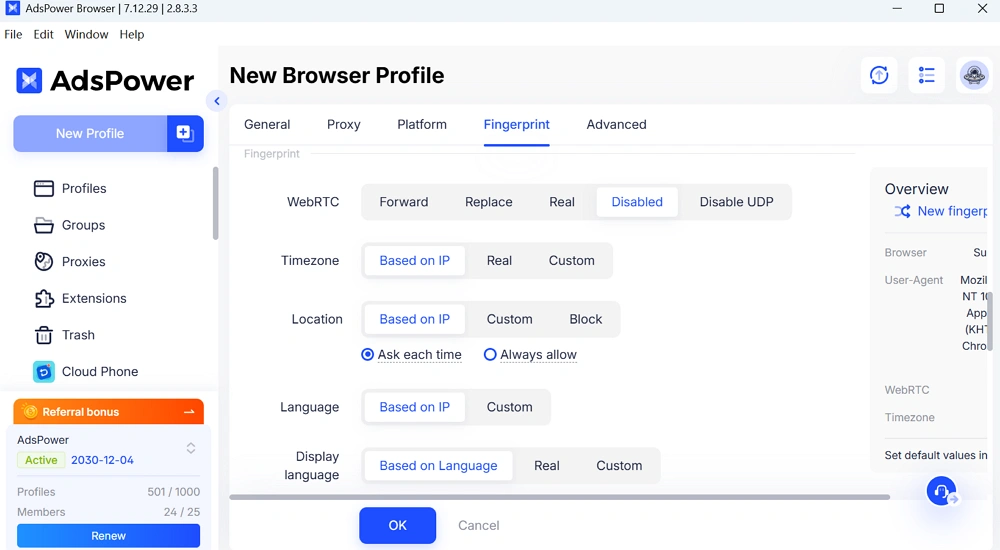
- A unique browser fingerprint (Canvas, WebGL, AudioContext)
- Separate operating system and hardware identifiers
- Independent fonts, screen resolution, and color depth
- Its own timezone and language configuration
- Fully isolated cookies, local storage, and session data
Each browser environment looks like a different physical device. Not like the same computer operating 50 accounts in parallel. For example, when an AI agent opens Account #12 inside its AdsPower profile, the website sees a visitor on a Windows laptop in Berlin with a specific set of installed fonts and a particular GPU rendering signature. Account #13 might appear as a MacBook user in Toronto. No overlap. No shared signals.
AdsPower offers two browser engines to support this. SunBrowser runs on Chromium. FlowerBrowser runs on Firefox. Having both kernels available means the fingerprint diversity extends to the browser engine level, which adds another layer of separation between profiles.
How AdsPower Agentic Browser Executes AI Agent Tasks
AdsPower provides APIs and automation interfaces that turn the browser into a programmable execution node. AI agents or scripts can call the browser directly through these interfaces to perform operations like:
- Logging into accounts
- Filling out forms
- Publishing content
- Collecting page data
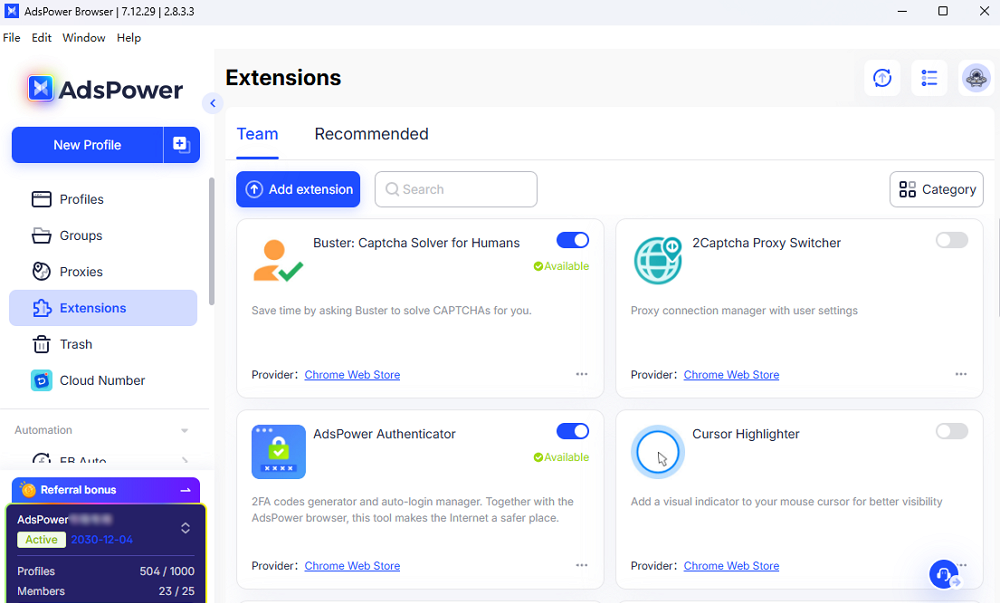
- Handling CAPTCHAs
- Simulating realistic user behavior
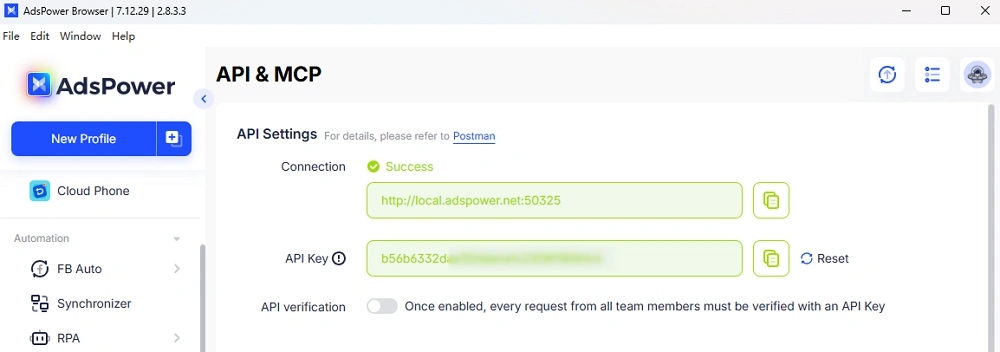
With this setup, the browser stops being just a manual tool. It becomes an execution terminal within the automation system. AI handles the reasoning. The browser handles the actual website interaction. Both pieces need to work together for the automation to function properly.
Why Anti-Bot Systems Detect Poor Automation Setups
As automation tools become more common, websites keep upgrading their detection systems. Cloudflare, DataDome, and Akamai Bot Manager all evaluate browser characteristics, behavioral patterns, request timing, and frequency to determine whether traffic is legitimate. If the browser environment clearly belongs to an automation tool, tasks get blocked quickly.
AdsPower's browser environments are designed to closely replicate real user devices. The platform also supports CAPTCHA handling, which helps automated tasks pass detection checks more consistently. From a practical standpoint, effective automation isn't about "bypassing" detection. It's about making the browsing behavior close enough to a real person that detection systems don't trigger. When the browser environment is realistic, the entire automation workflow becomes more stable.
Scaling AI Agent Workflows with Isolated Browser Environments
When automation projects scale up, the bottleneck shifts from scripts to management. Running dozens or hundreds of tasks simultaneously is hard to handle with regular browsers. Environments interfere with each other. Task states are difficult to track across sessions.
At this stage, the browser is no longer just a tool you open and close. It functions more like a runtime platform for the automation system. AdsPower can create and manage browser environments in bulk, letting different automation workflows run independently in their own isolated spaces. That turns the browser from a single-use application into infrastructure that supports large-scale automated operations.
Get Started
If you're building AI agent workflows that involve multiple accounts or detection-sensitive tasks, the browser environment should be one of the first things you set up.
AdsPower browser offers:
- A free plan to test profile creation and API integration
- Local API documentation for connecting AI agents via Puppeteer or Playwright
- MCP support for compatible agent frameworks
- Both Chromium and Firefox browser engines
- 50+ customizable fingerprint parameters for multiple accounts
Set up a few profiles, connect your agent through the API, and run a test workflow to see how the isolated environments perform in your specific use case.
How to Set Up AdsPower Agentic Browser for AI Agent Automation
Here's a quick example using OpenClaw as the AI agent.
1. Make sure AdsPower is running locally so the API is active (default: http://local.adspower.net:50325).
2. In OpenClaw, use the local API endpoint to let the agent discover available profiles.
If you set up your Telegram bot to control your Openclaw, you can directly ask your bot to connect AdsPower and run certain profiles.
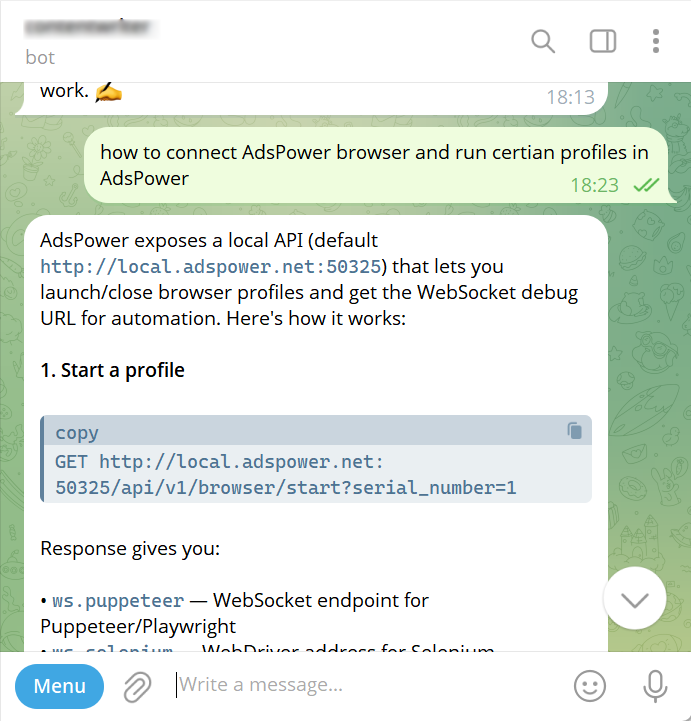
3. Tell the agent which profile to use. OpenClaw calls the API, launches that profile, gets the WebSocket URL, and connects via CDP.
4. The agent now controls a fully isolated browser session. It can navigate, click, type, and extract data inside that profile's unique fingerprint environment.
No custom browser code needed. OpenClaw handles the connection. AdsPower handles the isolation.

People Also Read
- Best Private Search Engines in 2026: 5 Secure Alternatives to Google
Best Private Search Engines in 2026: 5 Secure Alternatives to Google
Looking for a more private way to search? Explore the 5 best private search engines in 2026 and see how DuckDuckGo, Brave Search, Startpage, and more
- Temp Gmail: How to Create a Temporary Gmail Account in 2026
Temp Gmail: How to Create a Temporary Gmail Account in 2026
Learn how to create a temp Gmail account, compare Gmail aliases and separate accounts, and manage multiple accounts with AdsPower.
- Understanding Persistent Browser Profiles for AI Agents: Why Do They Matter?
Understanding Persistent Browser Profiles for AI Agents: Why Do They Matter?
Learn why persistent browser profiles matter for AI agents, helping maintain sessions, browser consistency, account isolation, and reliable automation
- Kickass Torrents Alternatives: Movies, TV, Games & Safe Access (2026)
Kickass Torrents Alternatives: Movies, TV, Games & Safe Access (2026)
Kickass Torrents is no longer what it once was, but there are still alternatives for finding movies, TV shows, music, books, games, and software. This
- AdsPower Proxy: Buy and Configure Proxies in One Place
AdsPower Proxy: Buy and Configure Proxies in One Place
Buy an AdsPower proxy while creating a profile, configure it automatically, or continue using your preferred third-party proxy provider.
