

Discover how OpenClaw and AdsPower automate Google account login. Follow this practical guide to build your own AI-driven automation workflow. Start exploring now. 🚀
AI agents are rapidly changing how automation workflows are built. Recently, many developers have started experimenting with OpenClaw, an AI agent framework capable of executing real-world tasks through tools, scripts, and APIs.
One practical use case is automating account operations — such as securely logging into multiple Google accounts from a server environment.
In this guide, we'll walk through a real-world experiment using an OpenClaw AI agent with AdsPower to automatically log in to Google accounts on a Linux server. You'll learn how the automation workflow works, the key technical challenges, and how AdsPower API enables stable browser control.
Why Use AdsPower for AI Agent Automation?
When AI agents perform browser automation, they need a stable, isolated browsing environment. That's where AdsPower becomes useful.
AdsPower antidetect browser provides:
- Isolated browser profiles
- Unique browser fingerprints
- Proxy configuration
- API control for automation
- Puppeteer / Playwright compatibility
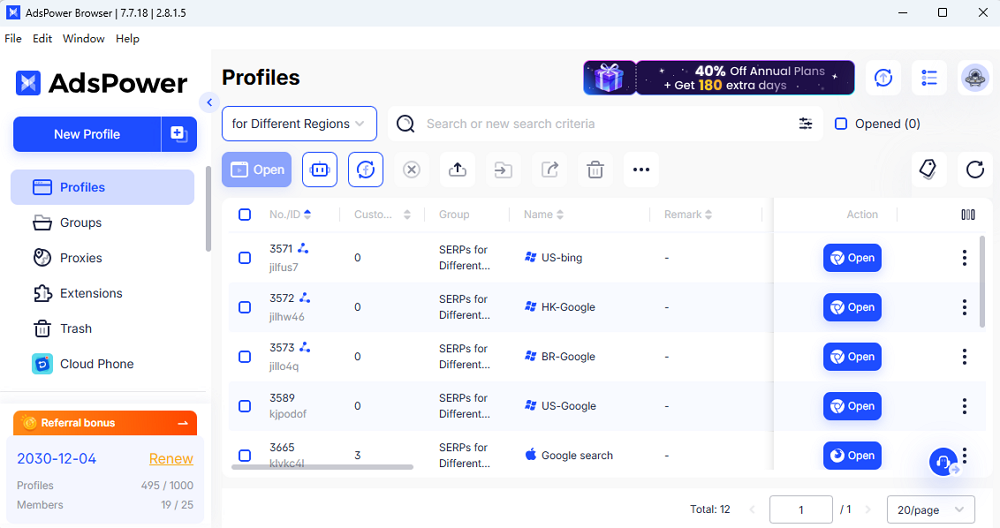
For AI agents like OpenClaw, this means each automated task can run in an independent browser identity, preventing cookie conflicts or cross-account interference.
In this experiment, OpenClaw was used to orchestrate the task while AdsPower handled browser profile management and automation APIs.
Automation Scenario
- Server: Ubuntu 24.04 LTS (headless)
- Automation Agent: OpenClaw AI Agent
- Browser Manager: AdsPower Global v7.12.29
- Automation Tool: Puppeteer
- Goal: Automatically log in to an existing Google account
- Requirement: Fully automated workflow
Automation Architecture
The OpenClaw AI agent controls the entire process through AdsPower APIs.
OpenClaw AI Agent
        │
        ▼
AdsPower Local API
        │
        ▼
Launch Browser Profile
        │
        ▼
Puppeteer Browser Control
        │
        ▼
Google Login Process
This architecture allows the AI agent to launch a fingerprint browser profile and control it programmatically.
Step 1: Run AdsPower on a Server
The AdsPower Linux client currently mainly runs in the Ubuntu desktop environment. Therefore, when using it in a server, it is necessary to first install basic graphical components. If the system itself does not have a display interface, a virtual display environment (such as Xvfb) can be used to run browser instances. Xvfb creates a virtual display server in the background, allowing the browser to start and run normally even without an actual monitor.
Install Xvfb to simulate a display environment.
sudo apt update
sudo apt install -y xvfb
Then launch AdsPower with a virtual display:
xvfb-run -a adspower_global \
  --headless=true \
  --api-key=YOUR_API_KEY \
  --api-port=50325 \
  --no-sandbox
Explanation:
- xvfb-run -a automatically assigns a virtual display
- --headless=true runs AdsPower without UI
- --no-sandbox avoids permission issues in server environments
Once started, the AdsPower API begins listening on the configured port.
Step 2: Retrieve Account Information from AdsPower
The AI agent first retrieves stored account credentials from AdsPower profiles.
Example API request:
const API_BASE = 'http://localhost:50325';
const API_KEY = 'YOUR_API_KEY';

async function getCredentials(profileId) {
  const response = await fetch(
    `${API_BASE}/api/v1/user/list?page=1&page_size=100`,
    {
      headers: {
        'Authorization': `Bearer ${API_KEY}`
      }
    }
  );

  const data = await response.json();
  const profile = data.data.list.find(p => p.user_id === profileId);

  return {
    email: profile.username,
    password: profile.password,
    recoveryEmail: profile.remark.split('----')[2]
  };
}
This allows the AI agent to dynamically obtain login credentials stored in AdsPower.
Step 3: Launch the Browser Profile via API
Next, the OpenClaw agent instructs AdsPower to launch the browser profile.
async function startBrowser(profileId) {
  const response = await fetch(
    `${API_BASE}/api/v1/browser/start?user_id=${profileId}&open_tabs=1`,
    {
      headers: {
        'Authorization': `Bearer ${API_KEY}`
      }
    }
  );

  const data = await response.json();
  return data.data.ws.puppeteer;
}
AdsPower returns a WebSocket endpoint, which Puppeteer can connect to.
const wsEndpoint = await startBrowser(profileId);

const browser = await puppeteer.connect({
  browserWSEndpoint: wsEndpoint,
  defaultViewport: null
});
This connects Puppeteer directly to the AdsPower antidetect browser instance.
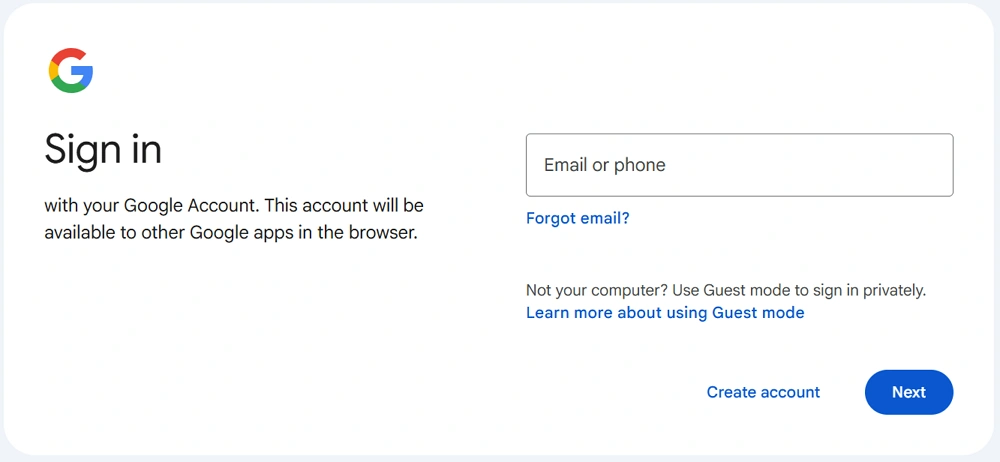
Step 4: Navigate to the Google Login Page
Once connected, the AI agent navigates to the Google login page.
const page = (await browser.pages())[0];

await page.goto('https://accounts.google.com/signin');
await new Promise(r => setTimeout(r, 3000));
Step 5: Handle the Google Login Flow
Google login pages can vary depending on account history and security settings.
The AI agent handles several common scenarios automatically.
Select Your Google Account
If Google shows previously used accounts:
const clicked = await page.evaluate((email) => {
  const el = document.querySelector(`[data-identifier="${email}"]`);
  if (el) {
    el.click();
    return true;
  }
  return false;
}, credentials.email);
Using page.evaluate() often works more reliably than page.click().
Enter the Password
await page.waitForSelector('input[type="password"]', { timeout: 10000 });
await page.type('input[type="password"]', credentials.password);
await page.keyboard.press('Enter');
Handle Recovery Email Verification
Google may request recovery email verification.
await page.waitForSelector('input[type="email"]');
await page.type('input[type="email"]', credentials.recoveryEmail);
await page.keyboard.press('Enter');
Skip Optional Setup Steps
Sometimes Google asks for optional actions like adding a phone number.
These can be skipped automatically.
const skipped = await page.evaluate(() => {
  const buttons = Array.from(document.querySelectorAll('button'));
  const skipBtn = buttons.find(btn =>
    btn.textContent.toLowerCase().includes('skip')
  );

  if (skipBtn) {
    skipBtn.click();
    return true;
  }
  return false;
});
Step 6: Verifying Login Success
Once login is complete, the page redirects to the Google account dashboard.
if (page.url().includes('myaccount.google.com')) {
  console.log('Login successful');
}
The AI agent can now continue executing further tasks.
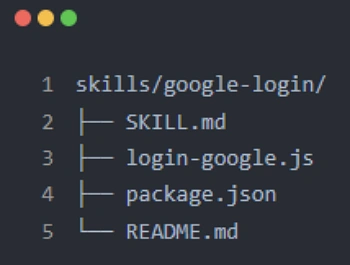
If you frequently need to log in to one or more Google accounts through AdsPower, it is recommended that you package the entire process into a skill that you can use anytime and share with others.
Key Automation Tips for AI Agent Workflows
During this experiment, several practical lessons helped improve the reliability and stability of the automation workflow. If you're planning to combine AI agents with AdsPower, the following tips can help you avoid common issues.
1. AdsPower Profile Configuration Best Practices
A well-configured browser profile is the foundation of stable automation.
Store recovery email information
It is recommended to store the recovery email inside the profile remarks using a structured format, for example: xxx----xxx----recovery@email.com
This makes it easier for automation scripts or AI agents to retrieve the recovery email when Google requests verification.
Use stable proxy IPs
Login automation works best with consistent and reliable proxy connections. Unstable IP addresses may trigger additional verification steps during login.
Choose a suitable browser kernel version
Different websites may behave differently depending on the browser version. Selecting a compatible browser kernel inside AdsPower helps ensure the login process runs smoothly.
2. AdsPower API Usage Tips
When integrating AdsPower with an AI agent, proper API management is important.
Store and protect your API key
Keep your AdsPower API key secure and avoid exposing it in public scripts or repositories.
Use Bearer Token authentication
Most AdsPower API requests require authentication. Using a Bearer Token ensures the requests are authorized.
Note that WebSocket endpoints change
Each time a browser profile is launched, AdsPower may return a new WebSocket endpoint. Automation scripts should dynamically read this value instead of hardcoding it.
3. Automation Strategy Recommendations
A good automation strategy improves long-term stability.
Save cookies after the first login
After a successful login, storing cookies can reduce the need for repeated authentication steps in future sessions.
Periodically check login status
Automated systems should verify whether the account session is still valid before running tasks.
Prepare multiple recovery emails
Some login challenges may require recovery verification. Having backup recovery emails helps prevent interruptions in automation workflows.
4. Developer Debugging Techniques
Browser automation often requires careful debugging, especially when working with dynamic websites like Google.
Capture screenshots at key steps
Taking screenshots during important steps helps identify where the automation flow may fail.
Log the current URL frequently
Printing the page URL during the process makes it easier to determine which stage of the login flow the script has reached.
Inspect page elements using JavaScript
Using page.evaluate() allows scripts to interact directly with the page's DOM structure, which is often more reliable for complex UI elements.
5. Stability Optimization
For long-running automation systems, stability improvements are essential.
Add retry mechanisms
If a step fails due to temporary network issues or page delays, retry logic can prevent the entire workflow from failing.
Handle unexpected page states
Login flows can change depending on the account status. Scripts should be prepared to handle multiple page variations.
Maintain detailed logs
Recording detailed logs helps identify patterns when errors occur and speeds up troubleshooting.
6. Security Best Practices
Automation workflows should always follow security best practices.
Never hardcode passwords
Credentials should not be directly written inside scripts.
Use environment variables or configuration files
Store sensitive data such as passwords or API keys securely using environment variables or protected configuration files.
Keep dependencies updated
Regularly update libraries such as Puppeteer and other dependencies to maintain compatibility and security.
Final Thoughts
AI agents like OpenClaw are pushing browser automation into a new era. Instead of writing rigid scripts, developers can create autonomous workflows that interact with real web platforms.
In this example, combining OpenClaw + AdsPower + Puppeteer allowed an AI agent to:
- Launch fingerprint browser profiles
- Control login flows
- Handle verification steps
- Complete Google authentication automatically
For teams managing multiple accounts or building AI-driven automation pipelines, AdsPower provides a reliable browser environment that integrates easily with modern automation frameworks.
FAQ
How does AdsPower support AI agent automation?
AdsPower supports AI agent automation through its Local API, which allows developers to programmatically launch and control browser profiles. Tools like Puppeteer or Playwright can connect to AdsPower via WebSocket to automate tasks such as logging in, browsing websites, or running workflows. Combined with AI agent frameworks like OpenClaw, AdsPower provides isolated browser environments, proxy management, and fingerprint control, enabling scalable automation across multiple accounts.
Is it safe to automate Google login with AdsPower?
Yes, when used responsibly. AdsPower does not bypass website security systems; it simply provides structured browser environments for managing accounts and automation. To maintain safety and stability, users should use reliable proxies, store credentials securely, enable recovery verification, and monitor login activity regularly. When implemented properly, AdsPower helps developers and teams automate workflows while keeping account environments organized and separated.
