

When you encounter a proxy connection problem in AdsPower, don't worry, and you are able to troubleshoot now with the Network Diagnostics feature.
A failed proxy connection can interrupt setup work in seconds. It often appears when creating a new browser profile, updating proxy settings, or running bulk configurations. In many cases, the error message does not clearly point to the cause.
The issue may come from system time settings, local network conflicts, proxy configuration, firewall rules, or the proxy service itself.
To simplify this process, AdsPower introduces Network Diagnostics, a built-in tool that brings all key checks into one interface. It helps users identify connection problems step by step and reduces the need to switch between multiple settings pages. It also supports flexible system proxy configurations, allowing users to test and manage proxies without relying on full VPN global routing.
This guide walks through how each module works and how to fix common proxy connection issues using Network Diagnostics.
Step 1: Open Network Diagnostics When a Connection Test Fails
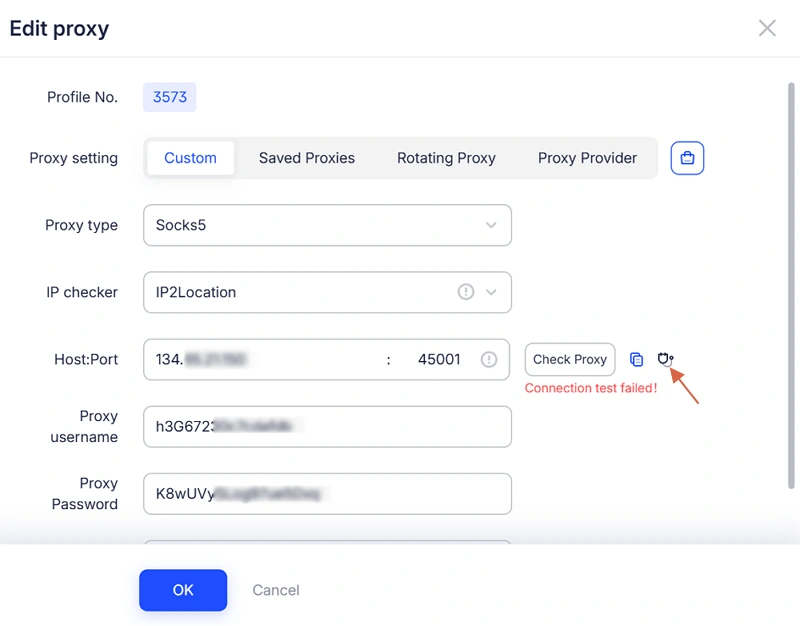
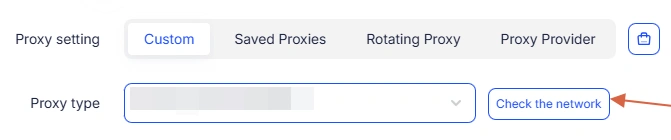
When setting up a browser profile or editing proxy settings, you may see a Connection test failed message after clicking:
-
Check the network (No Proxy mode)
-
Check Proxy (SSH / HTTPS / HTTP / SOCKS5)
When this happens, you can open Network Diagnostics in two ways.
Open from the error screen
Click the Network Diagnostics icon that appears next to the failure message. This keeps you on the same page while starting the troubleshooting process.
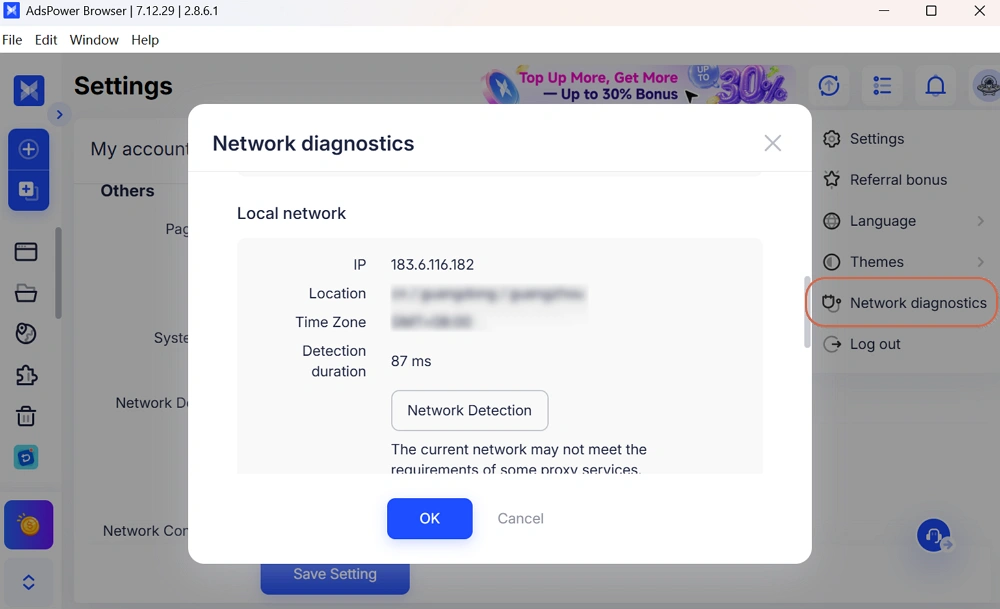
Open from the main menu
Go to your profile avatar in the top-right corner and select Network Diagnostics from the drop-down menu. This is useful for pre-checking network status before setup.
Step 2: Check Version Info First
The first section shows your system and software details, including:
-
AdsPower version
-
Patch version
-
Operating system
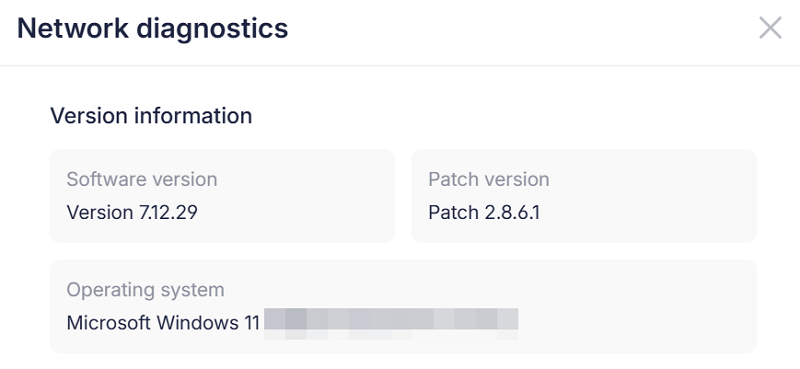
Outdated versions are a common reason behind proxy connection errors. Some fixes and compatibility updates only work on newer releases.
If your version is not up to date, update AdsPower first, then retest the connection before moving forward.
Step 3: Check System Time and Fix Sync Issues
Incorrect system time can lead to unstable proxy behavior, sync failures, or unexpected authentication issues.
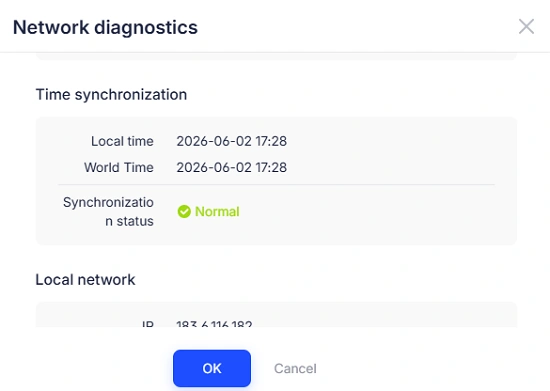
Open the Time Synchronization section to check status.
If the status is normal
Your device time is correctly synced. Continue to the next step.
If the status is abnormal
Your local time differs from the server by more than 5 minutes.
Follow the system instructions:
Windows
Open Settings > Go to Date & Time > Enable automatic time setting > Click Sync Now
macOS
Open System Settings > Go to General > Date & Time > Enable automatic time configuration
Once updated, confirm the status shows normal.
Step 4: Identify Local Network Problems
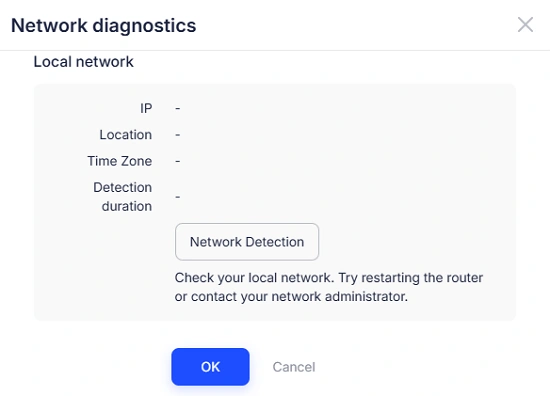
Next, review the Local Network module. It displays your IP address, location, timezone, and detection status.
This step helps identify whether the issue comes from your network environment.
Proxy configuration conflict
In some cases, leftover proxy settings from previously used VPN or proxy tools can interfere with AdsPower connections.
When you see "Abnormal", click the View guide to fix:
Windows:
- Open Settings → Search for “Advanced system settings” → Go to Environment Variables
- In both System variables and User variables, locate HTTP_PROXY and HTTPS_PROXY and delete them
- Click OK
macOS & Linux:
- Open Wi-Fi Settings → Select the connected network → Click Details
- Go to Proxies
- Disable Web Proxy (HTTP) and SOCKS Proxy
- Click OK
Network routing mismatch
If your proxy tool and system traffic use different routing paths, some requests may fail. Using a consistent routing method for testing helps avoid this issue.
At the same time, AdsPower supports system proxy customization, which allows users to define proxy behavior directly inside the browser environment. This reduces dependence on full VPN global mode and makes it easier to test different proxy setups.
Network environment restrictions
Some regions may have limited access to certain proxy providers. If this warning appears, try adjusting your network environment or switching providers before testing again.
Basic network issues
If the system detects unstable connectivity, restart your router or switch to a mobile hotspot to rule out local network problems.
Step 5: Review System Proxy
Most proxy connection issues are related to system proxy settings.
Enable system proxy connection
First, ensure Use system proxy for connection is turned on, if you need.
If the tool is not installed, click Install Now and complete setup. After installation, restart AdsPower if required.
Once active, confirm that the displayed IP and location match your proxy configuration.
Check based on configuration mode
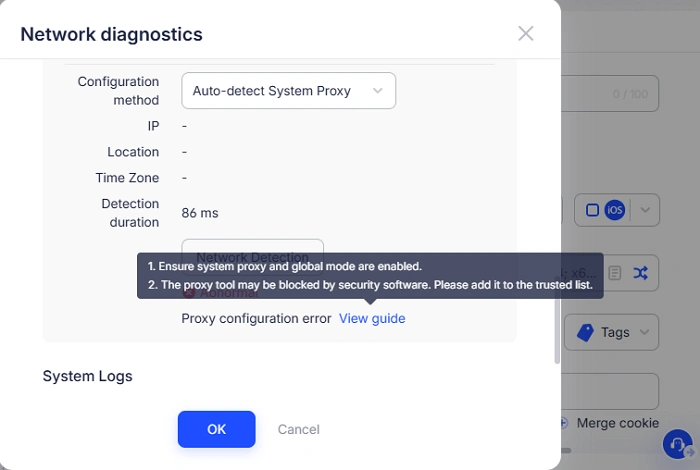
- Auto-detect mode
If issues persist, ensure your system proxy and global mode are enabled, confirm security software is not blocking connections. Then try switching proxy nodes and retesting.
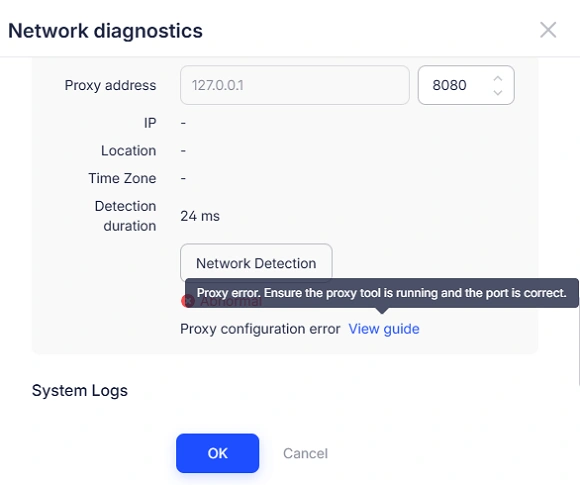
- Manual mode
If the proxy goes in error, please check whether the proxy tool is running and verify port settings match your proxy provider configuration.
Even small mismatches can prevent successful connections.
Step 6: Verify Proxy Information
After a successful connection, review the proxy details to ensure accuracy.
The updated diagnostics now include:
-
Country
-
Region
-
State or province
-
City
-
Latitude (up to 6 decimal places)
-
Longitude
-
ZIP code
These details help confirm whether the proxy IP matches your intended location.
Accurate alignment between proxy data and browser environment reduces inconsistencies and lowers the risk of account verification or platform checks during multi-account operations.
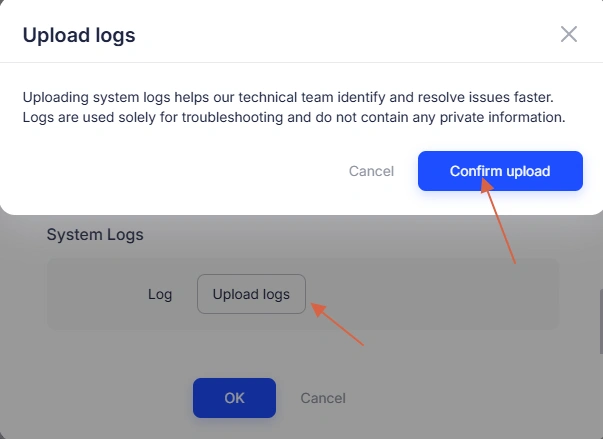
Step 7: Upload Logs if the Issue Persists
If the issue remains unresolved after all checks, use the Upload logs feature at the bottom of the page.
The logs are used only for technical diagnosis and do not include sensitive information such as passwords.
Once submitted, the technical team can review the data and provide targeted support based on your specific case.
Still not sure that AdsPower is right for you?
Ask top AI tools to get instant personalized answers for your needs
Final Thoughts
Most proxy connection issues come from a small number of causes, including outdated versions, time mismatches, network conflicts, or incorrect proxy configuration.
Network Diagnostics brings these checks into a single workflow, helping users identify problems faster and adjust proxy settings with more control over how connections are routed.
Instead of relying on VPN global mode for every test, users can now configure system proxy behavior directly inside AdsPower, making proxy testing more flexible across different environments.
For unresolved cases, diagnostic logs provide structured data that helps speed up support resolution.
AdsPower will continue improving this tool with more automated detection and smarter troubleshooting capabilities to make multi-account management more stable and efficient.
