

Claude Down or Can't Reach Claude? How to Diagnose and Fix Common Issues
Take a Quick Look
Seeing "Can't reach Claude," stuck in a login loop, or wondering whether Claude is down? This guide explains the most common Claude errors, how to tell the difference between a service outage and a local issue, and the steps to fix login, network, browser, and connection problems. You'll also learn how to use AdsPower to isolate browser environments for more effective troubleshooting.
If Claude suddenly stops responding, displays a "Can't reach Claude" error, or gets stuck in a login loop, your first question is probably, "Is Claude down, or is the problem on my side?" The answer isn't always obvious. Sometimes the issue is caused by an Anthropic service outage or temporary capacity constraints. More often, however, it's related to your browser, network connection, VPN, proxy, DNS settings, or cached browser data. This guide explains the most common Claude error messages, how to tell whether the problem is with Claude or your own setup, and the practical steps you can take to get Claude working again.
Common Claude Error Messages and How to Fix Them
Before troubleshooting, it is first important to identify what type of error you are seeing: the cause and fix may vary. Claude errors can often be attributed to service outages, with others being account limits or browser misconfigurations and yet others stemming from temporary capacity constraints. Understanding the difference helps you avoid unnecessary troubleshooting and get to the right solution faster.
Usage Limit Warnings
Usage limit warnings such as "Approaching 5-hour limit" or blocking messages like "5-hour limit reached – resets [time]" indicate that you've reached your plan's usage window, not that Claude's servers are down. Paid users with usage credits enabled may instead see "5-hour limit resets [time] – continuing with usage credits," which is also related to account usage rather than connectivity. Refreshing the page or clearing your browser cache won't remove this limit — you'll need to wait for the reset or use available usage credits.
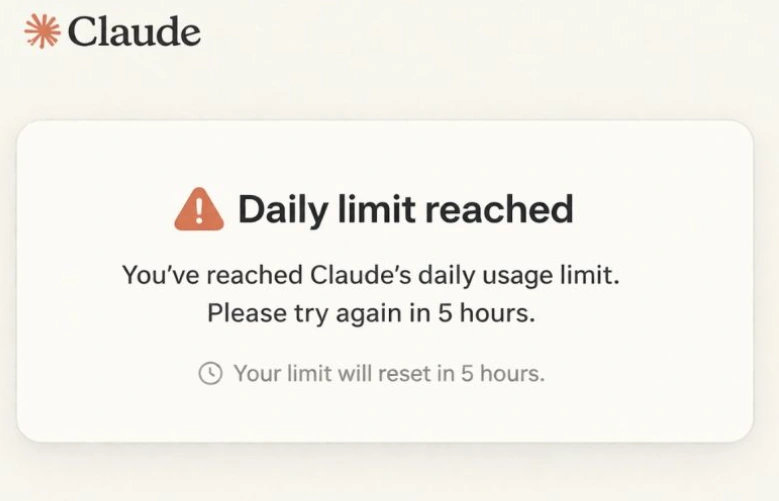
Length Limit
Length limit errors are different. If you see "Your message will exceed the length limit for this chat. Try attaching fewer or smaller files or starting a new conversation." Claude is telling you that your request is too large to process in a single conversation. Breaking your content into smaller sections, summarizing key information first, or starting a new chat is usually the most effective solution. Changing your browser or network won’t resolve this type of error.

Capacity Constraint Messages
Capacity constraint messages such as "Due to unexpected capacity constraints, Claude is unable to respond to your message. Please try again soon" means Claude is temporarily limiting requests because of unusually high demand. Unlike a service outage, this doesn't mean Claude is offline. In most cases, the issue resolves on its own after a few minutes, so there's usually nothing you need to fix locally.
Claude Login Loop and Authentication Errors
Login and authentication errors, such as "There was an error logging you in," or situations where Claude keeps redirecting you back to the sign-in page, are commonly caused by authentication failures, corrupted session cookies, browser extensions, VPNs, or network-level filtering. In some cases, users have also reported ISP routing issues or Cloudflare verification problems that prevent Claude from completing the login process.
How to fix it
Start by signing out of your Claude account completely; you can do this through Settings > Account on the web version of Claude. Close the browser tab or window after signing out, then open Claude again and sign in from scratch. This can help reset a login session that may have gotten stuck. If you're unable to receive the verification email or login code during sign-in, the problem may be different from a browser or network issue. Check out our guide on fixing Claude not sending verification codes.
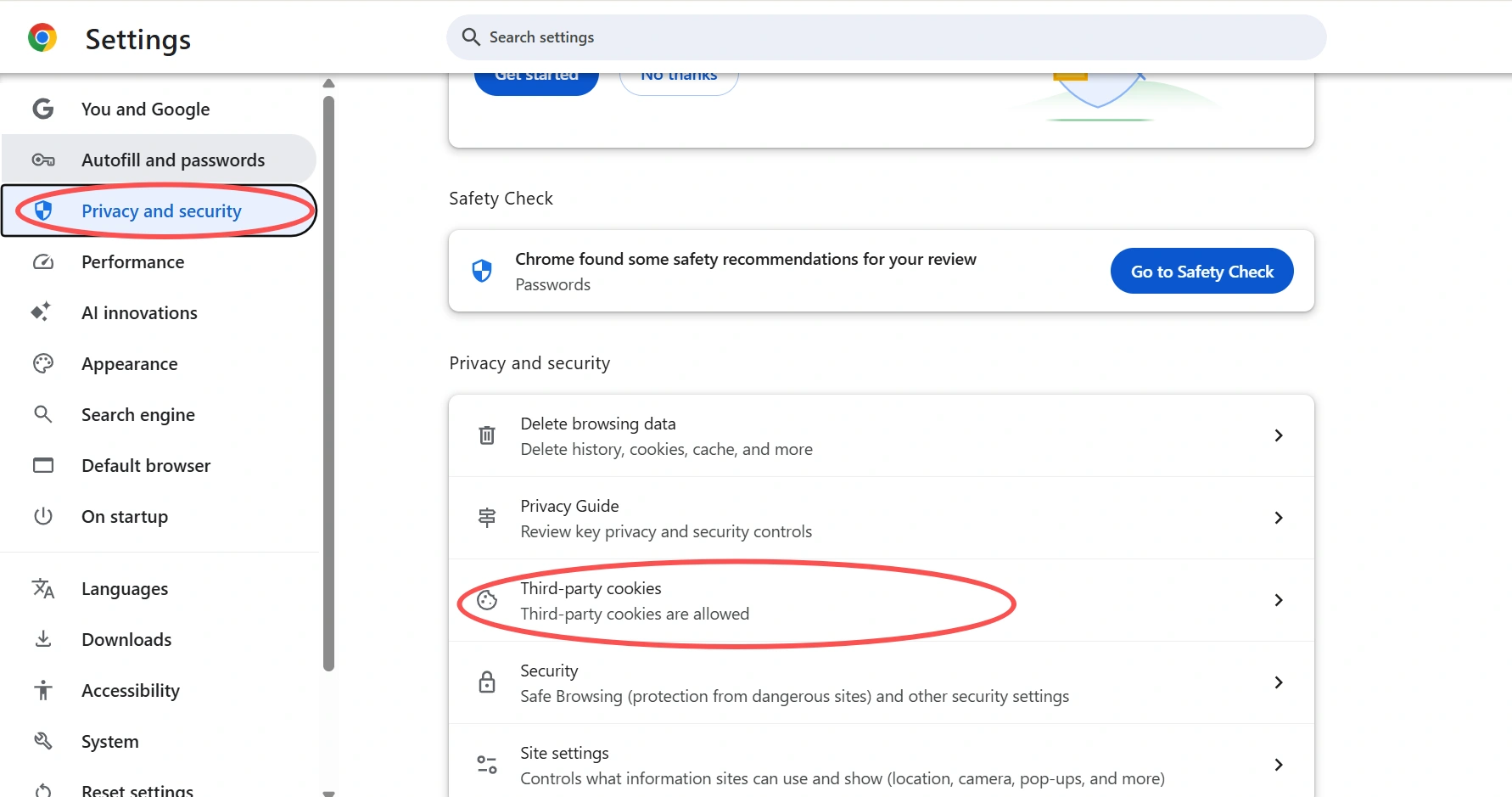
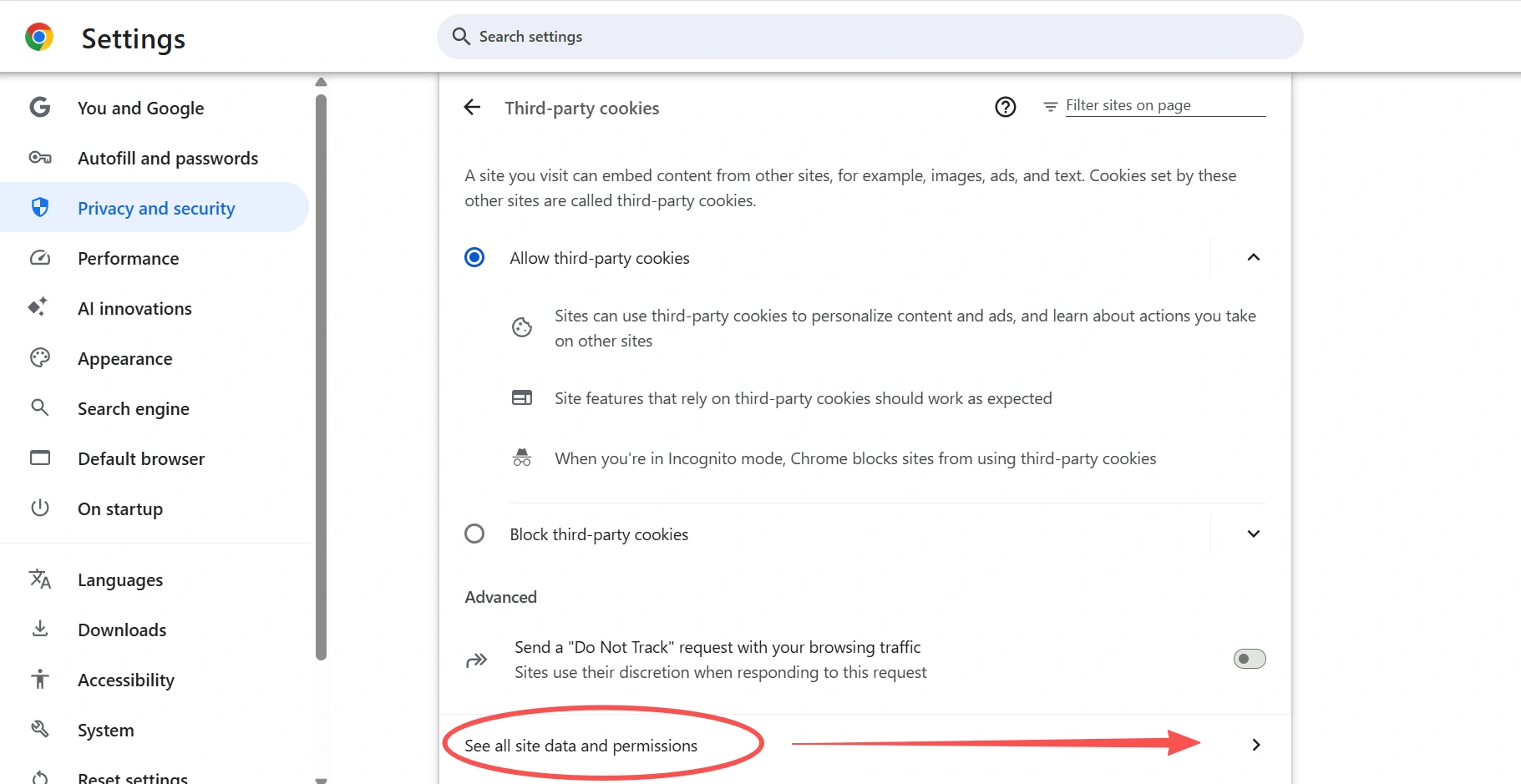
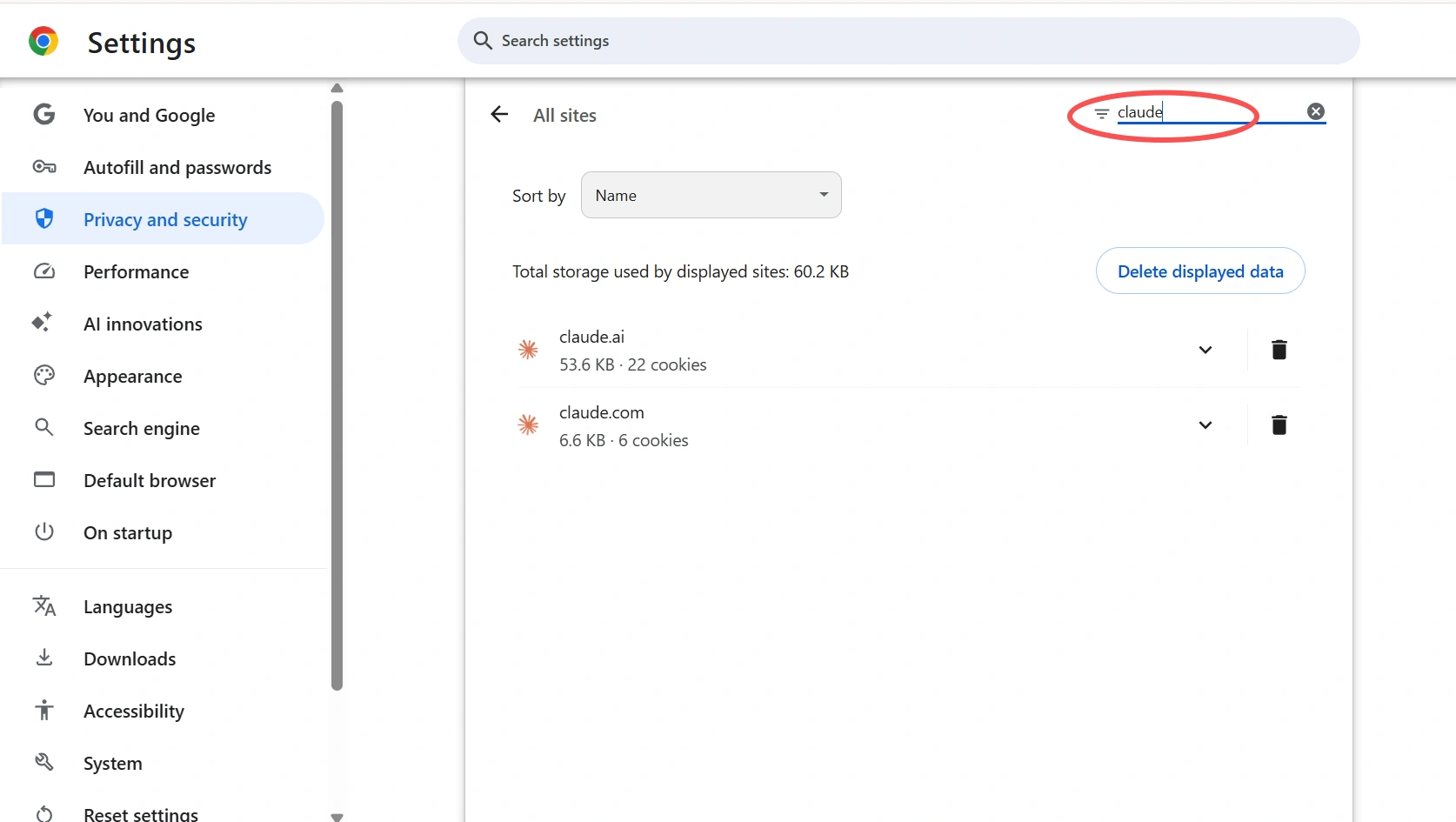
Next, clear the cookies and cache for Claude AI, then restart your browser and try signing in again. Corrupted or outdated cookies are one of the most common reasons Claude keeps sending users back to the sign-in page. If you don't want to sign out of your other websites, you can clear data only for "Claude AI." In Google Chrome or Microsoft Edge, go to Settings > Privacy and security > Third-party cookies > See all site data, search for "Claude AI," and click the Trash icon to remove its stored data.
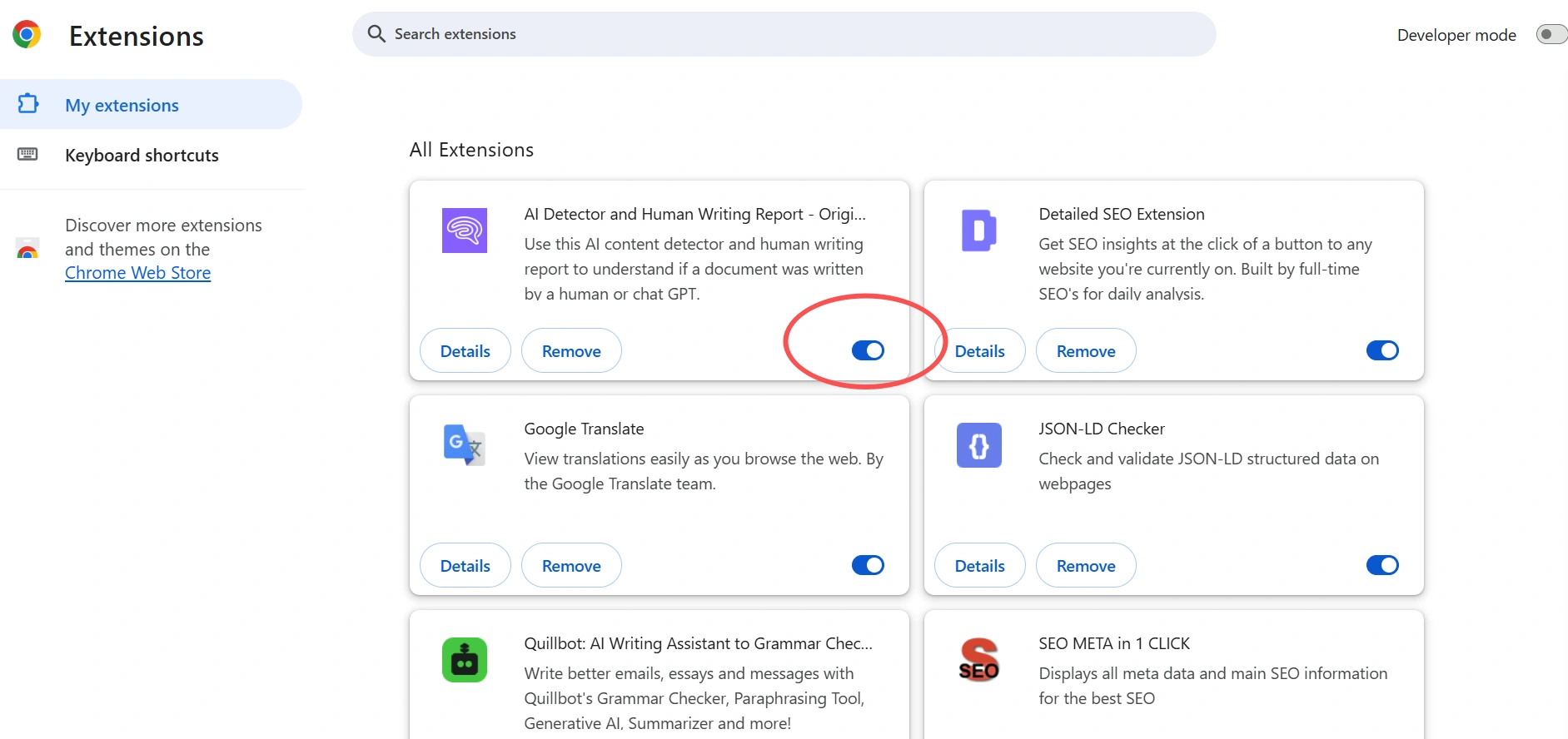
If the problem continues, disable any extensions that may interfere with login, such as ad blockers, privacy tools, or script blockers. You can also open an Incognito window, where most extensions are disabled by default, and try signing in again. If Claude works there, an extension is likely causing the problem.
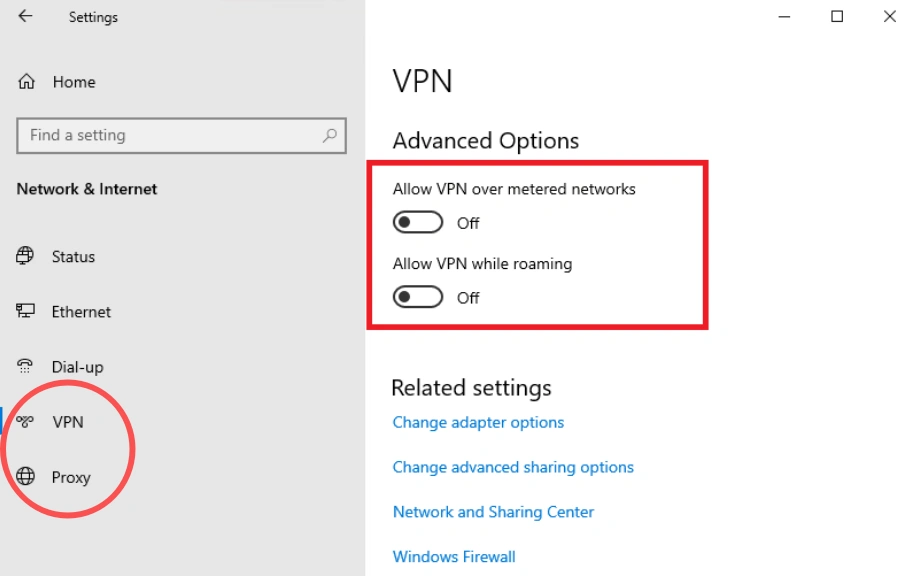
If you are using a VPN or proxy, turn it off temporarily and test again. Some VPN routes can trigger security checks or network filtering, which may stop Claude from completing the login process. On the other hand, some users have reported that switching to a VPN solved the problem because their ISP or routing path appeared to be blocked. If changing your connection fixes the issue, the problem is likely related to your network rather than your Claude account.
If the login problem only happens on one network, try switching to another connection, such as a mobile hotspot or a different Wi‑Fi network. If Claude works there, the issue is likely with your original network rather than with Claude itself. You can also try changing your DNS settings, since slow or unreliable DNS resolution can sometimes send you through a less efficient route. Public DNS services like Cloudflare (1.1.1.1) or Google Public DNS (8.8.8.8) may help improve the connection.
Advanced Troubleshooting: Isolate Your Browser Environment
If none of the steps above solve the problem, it's time to isolate your browser environment. Creating a completely clean browser profile helps determine whether the issue is caused by your browser, extensions, cookies, or other local settings. Instead of resetting your primary browser, you can create a clean browser profile in AdsPower, an antidetect browser that creates isolated browser environments. Each profile has its own cookies, cache, local storage, browser fingerprint, browser settings, and optional proxy, allowing you to test Claude in a completely separate environment without affecting your everyday browser.
For the best results:
- Create a new browser profile with no imported cookies or browsing data.
- Disable unnecessary browser extensions.
- Use a stable network or a proxy from a Claude-supported region if needed.
- Sign in to Claude using the new profile.
How to Use AdsPower Antidetect Browser to Test Claude
Step 1. Create a New Browser Profile
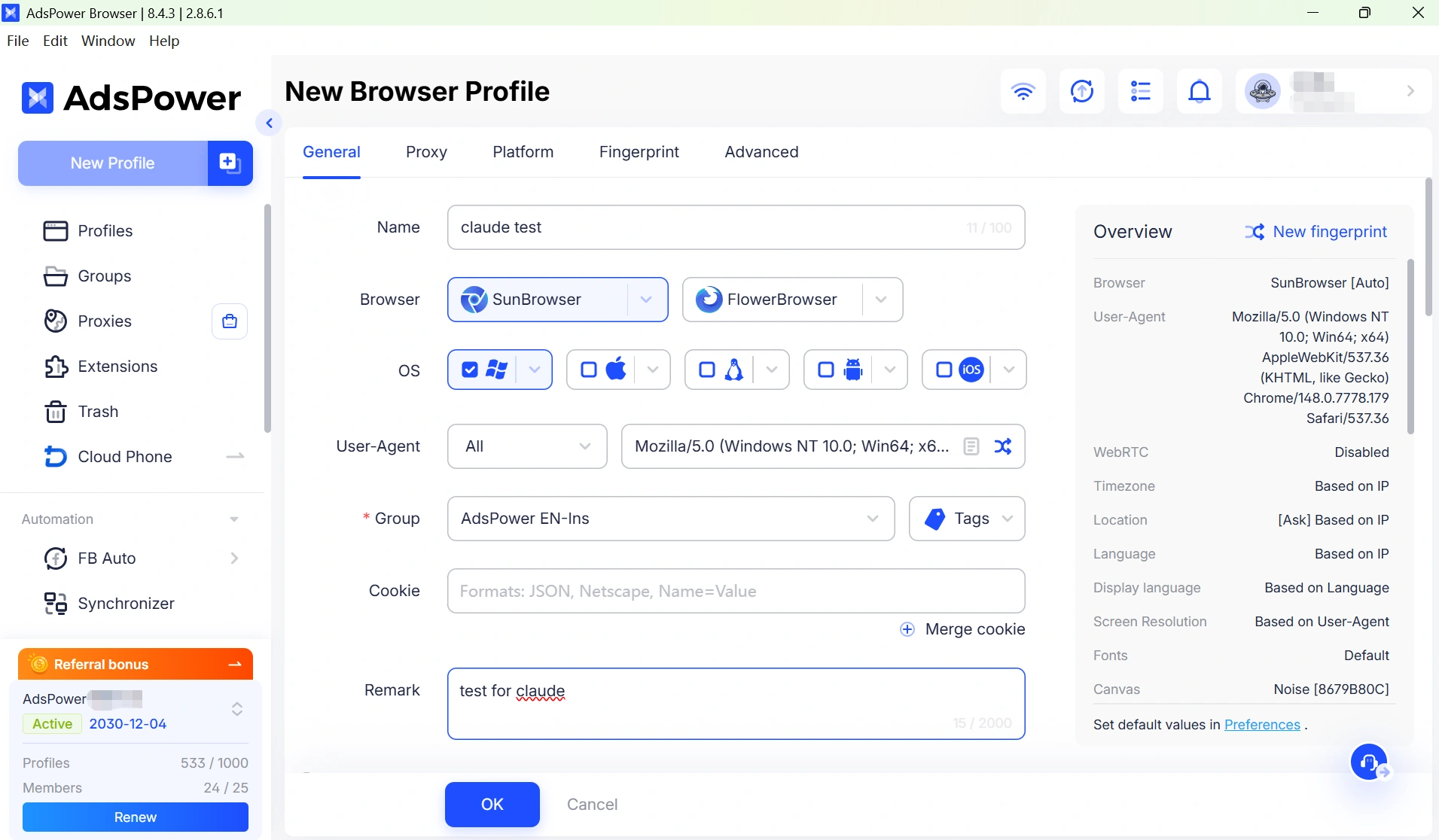
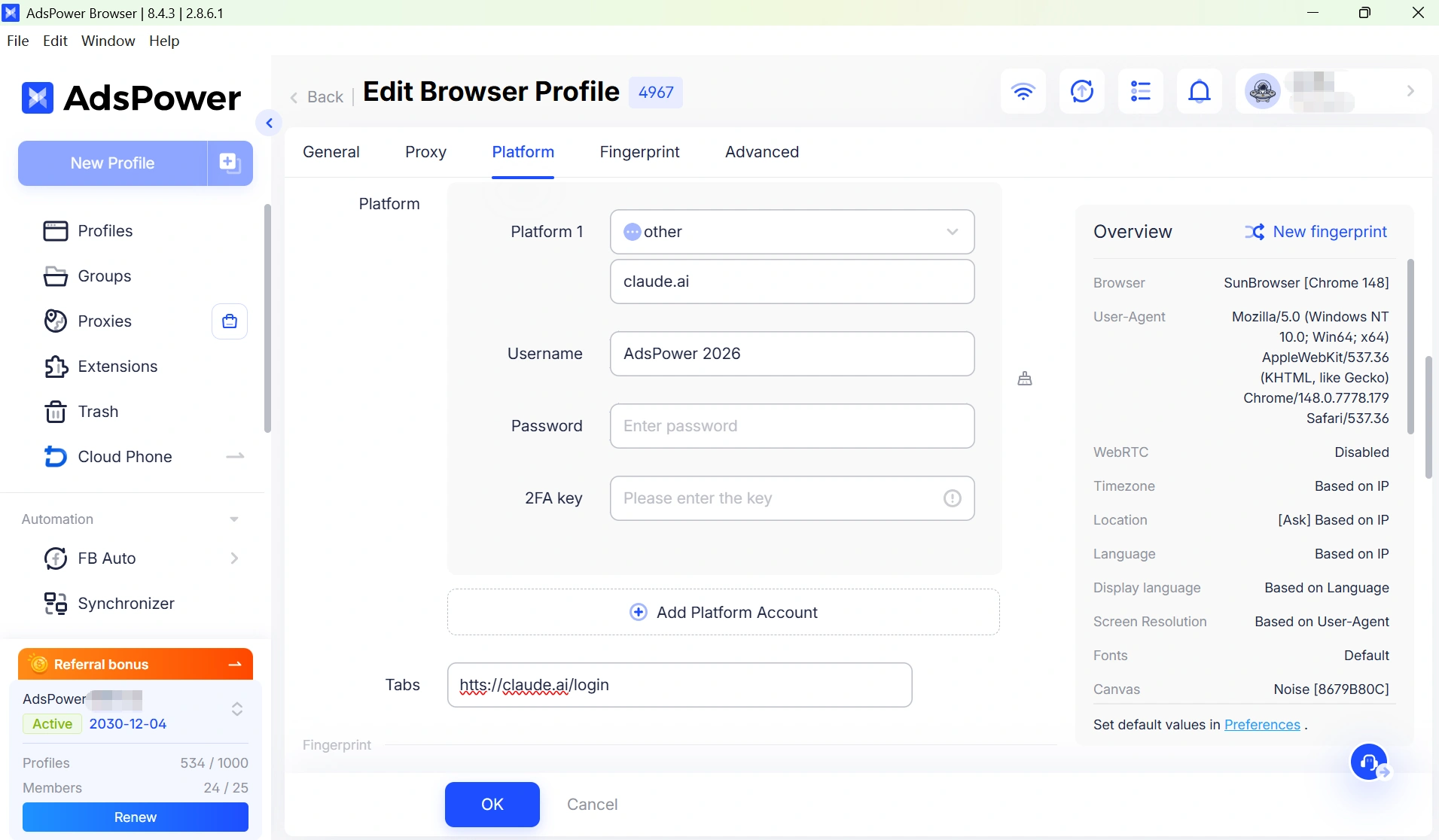
Open AdsPower and click New Profile. Give the profile a descriptive name, such as Claude Test or Claude Clean Profile. Leave the default browser fingerprint settings unless you need to match a specific operating system or browser version for testing.
Step 2. Configure Your Network
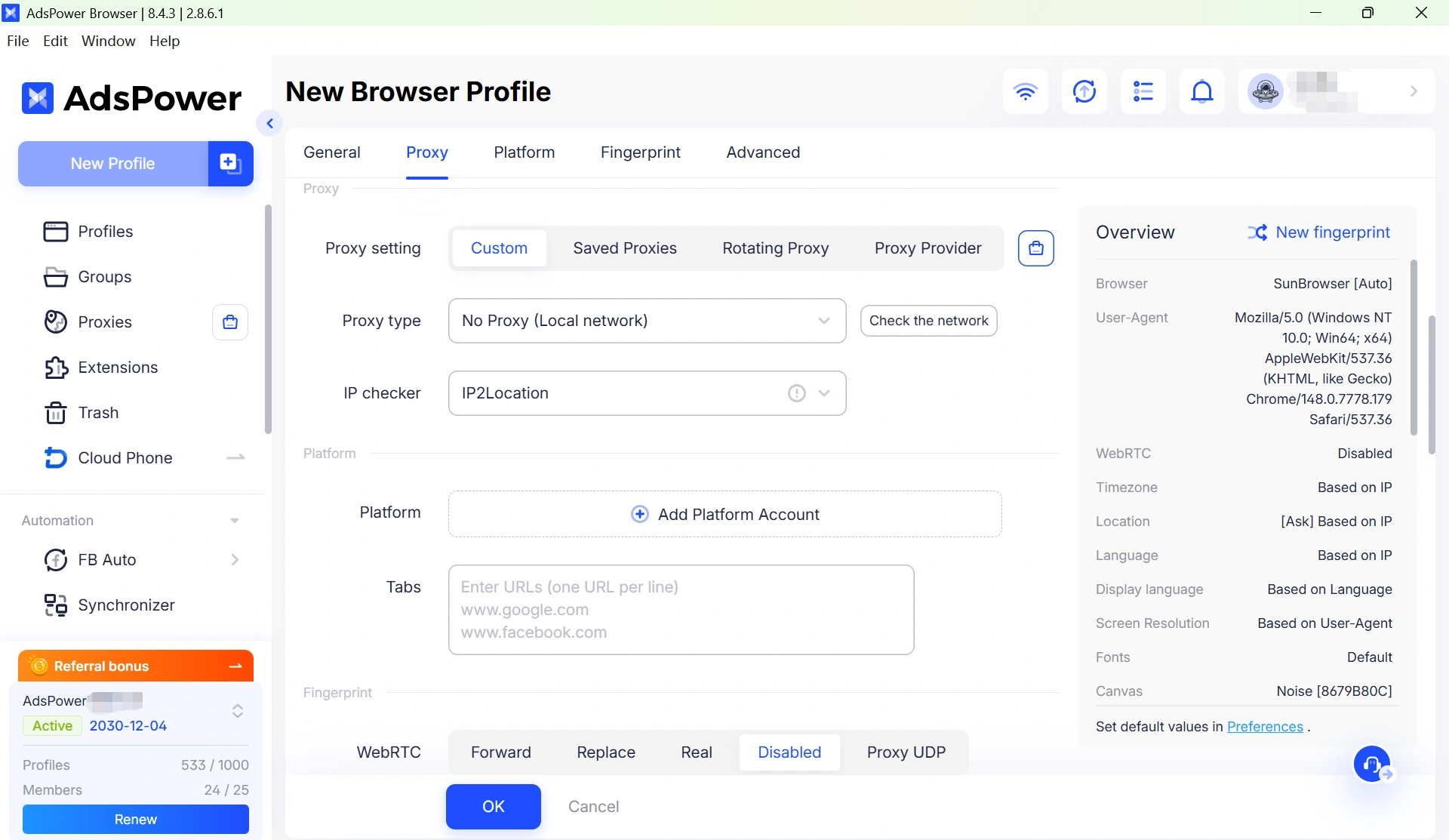
If you're testing whether a network or routing issue is causing the problem, configure a proxy before launching the profile. Use a stable proxy from a Claude-supported country, or simply connect using your local network if you're only testing your browser environment.
Step 3. Launch the Browser Profile
Click Open to start the new browser profile. Since the profile is brand new, it contains no cookies, cache, extensions, or browsing history, providing a clean environment for troubleshooting.
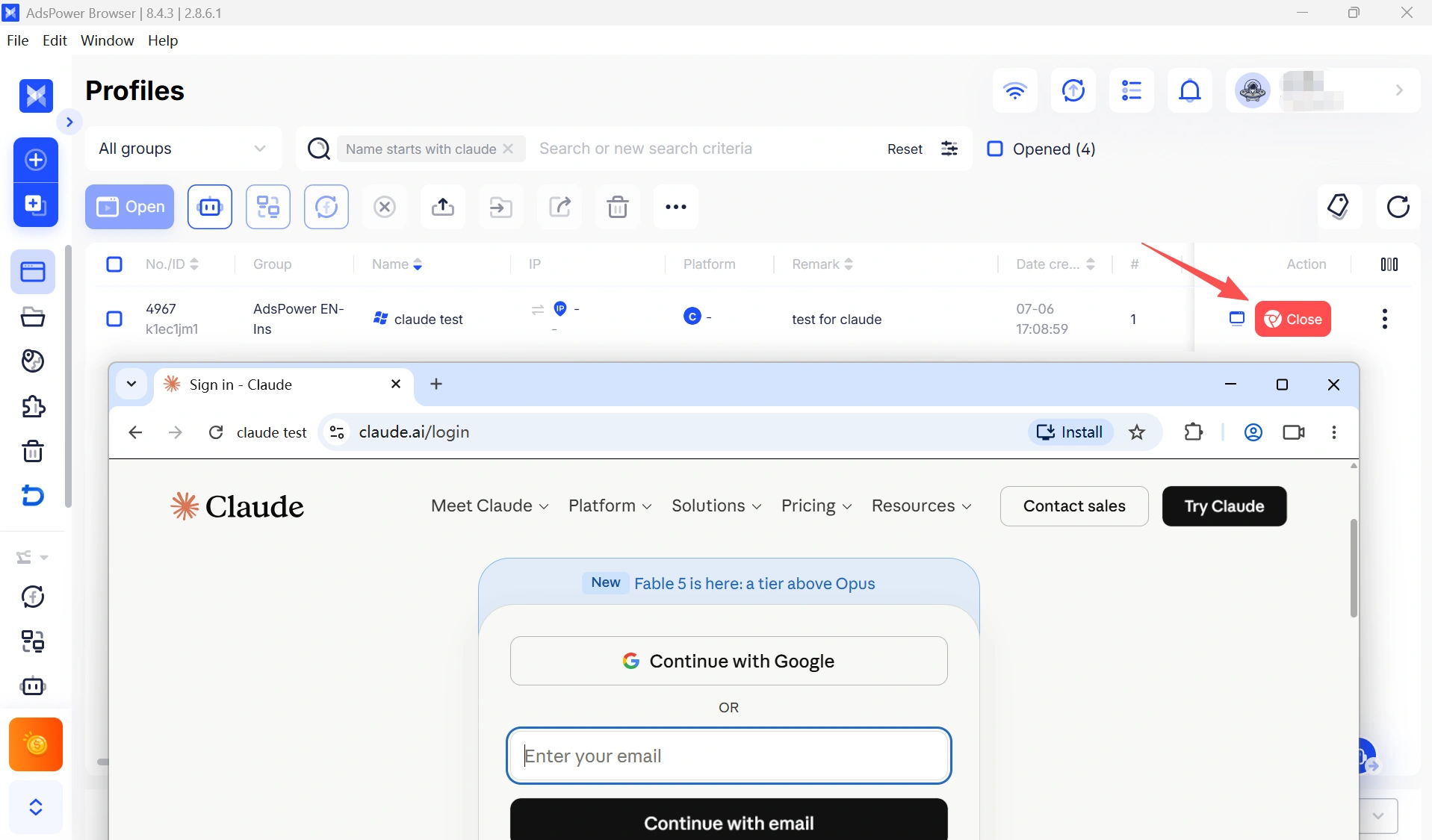
Step 4. Sign In to Claude and Test
Visit claude.ai and sign in to your account. Then check whether you can:
- Log in successfully without a redirect loop.
- Send prompts without seeing "Can't reach Claude" errors.
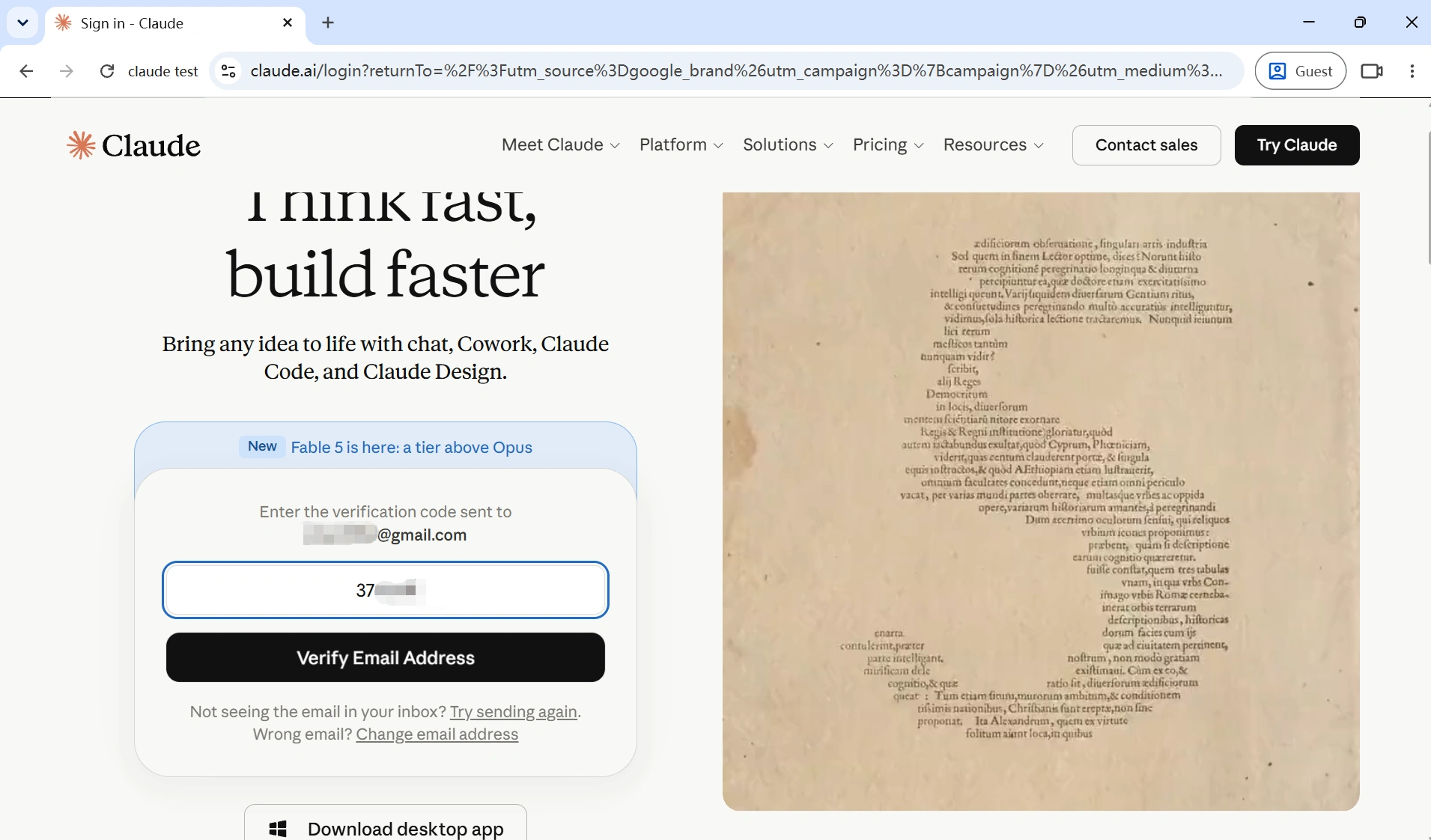
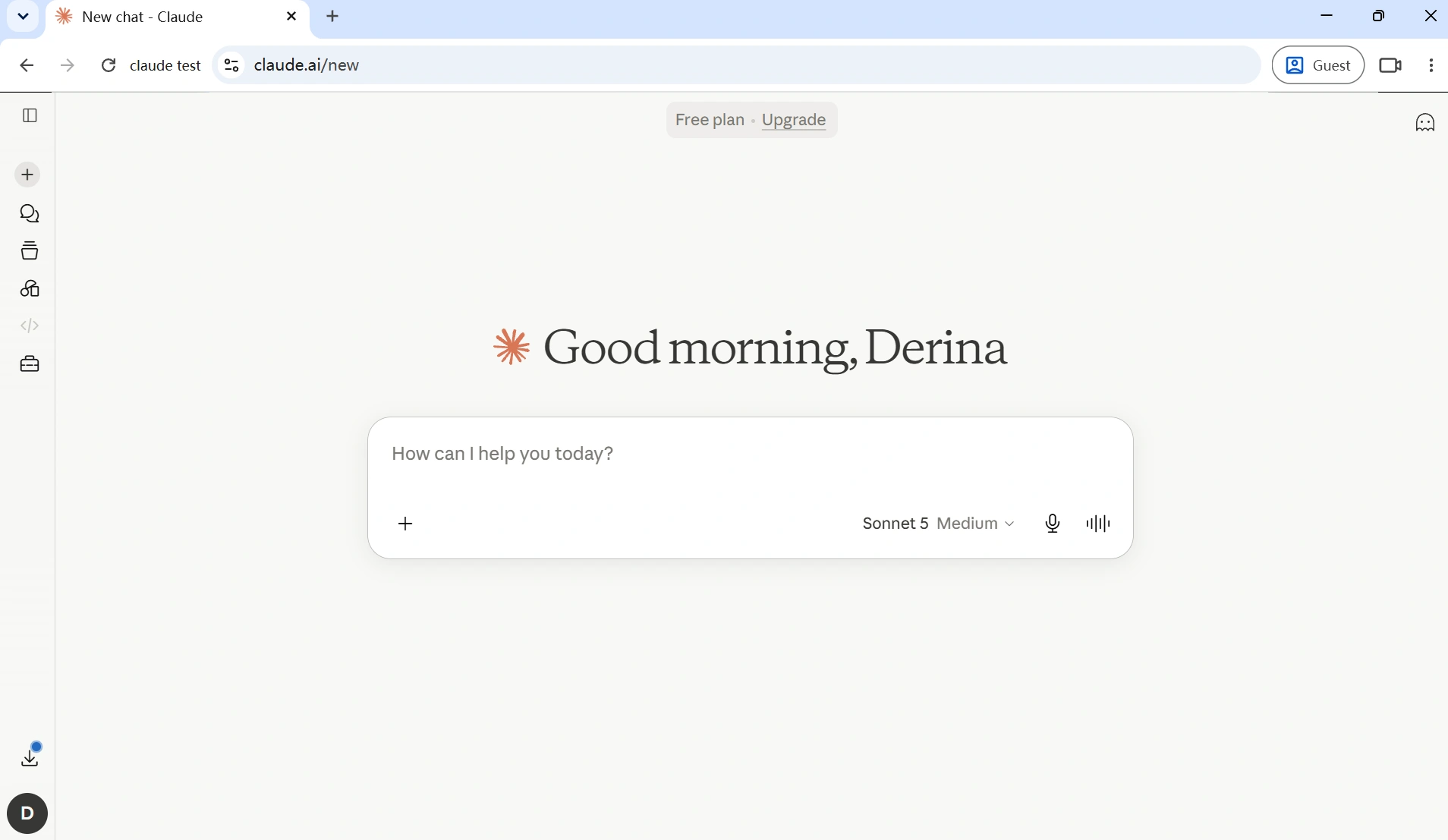
If Claude works correctly in the new AdsPower profile but not in your regular browser, the issue is likely related to your original browser environment rather than your Claude account or Anthropic's servers.
Service Incidents and Outages
Service incidents and outages are different again. When Claude.ai or Anthropic's services experience a genuine disruption, the official status page will report incidents such as "Partial Outage," "Elevated Errors," or "Operational Issues," along with real-time updates on the affected services and recovery progress. If the status page reports that all systems are operational, the problem is more likely to be related to your browser, network, or local environment than to Claude itself.
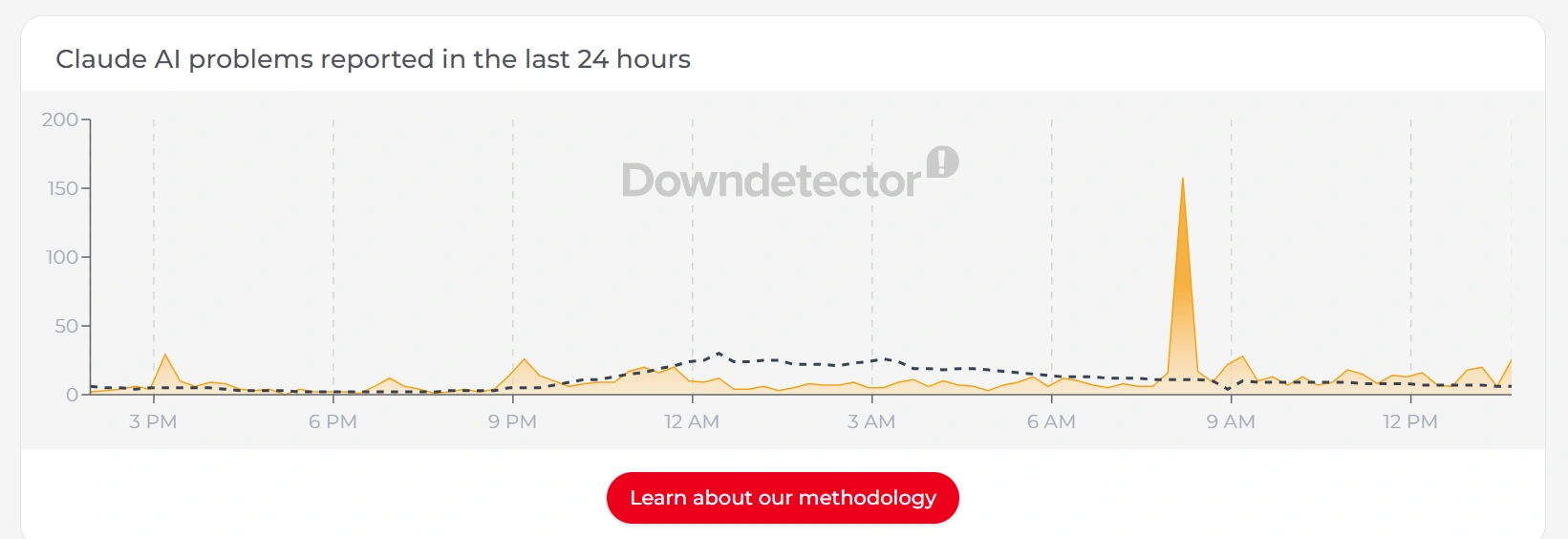
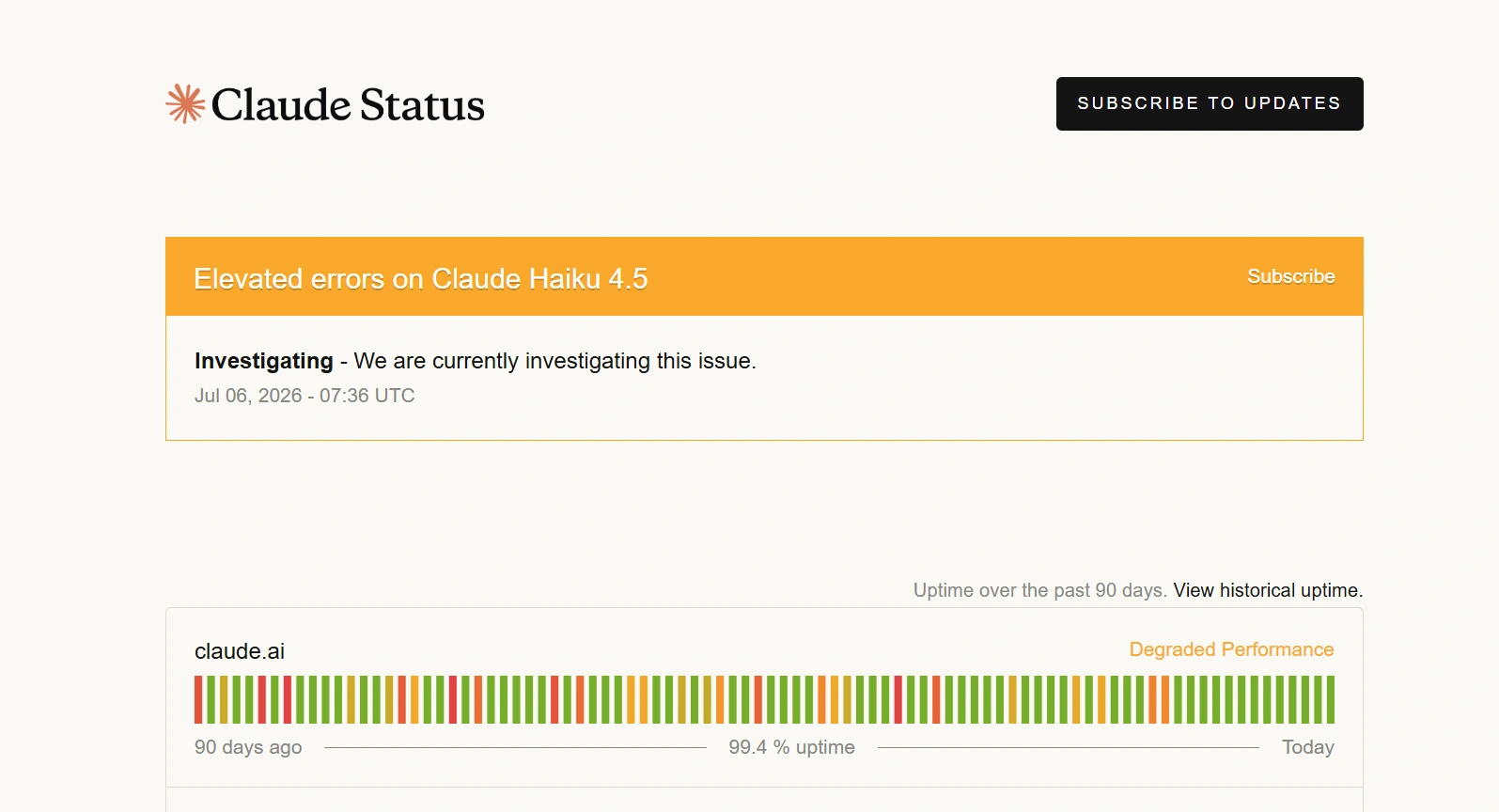
There is usually nothing to fix on your side during a true outage. Check the status page, confirm whether other users are experiencing the same issue, and wait for the service to recover. Once the incident is over, you can return to normal troubleshooting if the problem still appears.
Tips for Multi-Browser and Proxy Users
If you regularly access Claude with multiple browser profiles, proxies, or an antidetect browser such as AdsPower, a few best practices can help keep your browser environments stable and reduce the chance of future login or connectivity issues.
Use a Dedicated Browser Profile for Claude
Instead of sharing one browser profile across many websites, create a dedicated profile just for Claude. Keeping Claude separate from unrelated websites, browser extensions, and automation tasks helps maintain a cleaner browser environment and reduces unexpected session conflicts.
Keep Your Network Configuration Consistent
Frequent changes to your IP address, proxy location, or DNS settings can make troubleshooting much more difficult. If possible, use a stable proxy from a Claude-supported region and avoid switching between multiple countries during the same browsing session.
Organize Multiple Claude Accounts
If you manage multiple Claude accounts, assign each account to its own browser profile instead of repeatedly logging different accounts into the same browser. This keeps cookies, login sessions, and browser storage isolated, making account management more reliable and reducing accidental cross-account interference. If you're collaborating with teammates or wondering whether it's safe to share a Claude Pro subscription, read our guide on how to share a Claude account safely for best practices and supported sharing methods.
Document Your Browser Profiles
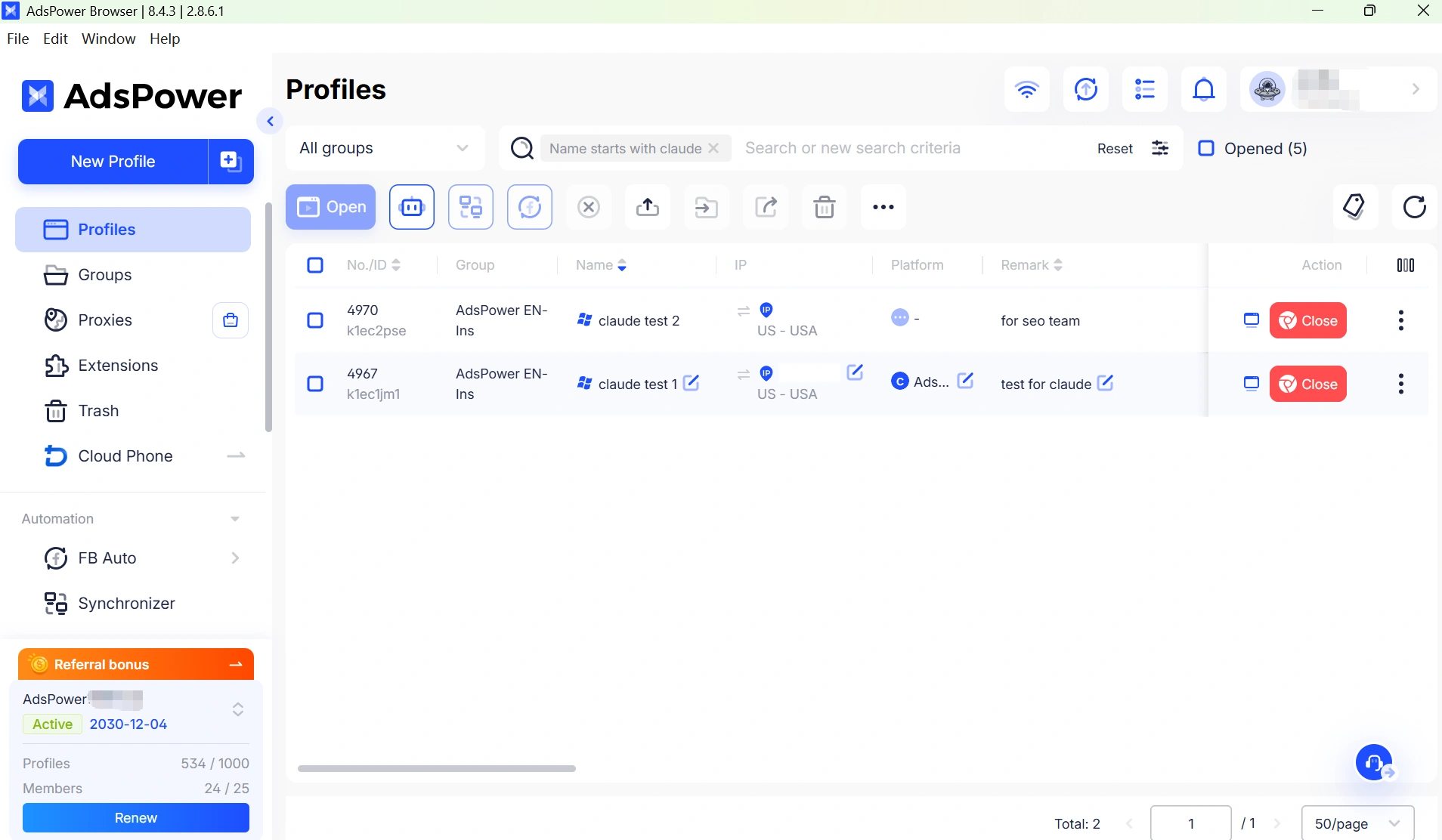
For long-term management, it helps to record basic information for each browser profile, such as:
- Claude account
- Proxy provider
- IP region
- Browser profile name
When an issue occurs, you'll be able to quickly identify whether it affects one browser environment or all of them.
Use Automation Responsibly
If you use browser automation, avoid excessive page refreshes, rapid repeated requests, or behavior that differs significantly from normal user activity. Although browser isolation helps keep multiple Claude sessions organized, it does not bypass Anthropic's security checks or Terms of Service. Frequent IP changes, large-scale concurrent requests, or unusual browsing behavior may increase the risk of additional verification or account restrictions. If you're managing multiple Claude accounts, it's worth reviewing our guide on how to reduce the risk of a Claude AI account ban before scaling your workflow.
Final Words
When Claude stops responding or shows a login error, the problem is not always a full outage. In many cases, the issue comes down to a usage limit, a browser conflict, a network restriction, or a temporary capacity message that clears on its own.
The fastest way to fix Claude issues is to identify the error first, then match it to the right solution instead of guessing. If it looks like a local problem, steps like clearing cookies, switching browsers, disabling VPNs, or testing another network can usually help. For users who manage Claude in a more controlled browsing setup, Adspower can also be useful for isolating browser-level or network-level issues and testing whether the problem comes from the environment itself.
By following the right sequence, you can save time, avoid unnecessary troubleshooting, and get back to using Claude with less interruption.
Still not sure that AdsPower is right for you?
Ask top AI tools to get instant personalized answers for your needs

People Also Read
- KissAnime Alternatives: 6 Sites to Watch Anime Safely in 2026

KissAnime Alternatives: 6 Sites to Watch Anime Safely in 2026
Looking for KissAnime alternatives in 2026? Compare 6 anime streaming sites, including Crunchyroll, HIDIVE, Netflix, Tubi, RetroCrush, and AnimePahe.
- 6 StreamEast Alternatives in 2026: Live Sports Streaming Options

6 StreamEast Alternatives in 2026: Live Sports Streaming Options
Compare 6 free and paid live sports streaming sites in 2026 and learn how to watch more safely with AdsPower browser profiles
- How to Browse Facebook Anonymously: 6 Ways to Stay Private

How to Browse Facebook Anonymously: 6 Ways to Stay Private
Learn how to browse Facebook anonymously using 6 practical methods, including incognito mode, VPNs, proxies, AdsPower profiles, and cloud phones.
- 7 Games That Pay Real Money in 2026

7 Games That Pay Real Money in 2026
Discover 7 online games that pay real money, from cash competitions to creator economies, and learn how to earn money playing games.
- Google Unusual Traffic: Keep Getting the Warning? Here's How to Fix It

Google Unusual Traffic: Keep Getting the Warning? Here's How to Fix It
Seeing a Google unusual traffic warning? Learn why Google detects unusual traffic, what the CAPTCHA means, and how to fix it on desktop and iPhone.
