

Why ChatGPT errors happen and how to fix them reliably? Follow these practical steps to improve stability and reduce disruptions. Test a more stable browser setup to stay productive.
When a chatgpt error appears mid-task, it rarely feels random. A reply stops halfway, the page refuses to load, or a vague "bad error" blocks progress without explanation. For users who depend on ChatGPT for writing, analysis, or daily operations, these interruptions cost time and break workflow consistency.
This guide is written in an expert yet approachable, authoritative but simple tone, focusing on what actually causes ChatGPT errors and how to resolve them step by step. You will learn how to identify network errors, message stream failures, and access conflicts, then apply fixes that work in real usage scenarios. More importantly, the article explains how to build a more stable access environment so errors occur less often, helping you regain control over reliability instead of reacting to failures each time they appear.
Common ChatGPT Errors and What They Mean?
In daily use, most users encounter at least one of these error messages within a few weeks. Each one communicates something specific about the failure point. Below are the most reported categories:
|
Error Type |
Typical Meaning |
|
Network Error |
Connection failed before request reached server |
|
Error in Message Stream |
Response interrupted mid-generation |
|
Bad Error |
System failure without detailed logs |
|
Something Went Wrong |
Temporary server or request processing issue |
|
Blank Page / Not Loading |
Browser or network blocking the page load |
A key note: these messages describe the symptom, not the root cause. Understanding the difference helps prevent misdiagnosing a solvable local issue as a server outage.
Why ChatGPT Is Not Working
ChatGPT may fail to function for several reasons:
1. Unstable internet connection (Wi-Fi drop, mobile data fluctuation, ISP congestion)
2. Firewall or network blocking AI services
3. Corrupted browser cache or conflicting cookies
4. Browser fingerprinting collisions from multi-account use
5. Server overload during peak demand
6. Extensions interfering with request streaming or WebSocket connections
For users who rely on stable subtitle translation and fintech analysis (as seen in your ongoing projects), these interruptions can become especially disruptive, particularly when precise formatting or time-sensitive outputs are required.
How to Fix ChatGPT Network Error
The "Network Error" appears when the connection collapses before the prompt fully reaches ChatGPT's servers. The most effective fixes include:
1. Switch to a reliable connection
● Use wired internet if available
● Change Wi-Fi networks or move closer to the router
● Toggle airplane mode on/off to reset mobile network stacks
2. Reset DNS to improve routing stability
● Use public DNS (Google 8.8.8.8 or Cloudflare 1.1.1.1)
● Flush local DNS cache (ipconfig /flushdns on Windows)
3. Log in using a stable browser environment
For users running multiple online profiles or trading/translation setups, AdsPower provides isolated browser environments that reduce network conflicts, maintain session stability, and allow realistic fingerprints per profile.
How to configure AdsPower for stable ChatGPT access:
If you frequently hit ChatGPT errors while working across multiple accounts or networks, setting up a dedicated AdsPower profile with a bound proxy is often the fastest way to stabilize access.
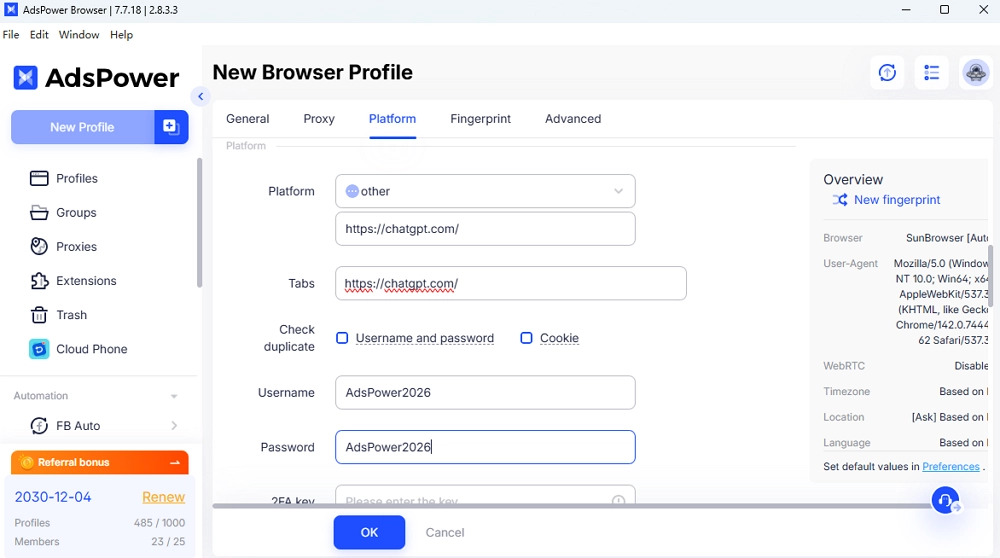
● Create a new profile in AdsPower
● Assign a dedicated proxy (preferably residential rotating proxy for realistic routing)
● Enter chatgpt.com site link and username/password into the Platform areas
● Use consistent OS and WebGL fingerprints
● Log into ChatGPT inside the isolated environment
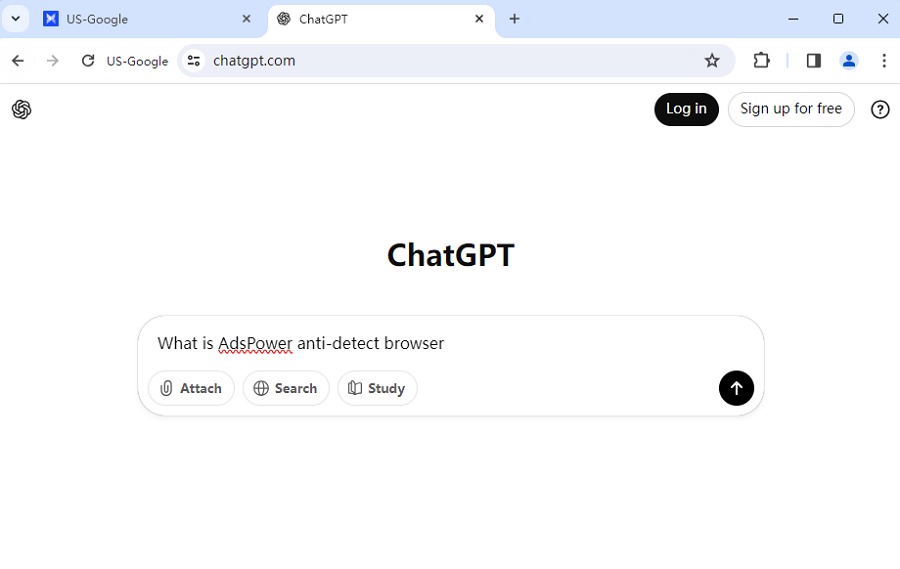
This setup minimizes false bot detection from ISP nodes or platform heuristics and improves streaming stability for ChatGPT requests.
4. Avoid fingerprint collisions
If ChatGPT is used across many browser sessions or accounts, ensure each profile uses independent cookies and no shared automation patterns. AdsPower automatically separates fingerprints, cookies, and sessions, helping maintain more consistent access.
5. Handle high-load ISP congestion
If your ISP is throttling AI services, switching routing paths using proxy inside AdsPower often resolves the issue faster than reconnecting locally.
6. Disable streaming-breaking extensions
● Turn off VPNs or proxies set at system level if already configured in AdsPower
● Disable ad-blockers or script-blocking extensions that interfere with ChatGPT streaming
How to Fix "Error in Message Stream"
The "Error in Message Stream" occurs when ChatGPT begins generating a response but the stream breaks before completion.
Recommended Fixes
1. Reload the conversation
- Close the chat and reopen
- Click "Regenerate response" if available
2. Check WebSocket connectivity
- Some networks block persistent WebSocket connections
- Using proxy routing inside AdsPower often restores stream paths
3. Reduce prompt payload size
- Extremely large prompts can fail mid-stream
- Split into smaller sections
4. Maintain session isolation
- AdsPower helps avoid cookie wipes or request collisions mid-stream
5. Reset browser state
- Clear cache
- Log back in under a clean profile
6. Test alternate routing paths
- Try a different proxy region (SG, JP, US West, AU, etc.)
7. Avoid automated burst-requests
- Rapid repeated regenerations may break streaming
If the error still appears after these steps, it is usually caused by packet loss or persistent routing disruption. In those cases, switching the access environment (like using AdsPower + proxy binding) often stabilizes message delivery better than repeated local reconnects.
How to Fix "Bad Error" or "Something Went Wrong"
These errors usually show up when ChatGPT cannot finish processing or returning a response, even though the service itself is still reachable. Most of the time, this is caused by short-lived server load spikes, broken routing paths, or unstable browser states rather than a permanent platform failure.
If you see these messages, don't assume the tool is out of service—many users recover from this within minutes by adjusting how they connect or retry.
1. Try again after a short pause
A brief wait often clears the error without needing further action.
2. Check system availability from neutral platforms
Common places to verify include:
● OpenAI status pages
● Downdetector
● Community tech forums discussing AI outages
These can help confirm whether the issue is local or widespread.
3. Reset browser state
To prevent session conflicts:
● Avoid reusing cookies across different browsers
● Clear cached session files if the browser feels unresponsive
● Log in again using an isolated profile
(AdsPower profiles are helpful here, as they keep cookies, routing, and fingerprints separated.)
4. Change the routing path
If your connection route is unstable, try:
● Switching proxy regions
● Reconnecting through a different network
● Using a residential proxy for cleaner exit nodes
5. Avoid double proxy or VPN layers
If proxy is already configured inside AdsPower, turn off system-level VPN or proxy to keep a single clean routing layer.
Keeping browser sessions isolated, using one stable routing layer, and avoiding oversized prompt bursts are the fastest ways to reduce repeated failures. AdsPower environments are particularly effective for stabilizing login and streaming channels when accessing ChatGPT remotely or across multiple profiles.
ChatGPT Not Loading or Stuck on a Blank Page
This issue often means the page cannot initialize ChatGPT's scripts or open a persistent connection channel. Common causes include network blocks, corrupted browser state, or extensions interrupting page resources.
Quick fixes:
● Refresh the browser and reopen the chat
● Test on another network or device
● Disable script-blocking extensions temporarily
● Clear cache and cookies, then sign in again
Reducing ChatGPT Errors with Stable Browser Environments
A stable browser environment can lower interruptions for logins and message streaming. AdsPower browser helps by creating isolated browser profiles with independent cookies, fingerprints, and proxy routing.
Why this improves stability:
● No cookie overlap between profiles
● Dedicated proxy per browser session
● Cleaner routing for long message streams
● Reduced false bot-like signals from shared environments
This setup is especially useful when accessing ChatGPT remotely or under multiple browser profiles.
How to Prevent ChatGPT Errors Long-Term
Many errors can be minimized by keeping consistent browser state and stable routing.
Long-term checklist:
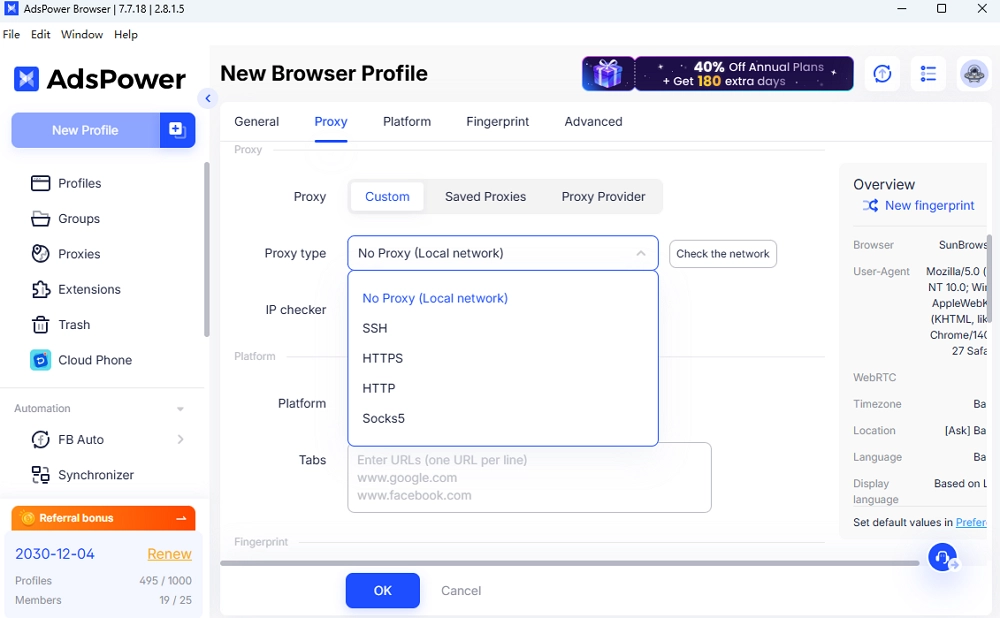
● Use one clean proxy layer per browser profile
● Keep cookies separated between sessions
● Update browser or app versions regularly
● Split extremely long prompts into smaller parts when possible
● Avoid simultaneous logins from conflicting network paths
Using isolated profiles such as AdsPower + bound proxy routing remains one of the most reliable ways to maintain stable access and message streaming.
For users who rely on ChatGPT daily, especially across remote or multi-profile environments, testing ChatGPT inside an isolated AdsPower browser profile can significantly reduce repeated errors.
Conclusion
In practice, ChatGPT errors are solvable when you identify whether the failure is network-based, stream-related, or caused by environment conflicts. Quick recovery often comes from reloading, regenerating, or switching routing paths. However, long-term reliability requires cleaner session management, a single stable proxy layer, and avoiding oversized or burst prompts. For users handling remote access or running multiple browser profiles, isolated environments like AdsPower—combined with well-routed residential proxies and independent cookies—offer a practical advantage by reducing request collisions and stream breaks. Stability improves when you test prompts in smaller parts and keep fingerprints and routing paths separated per session. With the right setup, interruptions become far less frequent and easier to recover from when they do occur.
FAQ
What is the bad error in ChatGPT?
A "Bad Error" is a general failure message shown when ChatGPT cannot complete a reply. It's usually temporary but can be caused by broken streams, bad routing, or session conflicts. Wait, regenerate, or reset an isolated browser profile (AdsPower helps).
Can browser environments affect ChatGPT stability?
Yes. ChatGPT needs clean cookies and stable persistent connections. Shared sessions, burst-requests, or overlapping proxies can break streams. Isolated browser profiles with single-layer residential proxy routing (AdsPower) improve stability.
Why does ChatGPT stop responding mid-answer?
ChatGPT can stop mid-answer when the message stream breaks due to WebSocket blocks, routing conflicts, or a corrupted browser session. This often happens on strict networks, public Wi-Fi, or layered VPN/proxy setups. Quick fixes: reload or regenerate. For better stability, test prompts in smaller parts, use clean cookies, remove double proxies, and run ChatGPT in isolated AdsPower profiles.
