

Explore the practical steps to switch accounts on Chrome, including mobile and desktop. Try AdsPower to switch and manage those accounts in a dashboard.
Switching between Google accounts in Chrome seems like a simple task, but many users quickly run into confusion - especially when Chrome syncs bookmarks, history, extensions, and passwords based on the active profile. Choosing the wrong account can easily mix personal and work data or even create login conflicts.
This guide explains how Chrome manages profiles, how to switch accounts across desktop and how to switch accounts on Chrome mobile, and how to organize multiple Google accounts more efficiently—particularly if you work with many profiles at once.
How Chrome Handles Accounts
To understand how to switch accounts correctly, it helps to know how Chrome organizes your data.
Chrome is fundamentally built around profiles, not just Google accounts. Most users only ever use one profile and simply log into different Google accounts inside it, which is where problems often begin.
Here's what each Chrome profile contains:
- Bookmarks
- Extensions
- Cookies and login sessions
- Passwords saved through Chrome Password Manager
- Autofill and payment methods
- Browsing history
- Themes and layout customizations
When you log into a Google account inside a profile, Chrome connects that account to the profile using Chrome Sync. This means everything browsed, saved, or autofilled becomes tied to the currently active profile.
Why this matters
If you use only one Chrome profile but switch between multiple Google accounts (Gmail, Drive, YouTube, Workspace), you may experience:
- Mixed search histories
- Wrong bookmarks appearing in work or personal sessions
- Login conflicts (e.g., logging into Google Ads with the wrong account)
- Cookies leaking between accounts
- Verification loops
- Data syncing to the wrong Google account
- Confusion between personal and business sessions
This is why Chrome's profile switching is often the cleanest and safest way to switch Google identities-especially for users who manage sensitive information across many accounts.
How to Switch Accounts on Chrome
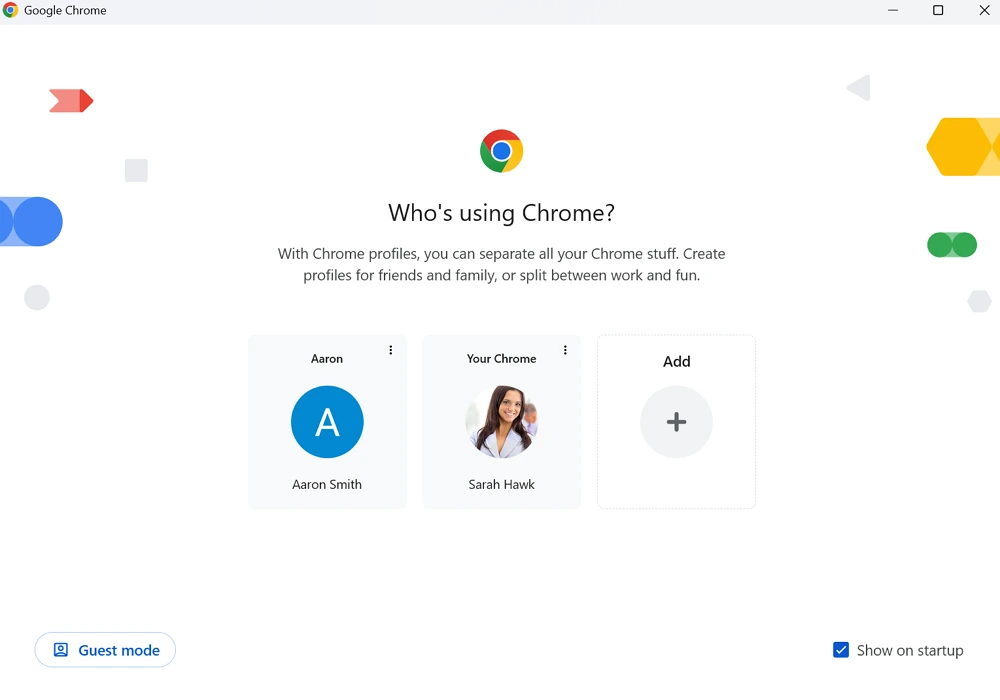
The steps below show how to switch accounts properly on desktop, iPhone/iPad, and Android. We’ll cover both methods:
1. Switching Google accounts inside a Chrome profile
2. Switching entire Chrome profiles (recommended for clean separation)
Switching accounts on the Desktop
Switching accounts on the desktop is much more flexible than on mobile. You can choose between switching Google accounts directly or switching entire Chrome profiles, depending on how cleanly you want your data separated. If you’re looking for how to switch Google accounts on Chrome, the desktop version gives you the most control and the smoothest experience..
Method 1: Switching Google Accounts Inside Chrome (Quick Switch)
This is a fast way to use different Google accounts without changing Chrome profiles.
1. Open Chrome.
2. Visit any Google service (Gmail, YouTube, Drive, etc.).
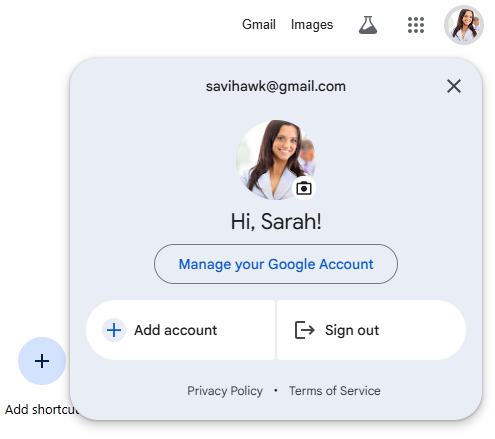
3. Click your profile picture at the top right.
4. You will see a list of all Google accounts currently logged in.
5. Click the account you want to switch to.
6. Google instantly loads that account-no sign-out required.
You can also click Add account to log in with a new Google identity.
This method is fast, but it does not isolate cookies or data. All accounts still share the same Chrome profile, which can cause login mix-ups if you work with multiple professional accounts.
Method 2: Switching Chrome Profiles (Recommended)
Chrome profiles act like completely separate browsers running inside Chrome. Each has its own Google login, bookmarks, extensions, cookies, and sessions.
To switch profiles:
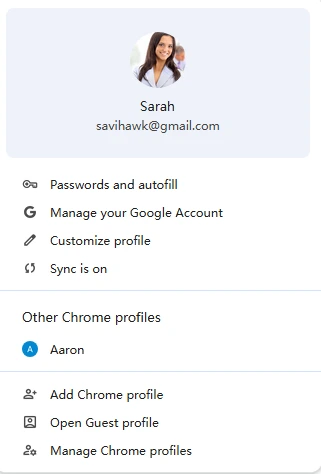
1. Click your profile icon in the top-right corner of the browser.
2. A panel will appear showing all Chrome profiles.
3. Select the profile you want to switch to.
4. Chrome opens a new window with that profile’s data.
This ensures:
- No data overlap
- No mixed bookmarks
- No cookie sharing
- No cross-account detection
- Separate extensions
- Clear personal vs. work identity management
If you use Chrome for work, school, side projects, or multiple Gmail accounts, using profiles is the best long-term solution.
How to switch Chrome accounts on iPhone
Chrome on iOS does not support multiple browser profiles. Apple restricts system-level browser identity management, so your only option is switching Google accounts inside the Chrome app.
To switch accounts:
1. Open Chrome on your iPhone or iPad.
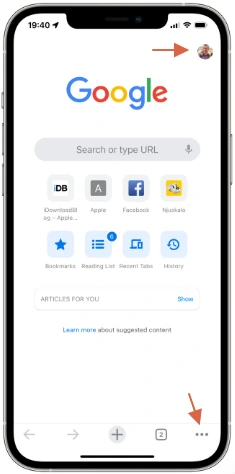
2. Tap the three dots (•••) at the bottom right.
3. Tap Settings.
4. Under You and Google, tap your email address.
5. Choose another logged-in account or tap Add Account.
6. Chrome will sync that account’s data (history, passwords, etc.) according to your settings.
Because there's no profile isolation, all accounts on iOS share the same browsing environment. If you heavily rely on multiple accounts or workspace identities, switching frequently on iOS may become cumbersome.
How to switch Chrome accounts on Android
Chrome on Android is more flexible because Google accounts are integrated at the system level.
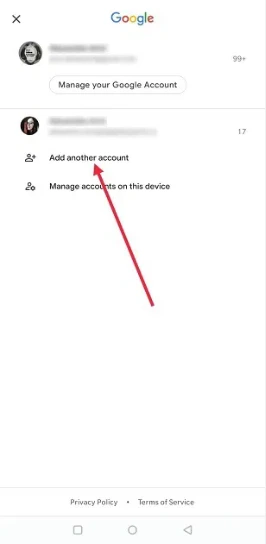
To switch accounts:
1. Open Chrome.
2. Tap the three dots (•••) in the top-right corner.
3. Select Settings.
4. Tap your email address at the top of the screen.
5. Choose from existing device-linked Google accounts, or tap Add another account.
6. Select sync preferences.
Android also syncs Google accounts from Settings → Accounts → Google, so adding an account to your phone automatically makes it available in Chrome.
One advantage of Android is smoother account switching, especially for users who rely on multiple Gmail inboxes or Drive folders.
Managing Multiple Google Accounts in Chrome Efficiently
If you work with a small number of accounts-maybe one personal Gmail and one work Google Workspace login-Chrome’s built-in tools are often enough. But if you manage 5, 10, or more accounts, efficiency and organization become essential.
Here are strategies to stay organized:
1. Use Chrome Profiles for Clear Separation
Create a dedicated profile for each major identity:
- Personal
- Work
- Freelance
- School
- Client A / Client B
- Social media projects
- E-commerce accounts
Each profile has its own cookies, extensions, bookmarks, and logins.
2. Use Color Coding
Chrome allows different themes or colors per profile, helping you instantly recognize which profile you're using.
3. Customize Extensions Per Profile
Work profiles can include productivity tools, while personal profiles can stay lightweight.
4. Disable "sync everything" if switching often
You can customize what Chrome syncs, avoiding unwanted data overlap.
5. Keep accounts signed in
Chrome supports multiple simultaneous Google sessions, so there’s no need to sign out.
6. Use separate passwords or password managers
To reduce mistakes and keep work/personal accounts secure.
Even with good organization, Chrome still has limitations-especially for people who manage many accounts professionally. That’s where AdsPower browser comes in.
Advanced Chrome Account Management with AdsPower
Chrome was built for regular users - not people managing 20, 50, or 200 Google accounts across multiple projects.
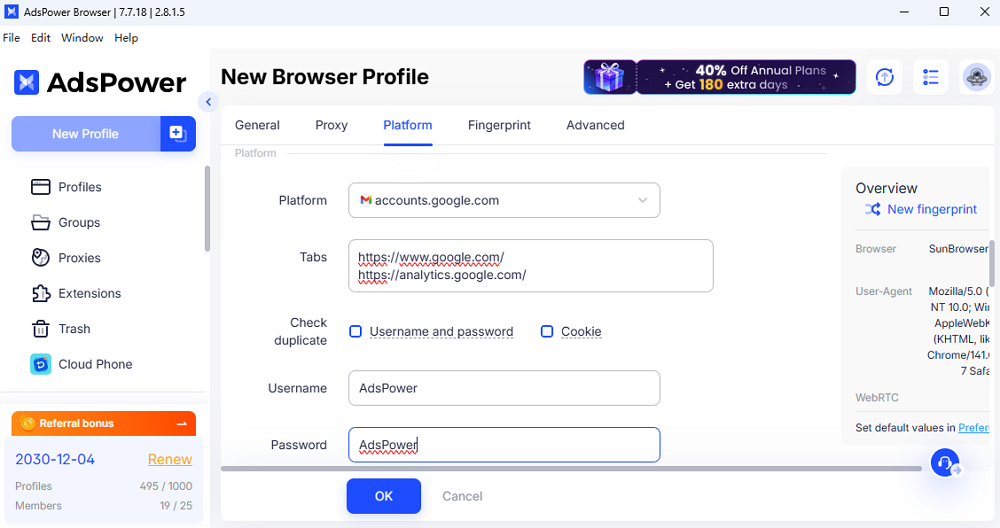
AdsPower solves this by offering browser profile virtualization with built-in anti-detect technology. Each profile behaves like a completely separate device with its own fingerprint.
What AdsPower Provides
- Unique browser fingerprints for every profile
- Isolated cookie environments (no cross-tracking)
- Built-in proxy support for each profile
- Massive scalability - hundreds or thousands of accounts
- Tagging and folders for organizing clients or projects
- Team collaboration (share profiles securely)
- Automation tools (RPA) for repeated tasks
- Lower risk of verification loops
- Better account safety for platforms like Google, Facebook, Amazon, TikTok, etc.
Why AdsPower Is Better for Multi-Account Users
When you manage large volumes of accounts-content creation, e-commerce stores, affiliate marketing, paid ads, client Google accounts, etc.-Chrome cannot isolate fingerprints sufficiently. This can lead to:
- Account linking
- Suspicious login flags
- Bans
- Repeated verification codes
- Tracking issues across platforms
AdsPower's anti-detect system avoids these problems. Each profile behaves like a unique device from a unique location, making it the preferred tool for agencies and professional account managers.
Learn how to create and manage Google account in AdsPower browser >>
Chrome Profiles vs. AdsPower: Which One Should You Use?
|
Feature |
Chrome Profiles |
AdsPower |
|
Number of profiles |
Limited by system resources |
Hundreds or thousands |
|
Cookie isolation |
Good |
Excellent (full sandbox) |
|
Browser fingerprint |
Identical for all profiles |
Unique for every profile |
|
Proxy integration |
Manual |
Built-in for each profile |
|
Account safety |
Basic |
Professional-grade anti-detect |
|
Automation |
Not available |
Full RPA automation |
|
Team collaboration |
None |
Yes |
|
Best for |
Light or medium use |
Heavy, professional use |
If you only manage 2–4 accounts, Chrome Profiles work well.
But if you handle accounts at scale-client accounts, marketing, e-commerce, or multi-brand workflows-AdsPower offers the isolation, automation, and security Chrome can’t provide.
Best Practices for Managing Multiple Google Accounts
When you use several Google accounts across work, personal tasks, and different projects, switching can quickly become messy. Following a few simple practices helps keep accounts organized, prevents data overlap, and ensures smoother browsing in Chrome. These habits also reduce mistakes that often lead to lockouts or the need for Google Account Recovery.
1. Create separate Chrome profiles
Use individual profiles for major accounts to keep cookies, bookmarks, and settings fully isolated.
2. Customize Chrome Sync settings
Turn off Sync or limit it for accounts that shouldn’t share bookmarks or passwords.
3. Use a password manager
Storing credentials outside Chrome helps prevent accidental syncing across accounts.
4. Label profiles clearly
Use distinct names and colors like "Work," "Personal," or "Client A" for quick identification.
5. Avoid switching accounts inside one profile
This reduces cookie conflicts, verification prompts, and incorrect account logins.
6. Keep sensitive accounts isolated
Finance, advertising, or admin accounts should have their own dedicated profile.
7. Use AdsPower for large-scale account management
For those handling many accounts professionally, AdsPower provides true isolation with unique fingerprints and proxy support.
FAQ
How to switch Google accounts on Chrome without signing out?
Just click your profile photo (desktop) or go to Chrome Settings (mobile) and select another account already logged in. Chrome supports multiple active sessions, so switching is instant. For cleaner separation, use different Chrome profiles for each account.
Why does Chrome switch to the wrong Google account?
This usually happens when multiple accounts share one Chrome profile. Google defaults to the first account added. Sign out of all accounts on Google.com, log back in with your preferred primary account first, or use separate Chrome profiles for reliable switching.
Why do I keep getting verification prompts when switching accounts?
Google requests verification when it detects unusual activity, cookie overlap, or changes in IP/network. Switching accounts inside one profile can trigger these checks. Separate profiles-or tools with isolated environments-help maintain stable sessions and reduce verification prompts.
