

How to Transfer Data from One ChatGPT Account to Another
Take a Quick Look
Understand why ChatGPT chats can't be merged, how to back up conversations, and better ways teams manage access. Learn smarter workflows now.
Switching between ChatGPT 5 accounts can happen for many reasons. You might have signed up with a personal email first and later created a work account. Maybe your team now uses a shared business login, or you simply want to keep professional and personal chats separate. Whatever the reason, many users eventually wonder how to move their ChatGPT history from one account to another.
This guide explains what "data transfer" really means in the ChatGPT context, what is and isn't officially supported, and how individuals and teams can manage conversation history more efficiently. It also covers alternative workflows, including using tools like AdsPower to access multiple accounts without constantly copying data back and forth.
What "ChatGPT Data Transfer" Means
When people talk about "transferring data" between ChatGPT accounts, they usually mean moving conversation history — past prompts, responses, and threads — from one login to another.
In practice, ChatGPT data includes:
– Conversation threads and message history
– Custom instructions or settings tied to an account
– Uploaded files within chats (where supported)
– Saved GPTs or custom tools (depending on plan and features)
However, this is not the same as transferring ownership of an entire account. Each ChatGPT account is tied to a specific login identity (email or sign-in provider). There is no simple "merge accounts" button that combines everything automatically.
So, "data transfer" usually means exporting conversations from one account and making them accessible in another form, either by saving them as files or by using tools that allow multiple people to view the same account safely.
Can You Transfer a ChatGPT Account to Another Email?
Many users hope they can just change the email on an existing account and keep everything the same. In most cases, this is limited or not supported in the way people expect.
A ChatGPT account under OpenAI is linked to the original authentication method you used to sign up (Google, Apple, Microsoft, or email/password). You generally cannot "move" the full account, including all past conversations, to a completely different, unrelated login as if it were a file.
What you can usually do:
– Update certain profile details (like name)
– Manage billing details if you're on a paid plan
– Export your chat data for personal storage
What you usually cannot do:
– Directly merge two separate ChatGPT accounts
– Instantly reassign all history from one login to another
– Transfer subscriptions between unrelated accounts without going through cancellation and re-subscription steps
Due to these limits, users needing access with a different email often export their data. They may reuse it externally or opt for account-sharing instead of strict "migration."
Can Two Users Share One ChatGPT Account?
Technically, yes — two people can log into the same ChatGPT account if they share the login credentials. But this comes with several important considerations.
Pros:
– Both users see the same chat history.
– No need to transfer messages.
– Great for small teams, assistants, or support roles.
Risks and limitations:
- Security issues if login details are shared easily.
- Risk of security checks from logins at different locations or devices.
- Confusion about who started each conversation.
- Possible terms violations based on access use and sharing.
For individuals casually collaborating, shared access may work short-term. For businesses or agencies managing multiple AI workflows, simply passing around a password is not a safe or scalable method.
This is where controlled multi-account management tools come in, which we'll cover later.
How to Transfer ChatGPT Conversations to Another Account
There is no built-in "import chats" button in ChatGPT. But you can export your data and then reuse or reference it in a new account.
To transfer conversations between ChatGPT accounts, start by exporting your data. This follows OpenAI's official guidance.
Step 1: Export Data from the Original Account
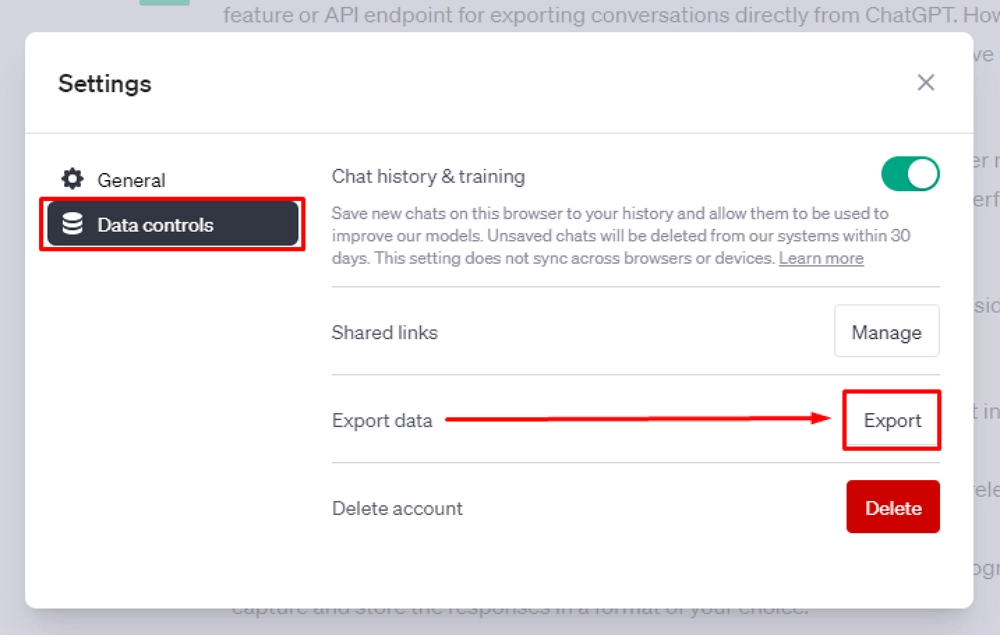
Sign in to the ChatGPT account where the conversations you want to transfer are stored.
Go to your account settings and request a data export. You will receive a downloadable file, usually by email. This file contains your chat history in formats such as JSON or HTML.
The export typically includes:
- Your conversation history
- Timestamps
- Message roles (user and assistant)
Step 2: Save and Organize Your Conversations
After downloading the files, you can:
- Open HTML files to read chats like webpages
- Store JSON files for structured archiving
- Copy important conversations into documents or knowledge bases
At this stage, your data is preserved outside ChatGPT.
Step 3: Reuse Content in the New Account
Since ChatGPT does not support direct imports, you manually reuse important information:
- Copy and paste key prompts and answers into new chats
- Summarize old threads and continue them in a fresh conversation
- Store reference material in tools like Notion, Google Docs, or an internal wiki
This method is more like "migration by reference" than a direct transfer.
Alternative: Share access instead of transferring
If the goal is simply for another person to view or continue the same chat history, constant exporting and copying can be inefficient.
In this case, some teams use AdsPower to share access to a ChatGPT account in a more controlled way. AdsPower allows you to create isolated browser profiles with their own cookies and session data. Instead of logging into the same account on many devices, you can:
- Create a dedicated browser profile for the ChatGPT account
- Share that profile with teammates
- Let them access the same session and conversation history without exposing passwords everywhere
This keeps all history in one place while allowing multiple people to use the account more safely.
ChatGPT Migration for Teams and Businesses
For companies, agencies, and content teams, the issue is rarely just one person moving accounts. It's usually about continuity, collaboration, and workflow stability.
Common business scenarios:
- When a staff member leaves, their ChatGPT workflows need to keep going.
- A team requires shared access to research or prompt libraries.
- Different departments use ChatGPT for various purposes.
Instead of trying to merge personal accounts, businesses often adopt one of these approaches:
Centralized Team Accounts
One or more shared ChatGPT accounts are created specifically for business use. All work-related prompts and outputs stay in those accounts, separate from personal usage.
External Knowledge Base
Important ChatGPT outputs are saved in a shared documentation system. ChatGPT becomes a tool for generating ideas, but the long-term storage happens elsewhere.
Controlled Multi-Login Management
Teams can use tools like AdsPower to manage many ChatGPT accounts. Each account stays for one project, client, or function. This keeps sessions separate and avoids security issues.
This "system-level" thinking is often more reliable than moving chat logs between personal accounts.
How AdsPower Helps Manage Multiple ChatGPT Accounts Safely
When handling multiple ChatGPT accounts, browser-level separation becomes important.
Isolated browser profiles
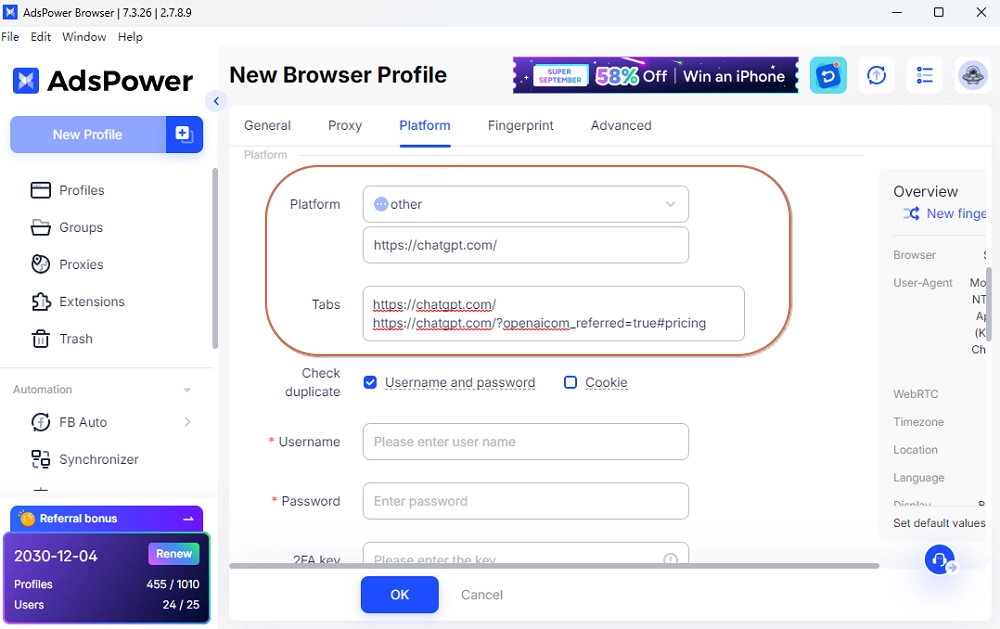
Each AdsPower profile has its own cookies, local storage, and browser fingerprint. This keeps one ChatGPT login separate from another.
Team collaboration
You can set access permissions. This lets team members share specific ChatGPT browser profiles. They won't see unrelated accounts.
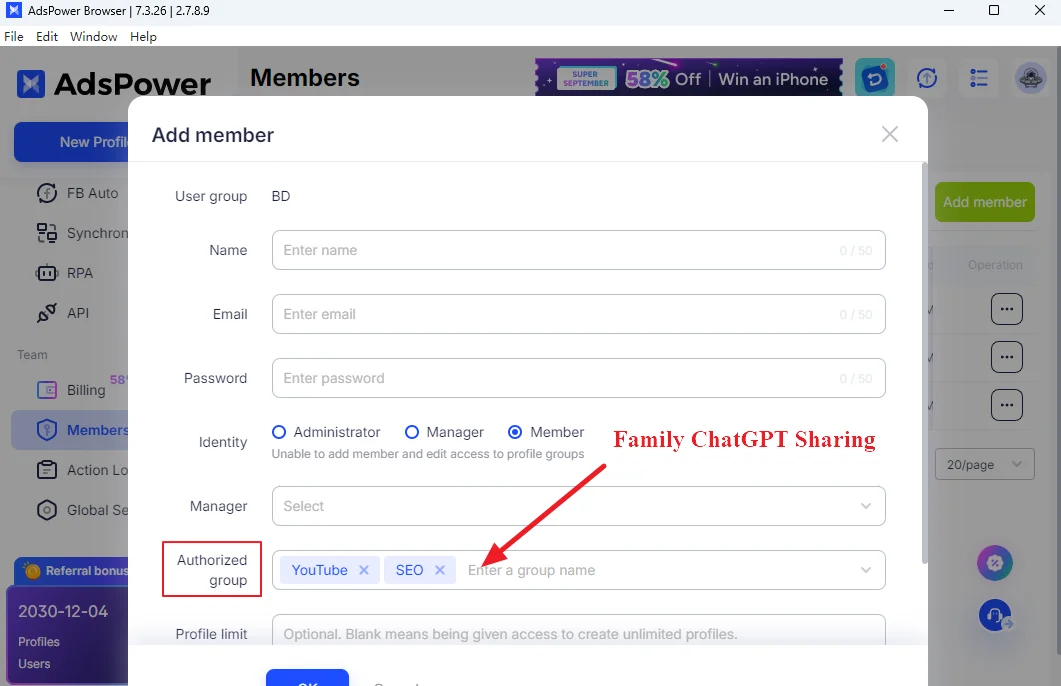
Reduced login conflicts
Each profile acts like its own device. You're less likely to trigger repeated checks or warnings about suspicious activity from constant switching.
Stable sessions
After you log in, your ChatGPT session stays the same in that browser profile. This includes your conversation history.
For teams that do not need to "transfer" chats but do need shared access or multiple accounts, this setup is often more practical than manual exports.
Conclusion
Transferring data between ChatGPT accounts isn't built-in, but you can keep your information accessible. You can't merge accounts or import full chat histories, so most users export their data and reuse key conversations manually. Keeping key prompts, responses, and notes in documents or knowledge tools helps you stay organized when switching accounts. For individuals, this approach usually preserves valuable ideas and workflows. For teams and businesses, easy access and smooth collaboration matter more than strict data migration.
Many organizations avoid copying chats over and over. They use centralized accounts and shared document systems instead. Tools like AdsPower help manage access securely and keep sessions stable. Combine data exports with smart account management. This way, you can keep your ChatGPT knowledge organized and accessible, no matter where you work.
FAQ
How do I export all chats from ChatGPT?
You can export your ChatGPT data from your account settings. After requesting a data export, you will receive a download link, usually by email. The files contain your conversation history and can be opened or stored as archives. This is currently the main way to back up all your chats.
Can I import my ChatGPT history?
There is no official feature that allows you to import old chat history into another ChatGPT account. You can save your exported conversations outside the app. When needed, copy important parts into new chats. However, automatic restoration in another account is not supported.
Can I move my ChatGPT subscription to another account?
Subscriptions are generally tied to the original account you used to sign up. In most cases, you cannot directly transfer an active subscription to a different, unrelated account. If you need your plan under a new login, you usually have to cancel the current subscription and subscribe again on the new account.
What is the safest way for a team to share one ChatGPT account?
The safest approach is to avoid sharing passwords informally. Instead, use structured access methods such as dedicated team accounts, shared documentation systems, or browser profile tools like AdsPower that allow controlled access to the same session. This reduces security risks and helps keep login activity more stable and manageable.

People Also Read
- 8 Best StreamEast Alternatives in 2026: Free and Paid Options
8 Best StreamEast Alternatives in 2026: Free and Paid Options
Compare 8 free and paid live sports streaming sites in 2026 and learn how to watch more safely with AdsPower browser profiles
- How to Browse Facebook Anonymously: 6 Ways to Stay Private

How to Browse Facebook Anonymously: 6 Ways to Stay Private
Learn how to browse Facebook anonymously using 6 practical methods, including incognito mode, VPNs, proxies, AdsPower profiles, and cloud phones.
- 7 Games That Pay Real Money in 2026

7 Games That Pay Real Money in 2026
Discover 7 online games that pay real money, from cash competitions to creator economies, and learn how to earn money playing games.
- Google Unusual Traffic: Keep Getting the Warning? Here's How to Fix It
Google Unusual Traffic: Keep Getting the Warning? Here's How to Fix It
Seeing a Google unusual traffic warning? Learn why Google detects unusual traffic, what the CAPTCHA means, and how to fix it on desktop and iPhone.
- YouTube "Sign in to Confirm You're Not a Bot": Fixes & CAPTCHA Tips
YouTube "Sign in to Confirm You're Not a Bot": Fixes & CAPTCHA Tips
Seeing "Sign in to confirm you're not a bot" on YouTube? Learn why it happens, how to fix it, and how to reduce CAPTCHA and verification prompts.
