A practical guide to sharing Google Ads accounts securely, choosing the right access roles, and managing collaboration efficiently for advertisers and agencies. Try to protect those Google accounts access with AdsPower browser.
Sharing access to a Google Ads account sounds simple, yet it is one of the most common causes of campaign disruptions, billing confusion, and even account reviews. Advertisers often need to collaborate with agencies, freelancers, or internal teams, but few know the safest way to share Google Ads accounts without exposing sensitive settings or triggering security checks. One wrong permission choice or login habit can quietly create long-term risks.
This guide explains exactly how Google Ads account access works, which user roles to assign, and how to share access using official methods that follow Google's policies. It also covers common mistakes, security considerations, and practical ways agencies manage multiple accounts at scale. If your goal is smoother collaboration, clearer ownership, and fewer access-related issues, this article will help you make informed decisions before granting access.
How Google Ads Account Access Works
Google Ads does not support password sharing. Instead, it uses user-based access. Each person logs in with their own Google account and gets a specific permission level.
There are two main ways to share access:
- Direct user access inside a Google Ads account
- Manager account (MCC) access, often used by agencies
Both methods are official and compliant with Google Ads policies. Choosing the right one depends on who you are working with and how much control they need.
Google explains this clearly in its help documentation, which is worth bookmarking for reference: https://support.google.com/google-ads/answer/9978556
Know About Google Ads User Roles (And Which One to Use)
Before you share a Google Ads account, you need to understand user roles. Assigning the wrong role is one of the most common mistakes advertisers make.
Admin
- Full control over the account
- Can add or remove users
- Can change billing and settings
- Use admin access only for account owners or trusted senior managers.
Standard
- Can create and edit campaigns
- Can view reports and performance data
- Cannot manage users or billing
- This role works well for agencies, freelancers, and media buyers.
Read-only
- Can view campaigns and reports
- Cannot make changes
- Ideal for analysts, auditors, or stakeholders who only need insights.
Email-only
- Receives notifications and reports
- No account access
- Useful for clients who want updates without logging in.
Choosing the right role protects your account and keeps responsibilities clear.
How to Share a Google Ads Account
Sharing access takes only a few minutes when done correctly.
How to Give Someone Access to Your Google Ads Account
Follow these steps:
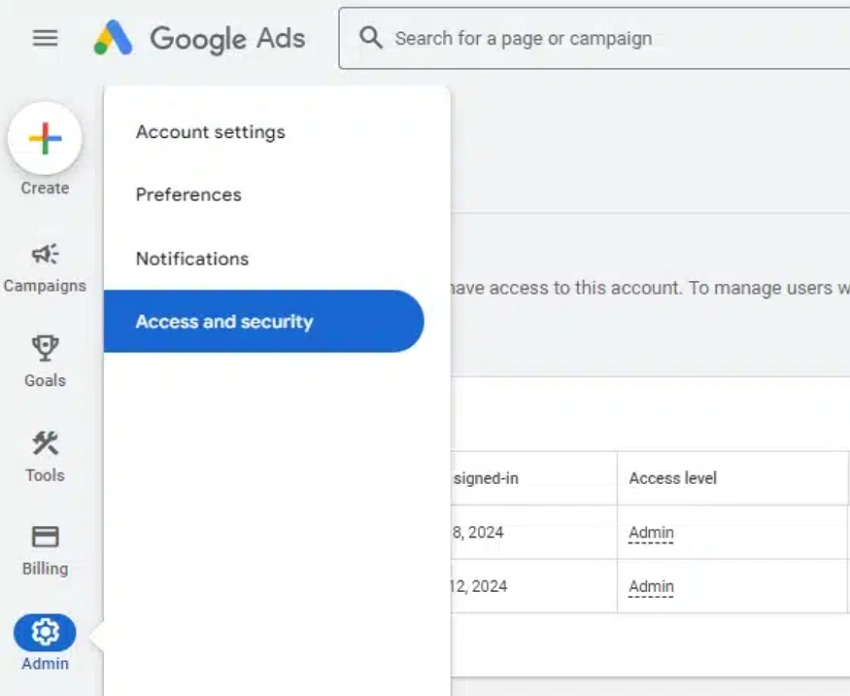
- Log in to your Google Ads account
- Click Tools & Settings
- Select Access and security
- Click the plus icon to add a user
- Enter the person's email address
- Choose the appropriate access level
- Send the invitation
The invited user must accept the request before access becomes active.
What Happens After You Send the Invitation?
Once the invitation is sent:
-The user receives an email from Google Ads
-They must accept it using the same email address
-You can track invitation status in Access and security
If the invite stays pending, ask the user to check spam folders or confirm the email address.
Share Google Ads Account via AdsPower Browser
Google Ads access control handles permissions, but it does not manage how people log in. This is where many advertisers face trouble.
When multiple users log in from different locations, devices, or browsers, Google may flag the account for unusual activity. This is common for agencies and freelancers.
AdsPower antidetect browser helps solve this issue by providing:
- Isolated browser profiles for each Google Ads account
- Separate cookies, fingerprints, and environments
- Secure team collaboration without sharing passwords
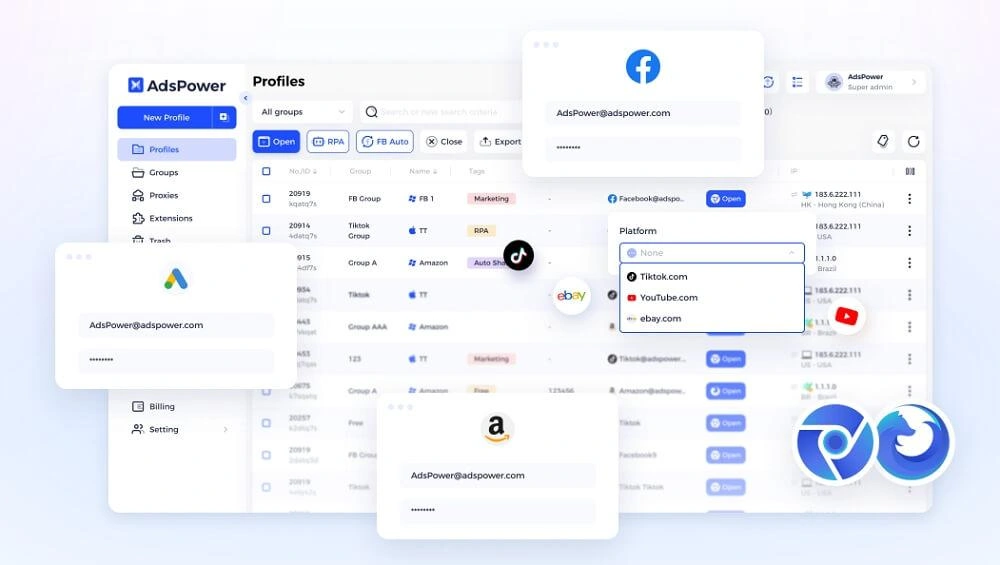
Instead of logging into the same account from random devices, each team member uses a controlled browser profile. This reduces verification prompts and lowers account risk.
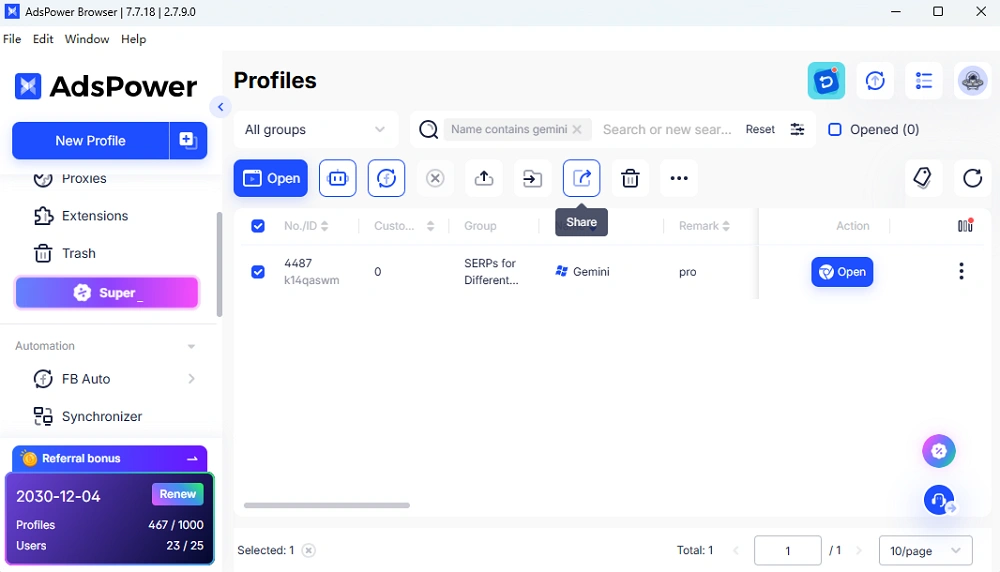
Steps to Share Google Ads Accounts:
- Create profiles for each Google Ads account in AdsPower browser.
- Move back to the profile list and select the ideal profile.
- Click the "Share" icon on the top sidebar and enter the receiver's information.
- Save your settings. Then notify the receiver to access the profile so that he/she can run the Google account freely.
Managing Google Ads Access with a Manager Account
For agencies and consultants, a Google Ads Manager Account, also called an MCC, is often the better choice.
When a Manager Account Makes Sense
- You manage multiple client accounts
- Clients want to keep ownership
- You need a clean separation between accounts
How to Link a Google Ads Account to a Manager Account
- Log in to your Manager Account
- Copy the Manager Account ID
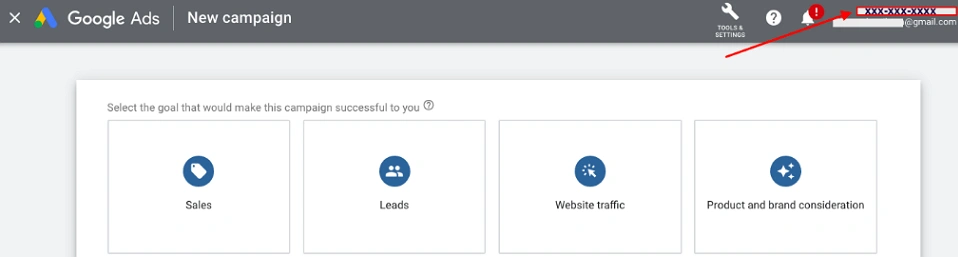
- Send a linking request
- The client approves the request from their account
- Once linked, you can manage campaigns without being added as a direct user.
MCC Access vs Direct User Access
- Direct access works well for small teams
- MCC access is better for agencies and long-term client work
Many agencies combine MCC access with AdsPower to manage dozens of accounts in parallel.
[Fixed] Common Issues When Sharing Google Ads Accounts
Even when following the rules, issues can happen. Here are common problems and how to fix them.
Invitation not received
Check the email address and spam folder. Resend the invite if needed.
Wrong permission level
Edit the user role in Access and security. Changes apply instantly.
Billing access missing
Billing permissions are separate. Make sure the user has the correct billing role.
Access removed by mistake
Re-add the user and confirm the role before sending the invite again.
Account Security Risks When Multiple People Manage Google Ads
Sharing access increases responsibility. It also increases risk if not managed carefully.
Common risks include:
- Logins from many countries in a short time
- Frequent browser or device changes
- Shared credentials between team members
- These patterns can trigger account reviews or temporary restrictions.
To reduce risk:
-Avoid password sharing
-Use role-based access
-Limit admin users
-Review access regularly
-Combine Google permissions with tools like AdsPower for environment isolation
Try AdsPower Antidetect Browser to Manage Shared Google Ads Accounts
For advertisers and agencies working at scale, access control alone is not enough.
AdsPower antidetect browser adds another layer of protection by separating login environments. Each Google Ads account (including the shared profile and the self-created profile) runs in its own profile, with consistent browser data and IP settings.
This approach is useful for:
-Agencies managing many clients
-Freelancers handling multiple brands
-E-commerce teams running several ad accounts
If you want to reduce login issues and keep accounts stable, AdsPower is worth testing. You can start with a trial to see how it fits your workflow.
Final Thoughts
Sharing a Google Ads account is simple when done the right way. Use Google's official access system, assign roles carefully, and review permissions often. For teams and agencies, combining Google Ads access with AdsPower antidetect browser can help reduce operational risk and keep accounts stable.
If you want more details, always refer to Google's official help center and test tools in a controlled setup before scaling.
FAQ
1. How can I give someone access to my Google Ads account?
Go to Tools & Settings, open Access and security, add the user's email, choose a role, and send the invitation. The user must accept it before access is active.
2. What's the difference between MCC access and user access?
User access is added directly inside an account. MCC access links accounts to a manager profile. MCC is better for agencies managing multiple clients.
3. Can I give access without admin permissions?
Yes. Standard, read-only, and email-only roles allow collaboration without full control. Admin access should be limited to trusted owners.
